156 • Crestron Zūm® Wired Solutions Product Manual — Doc. 9349B
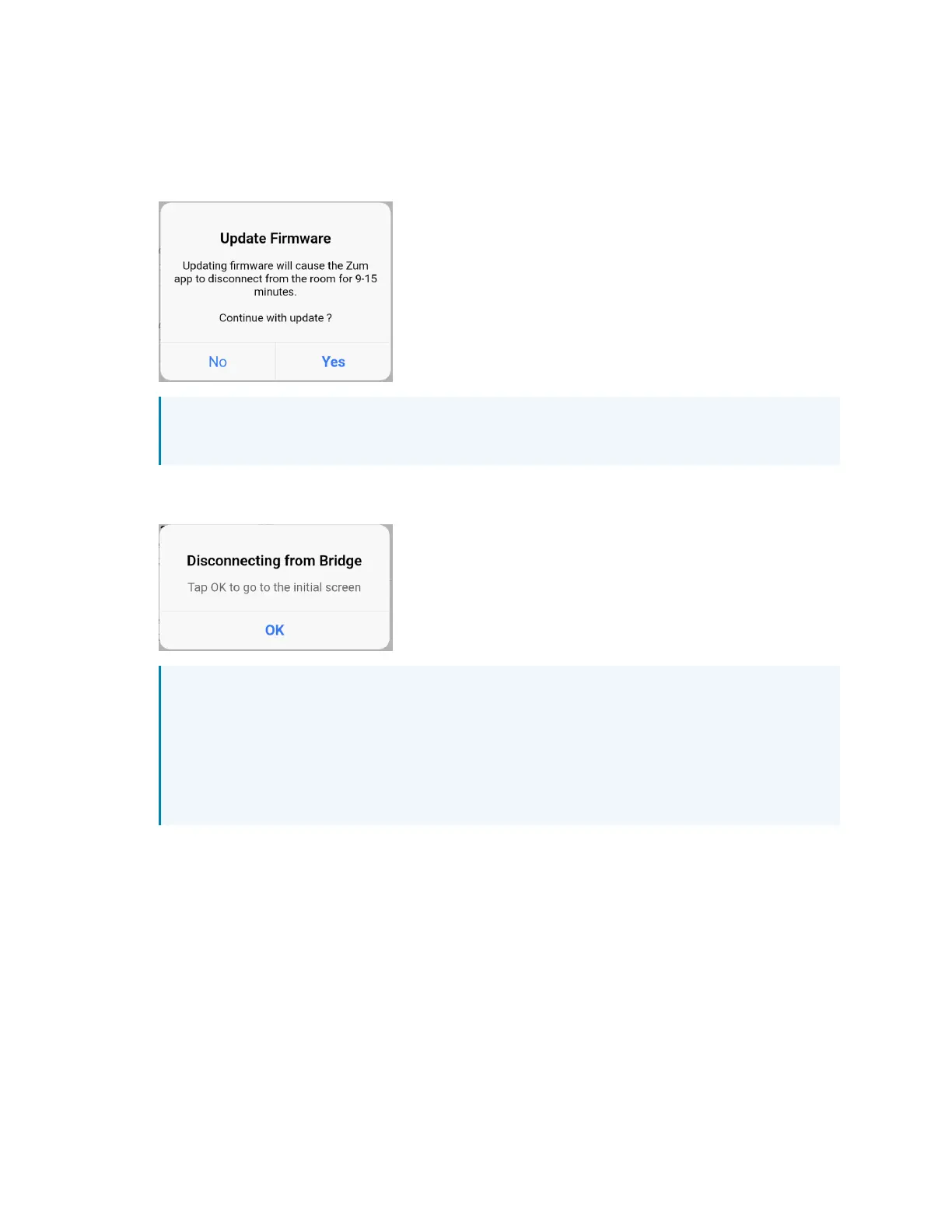
3. When the Update Firmware confirmation displays, select Yes to continue or No to cancel
and return to Firmware. The confirmation also estimates the amount of time the update
will take based on the number of devices being updated. During the update, the Zūm space
disconnects from the room.
NOTE: The Zūm space is inaccessible via Bluetooth until the firmware update process
is complete.
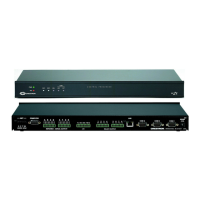
4. When the Disconnecting from Bridge message displays, tap OK to go back to Nearby
Rooms.
NOTE: The devices in the Zūm space may still be updating and inaccessible via
Bluetooth when you are redirected to Nearby Rooms. The space reappears in Nearby
Rooms when the devices are updated.
To confirm the devices have finished updating, observe the LINKLED on the primary
load controller. While the update is in progress, the LED blinks red. When the update is
complete, the LED blinks green.
5. When the devices have finished updating, reenter the Zūm space and begin the firmware
update for the next device types (steps 2 through 4).
6. When all of the devices are updated in a Zūm space, repeat the process for every Zūm
space listed in Nearby Rooms.


 To Next Page