252 • Crestron Zūm® Wired Solutions Product Manual — Doc. 9349B
Assign a Floor ID to a Gateway
Assigning a Floor ID to a gateway helps gateways discover wireless devices with the matching
Floor ID. Set a device's Floor ID in the Zūm app before discovering the devices on the
ZUM-HUB4. The Floor ID drop-down menu options are numbers -40 to + 200 and Disabled. The
Floor ID can be negative to indicate a floor below ground or positive to indicate a level above
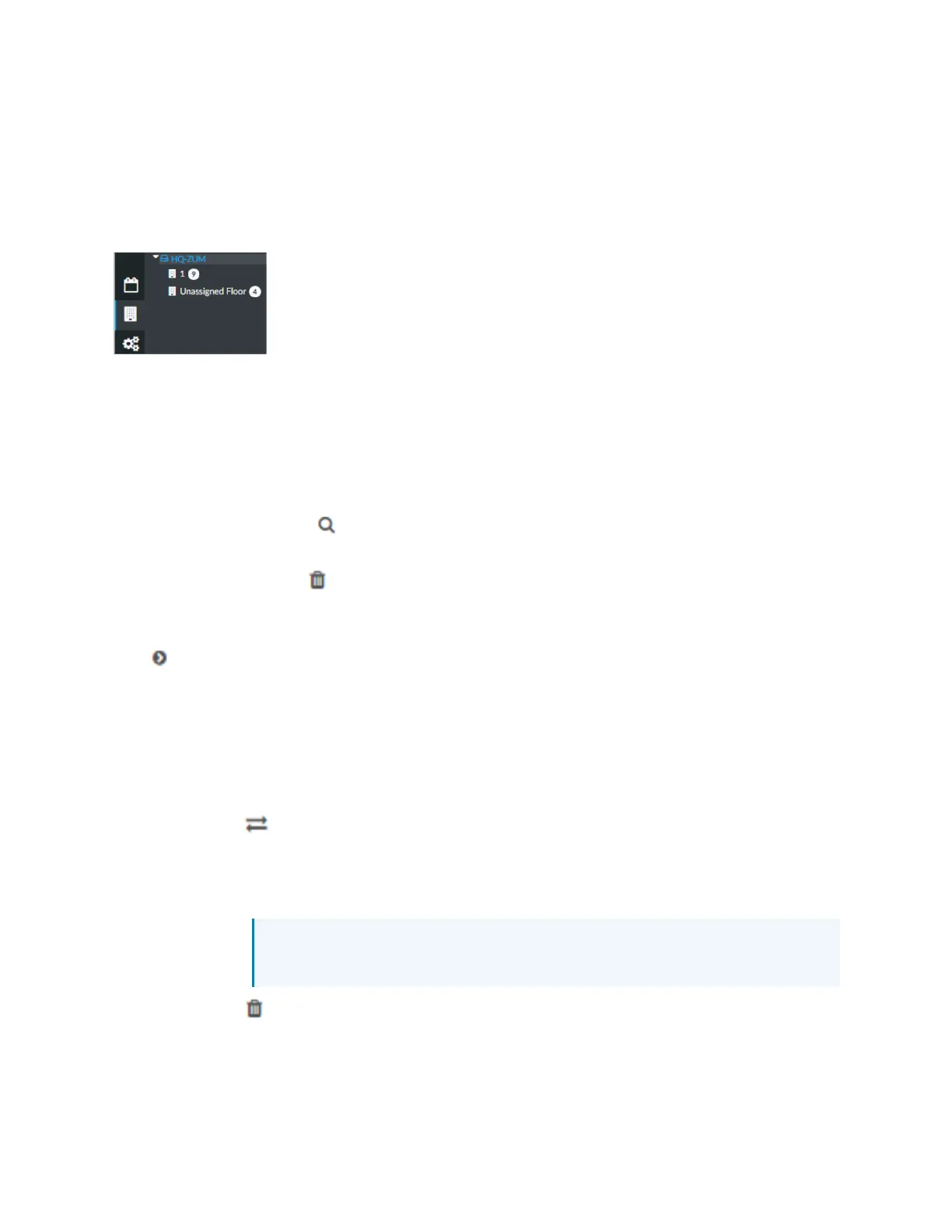
ground. Disabled categorizes the gateway to Unassigned Floor.
Assign a Zone ID to a Gateway
To designate different areas of a floor as a zone, assign a gateway a Zone ID. Assigning a Zone
ID to a gateway helps gateways discover wireless devices with the matching Zone ID. Set a
device's Zone ID in the Zūm app before discovering the devices on the ZUM-HUB4. The Zone ID
drop-down menu options are letter groupings AA to AZ and BA to BF.
Identify a Gateway
To identify a gateway, click . The SETUP LED on the gateway flashes.
Remove a Gateway
To delete a gateway, click . A confirmation window opens. Click Yes to delete the gateway, or
No to keep the gateway.
Review Rooms Assigned to a Gateway
Click next to a gateway to view its assigned rooms:
l
Netbridge: Lists assigned rooms.
l
Status: Displays Online or Offline to show the device status.
l
Floor ID: Inherits the Floor ID assigned to the gateway.
l
Zone ID: Inherits the Zone ID assigned to the gateway
l
Action: Move a room to a different gateway or remove a room.
o
Click to move a room. The Move window opens.
n
Select the desired gateway from the drop-down menu.
n
Click Move to move the room or Cancel to close the window without moving
the room.
NOTE: Moving a room to a gateway with different a Floor ID or Zone ID
changes the room's Floor ID or Zone ID to match the new gateway.
o
Click to remove a room. A confirmation window opens. Click Yes to delete the
room or Cancel to close the window without deleting the room.


 To Next Page