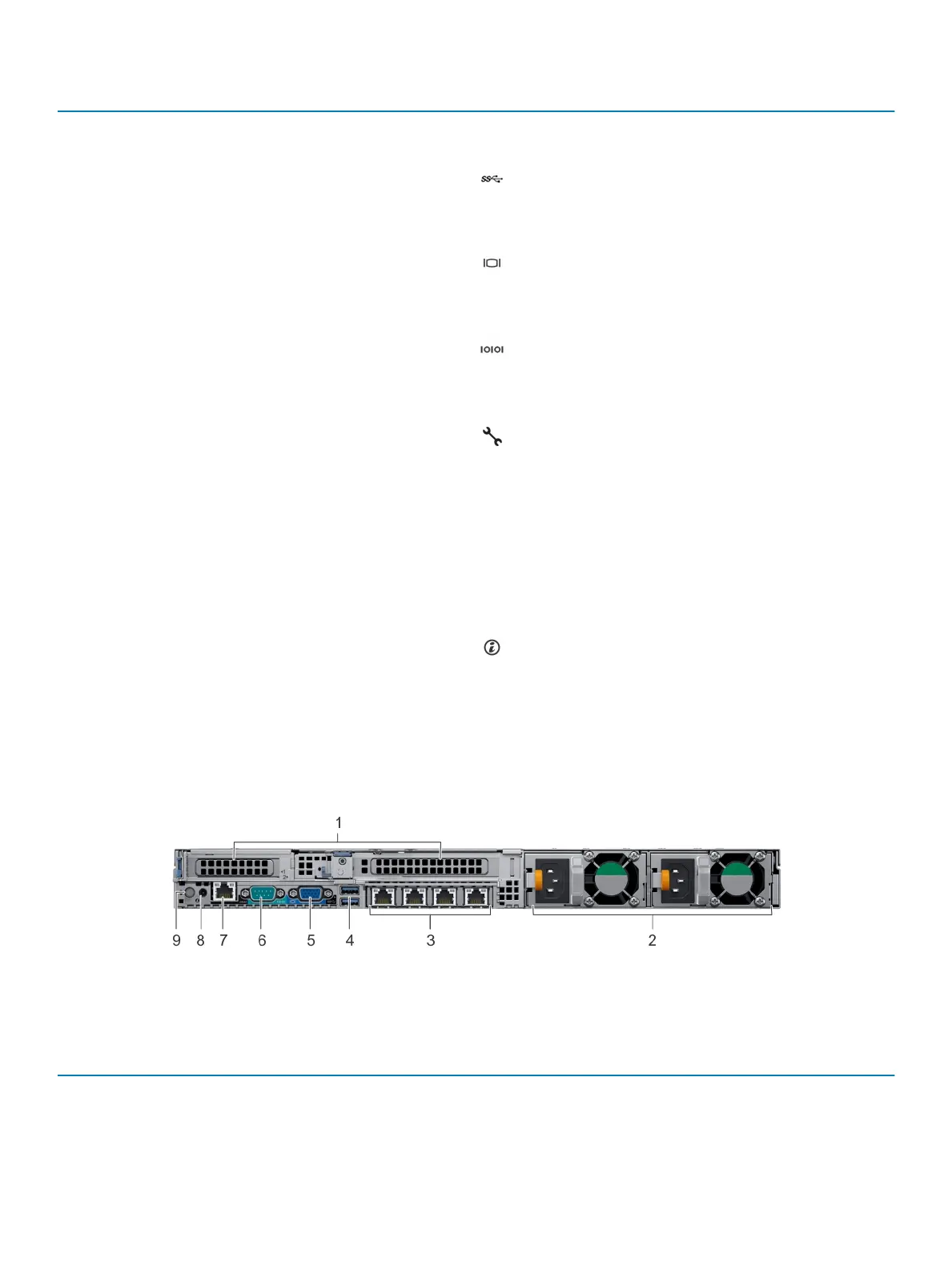
Item Ports, panels, or slots Icon Description
congurations, see the Technical
specications section.
4 USB 3.0 port (2)
The USB ports are 9-pin and
3.0-compliant. These ports
enable you to connect USB
devices to the system.
5 VGA port Enables you to connect a display
device to the system. For more
information, see the Technical
specications section.
6 Serial port Enables you to connect a serial
device to the system. For more
information, see the Technical
specications section.
7 iDRAC9 dedicated network port Use the iDRAC9 dedicated
network port to securely access
the embedded iDRAC on a
separate management network,
see the Dell.com/
poweredgemanuals
8 System status indicator cable
port
N/A Enables you to connect the
status indicator cable and view
system status when the CMA is
installed.
9 System identication button
The System Identication (ID)
button is available on the front
and back of the systems. Press
the button to identify a system in
a rack by turning on the system
ID button. You can also use the
system ID button to reset iDRAC
and to access BIOS using the
step through mode.
Figure 9. Back view of system with 2 PCIe expansion slots
Table 12. 2 X 2.5-inch drive system with 2 PCIe expansion slot
Item Ports, panels, or slots Icon Description
1 PCIe expansion card slot (2) N/A
The expansion slot(s) enable you
to connect PCI Express
expansion cards. For more
20 Dell EMC PowerEdge R640 system overview





 To Next Page