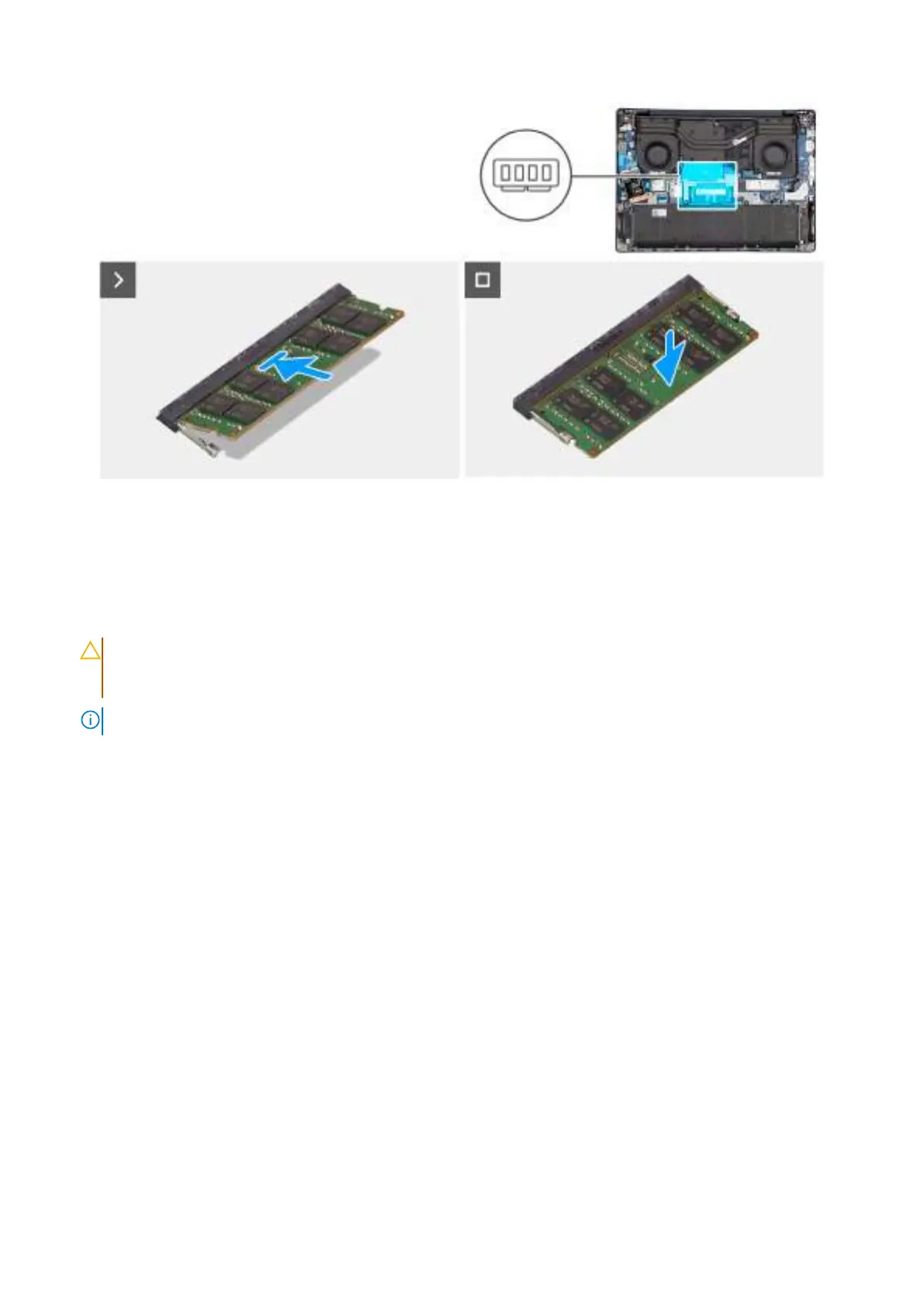
Figure 20. Installing the memory module
Steps
1. Align the notch on the memory module with the tab on the memory-module slot (DIMM1 or DIMM2, whichever is applicable)
on the system board.
2. Slide the memory module firmly into the memory-module slot at an angle.
3. Press down on the memory module until the securing clips firmly click into place.
CAUTION:
To prevent damage to the memory module, hold the memory module by the edges. Do not touch
the components or metallic contacts on the memory module as electrostatic discharge (ESD) can inflict
severe damage on the components. To read more about ESD protection, see ESD protection.
NOTE: If you do not hear the click, remove the memory module and reinstall it.
4. Repeat steps 1 to 3 to install the second memory module, if applicable.
Next steps
1. Install the base cover.
2. Follow the procedure in After working inside your computer.
Solid State Drive (SSD)
Removing the M.2 2230 solid state drive
Prerequisites
1. Follow the procedure in Before working inside your computer.
2. Remove the base cover.
About this task
The following images indicate the location of the M.2 2230 solid state drive (SSD) and provide a visual representation of the
removal procedure.
Removing and installing Customer Replaceable Units (CRUs)
53



 To Next Page