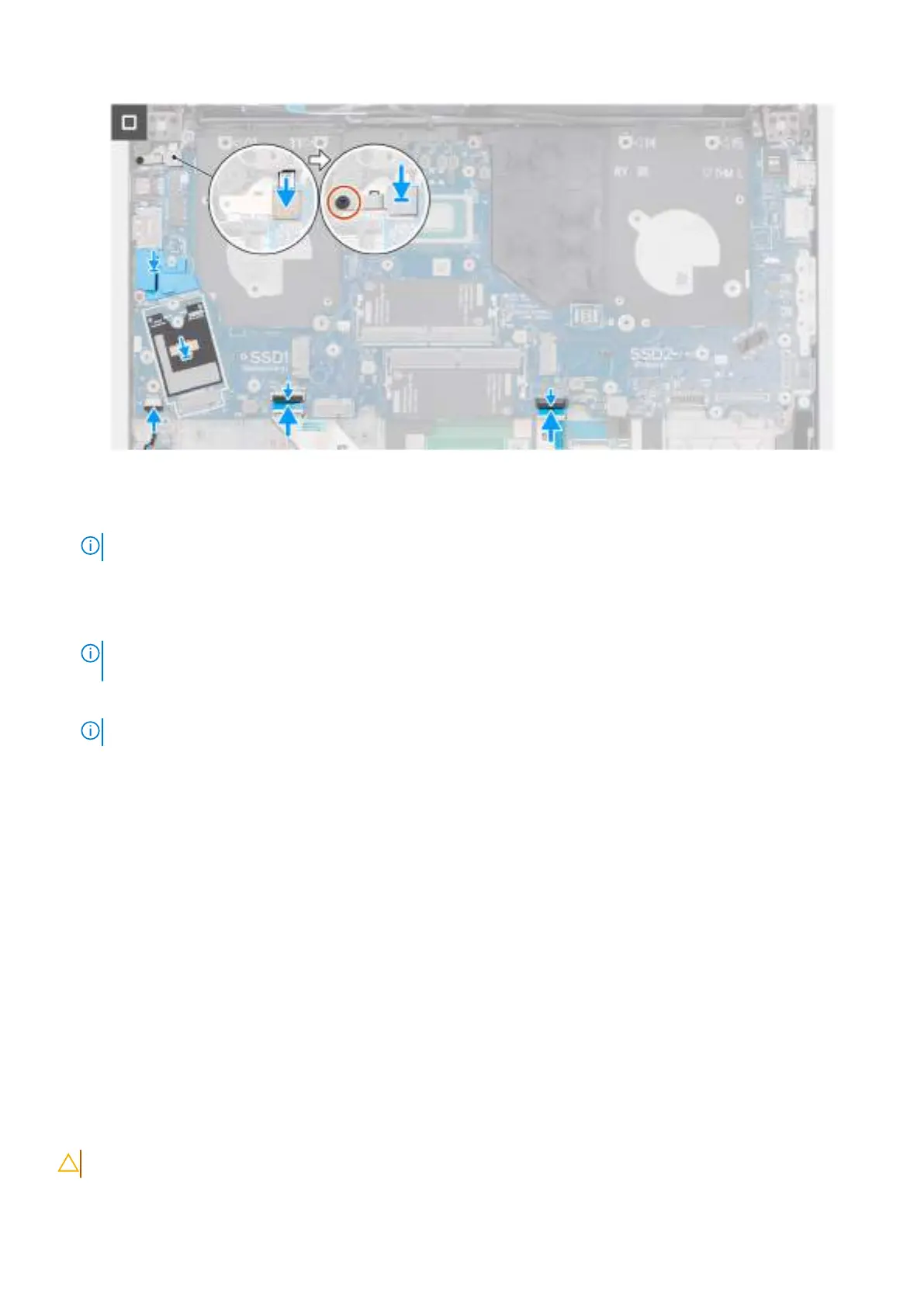
Figure 83. Installing the system board
5. Connect the fingerprint-reader cable to the connector (FP1) on the system board.
NOTE: Steps 6 to 8 apply only to computers shipped with a fingerprint reader installed.
6. Align and place the fingerprint-reader bracket over the fingerprint-reader connector on the system board.
7. Replace the screw (M2x3) to secure the fingerprint-reader bracket to the palm-rest assembly.
8. Ensure that the reusable WWAN-antenna cable routing rubber guide is placed on the system board.
NOTE:
When replacing the system board, this routing guide should be transferred to the new replacement system
board.
9. Ensure that the reusable Mylar sheet with thermal pads is placed on the system board.
NOTE: When replacing the system board, this Mylar sheet should be transferred to the new replacement system board.
Next steps
1. Install the battery frame.
2. Install the heat sink.
3. Install the left/video fan.
4. Install the right/processor fan.
5. Install the WWAN module, if available.
6. Install the wireless card.
7. Install the M.2 2230 solid-state drive or M.2 2280 solid-state drive, whichever is applicable.
8. Install the memory module.
9. Install the battery.
10. Install the base cover.
11. Follow the procedure in After working inside your computer.
USB Type-C module
Removing the USB Type-C module
CAUTION: The information in this removal section is intended for authorized service technicians only.
116 Removing and installing Field Replaceable Units (FRUs)


 To Next Page