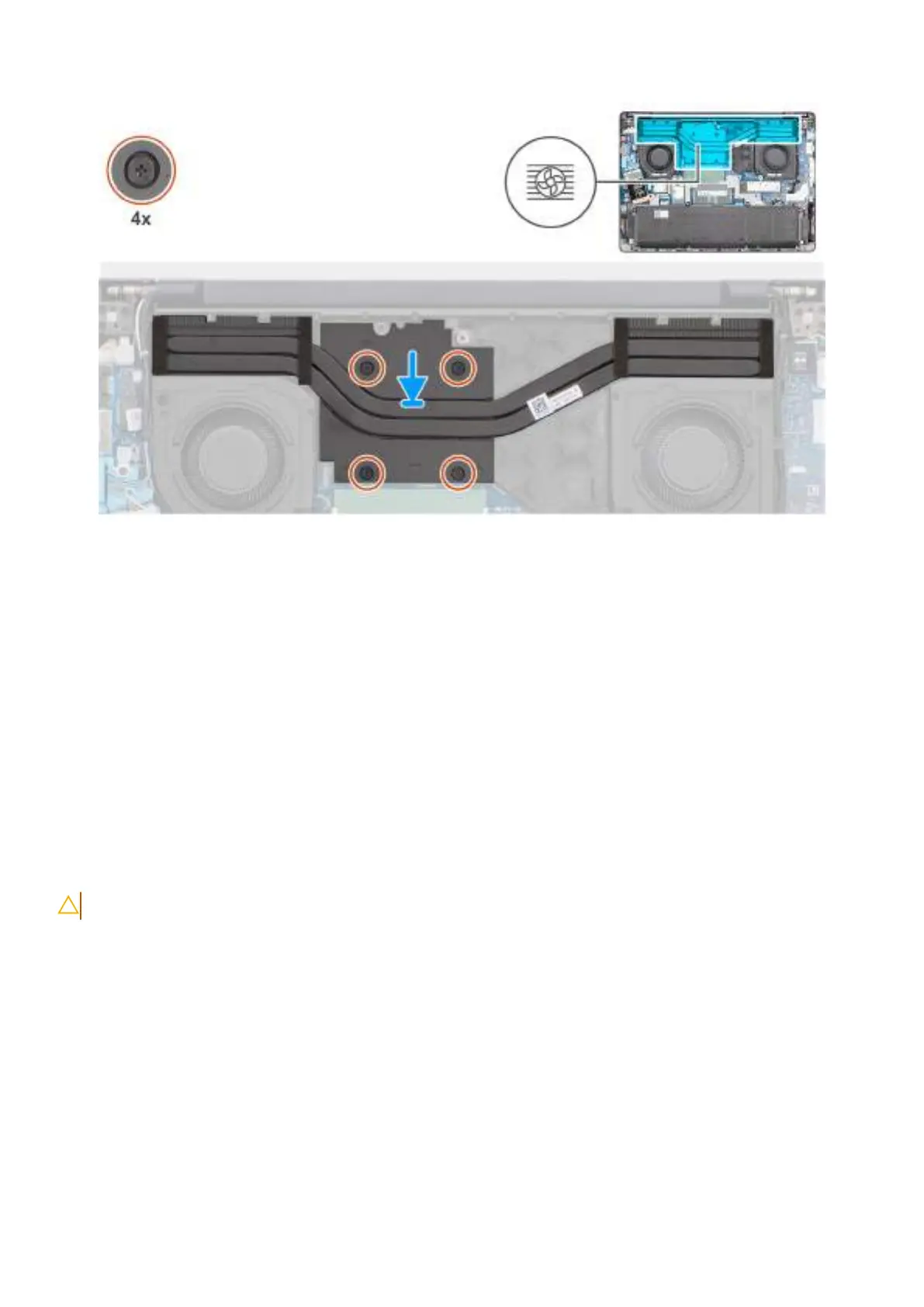
Figure 41. Installing the heat sink
Steps
1. Place the heat sink in the slot on the system board.
2. Align the screw holes on the heat sink with the screw holes on the system board.
3. In sequential order (1 > 2 > 3 > 4), tighten the four captive screws to secure the heat sink to the system board. The screw
numbers are etched on the heat sink.
Next steps
1. Install the base cover.
2. Follow the procedure in After working inside your computer.
GPU filler
Removing the GPU filler
CAUTION: The information in this removal section is intended for authorized service technicians only.
Prerequisites
1. Follow the procedure in Before working inside your computer.
2. Remove the base cover.
3. Remove the heat sink.
About this task
The following images indicate the location of the GPU filler board and provide a visual representation of the removal procedure.
Removing and installing Field Replaceable Units (FRUs)
75



 To Next Page