108
Chapter 7 Online Functions
7.2.3 Monitoring I/O
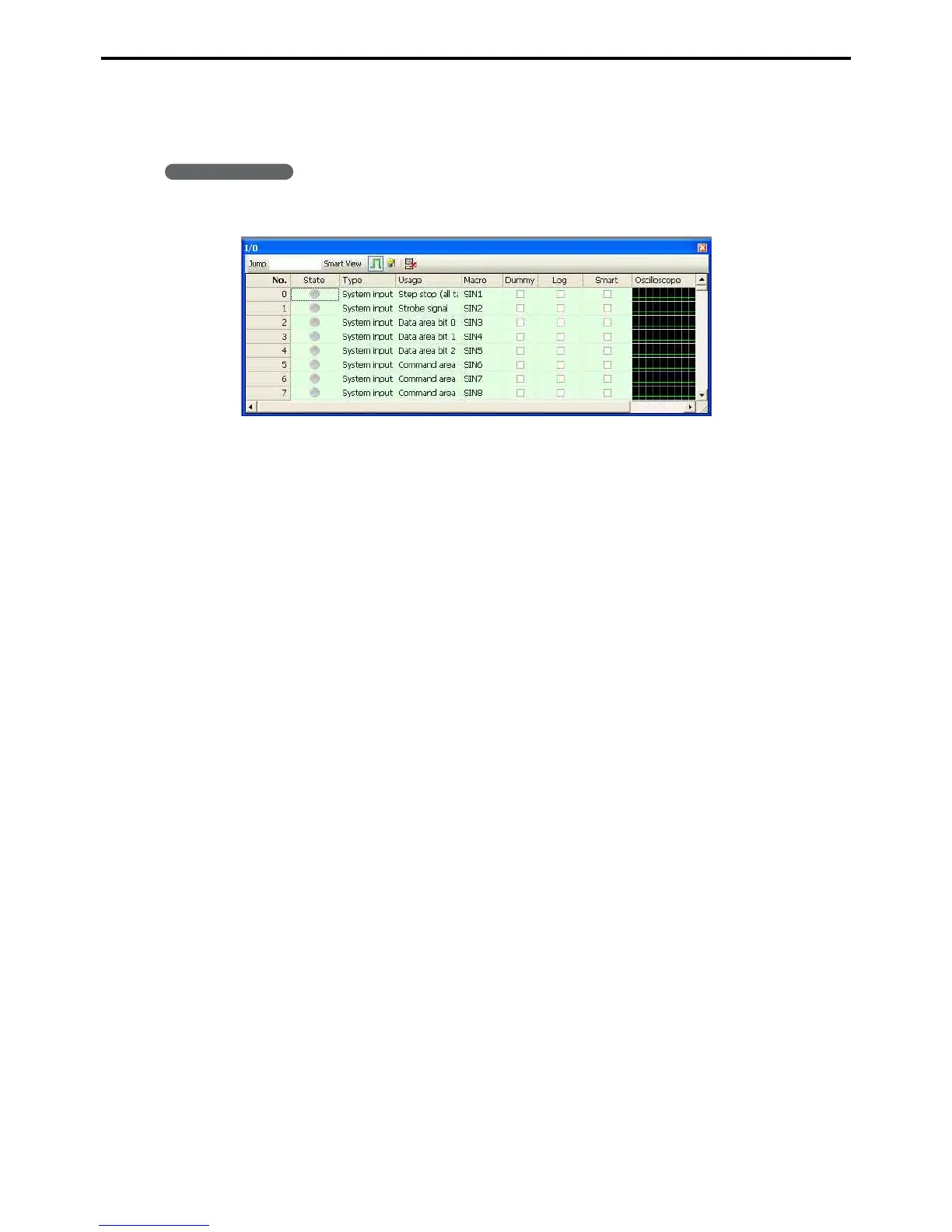
The I/O window shows the current I/O states.
Operating procedure
1. Choose View|I/O Window to display this window in the Docking view area.
Jump
Displays the I/O of the specified number.
Smart View
Displays only I/O with a check in the Smart column.
Oscilloscope display button
Turns on/off the Oscilloscope display.
Dummy input button
Dummy input is possible for I/O with a check in the Dummy column.
Hide unused field button
Pressing this button hides unused fields, fields to which no I/Os are assigned as shown with "--" in the
Type column.
No.
I/O port number.
State
A green icon is displayed when on and gray when off. You can switch between on/off by clicking on the
icon when in Dummy input mode.
Type
Displays the I/O type. Displays I/O port type: input/output, exclusive/universal, internal/hand I/O, etc.
Application
Users can add comments for each I/O port. Already input in exclusive signals, etc.
Macro name
Input the macro handling the I/O as the name inside the program. This is already input but can be freely
changed.
Dummy
Dummy operations are possible for I/O with a check in this column.
Log
I/O with a check in this column will have a log record. The upper limit is 50 at a time.



 To Next Page