150
Chapter 9 Vision Manager
9.2.5 Switching display screens
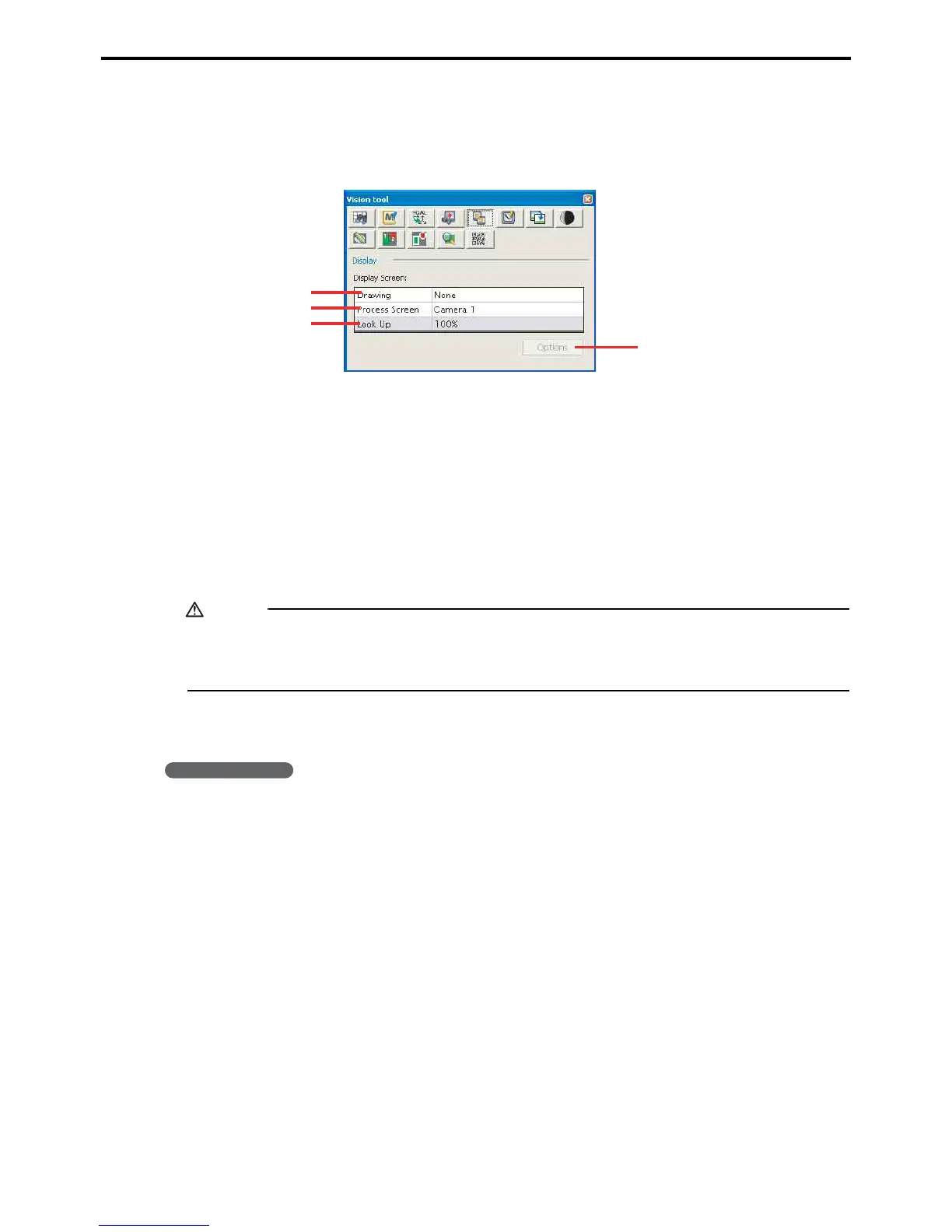
The Vision monitor window switches between three types of images: camera, processing, and draw.
Screen display settings screen
A: Draw screen
This field specifies the draw image to display.
B: Camera & processing
This field specifies the camera image or processing image to display.
C: Lookup
This field specifies the lookup table for adjusting the image.
D: Apply
This button switches the Vision monitor window to the specified image.
Caution
Image analysis automatically changes the Draw screen setting on this settings screen to Draw screen
1 to display its results there. If the current setting is Draw screen 0, however, the setting changes to
Draw screen 0+1.
9.2.5.1 Switching the Vision monitor window display
Operating procedure
1. Select the Draw screen field and specify the draw image to display.
2. Select the Camera & processing screen field.
3. Specify the lookup table for adjusting the image.
4. Press the Apply button to copy the camera image to an image processing screen.
A
D
B
C



 To Next Page