User Manual DEV 1951
46 Copyright DEV Systemtechnik GmbH 2004-2017
Note:
It is recommended to finish a Web Interface session by clicking on the
button. This instantaneously releases the allocated license and enables other
users to log in.
A timeout feature (20 seconds) is implemented within the Web Interface, i.e. a
session is automatically terminated (and the allocated license is released) if a
user who is currently logged in closes the web browser.
This means that a Web Interface session is kept open unless the button
is operated or if the web browser (in other words, the connection to the de-
vice) is closed.
It is possible to start a Web Interface session on another computer using the
same user account; naturally, this automatically terminates the session on the
preceding computer.
5.5.3 Status Tab
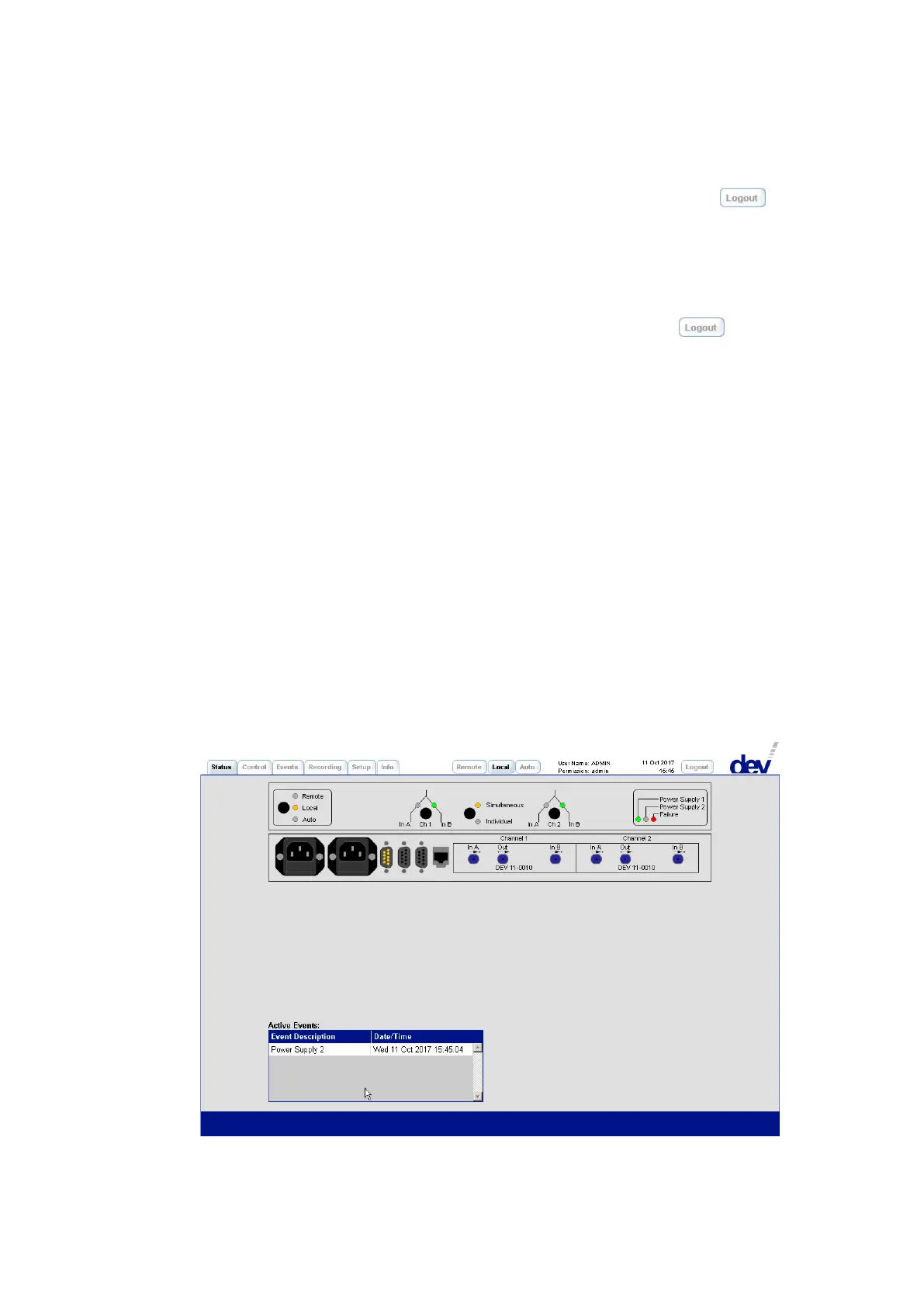
The upper part of the Status Tab shows a simplified representation of the front and
of the rear side of the device. Thus, a quick overview is provided regarding the de-
tected module configuration, regarding the operating status, regarding the switch-
ing status, and regarding the health status of the device. The round indicators are
equivalent to the physical LEDs at the device panel (green = ok/activated input,
red = failure, yellow = Remote/Local/Auto/Simultaneous/Individual, or gray = /off),
please refer to chapter 3.1.1 for details on the indicator information.
In the lower part of the Status Tab, the Active Events Window is located. This win-
dow shows pending and not acknowledged events via the related event
descriptions with a date/time stamp. event shown in the following screenshot was
triggered for demonstration purpose. To obtain more details on the events open
the Events Tab (chapter 5.5.5).


 To Next Page