User Manual DEV 1951
Copyright DEV Systemtechnik GmbH 2004-2017 45
It is recommended to add users AND to change the password of the factory de-
fault account. How this is to be done is subject of chapters 5.5.7.1.2 & 5.5.7.1.1.
The language of the screenshots shown here is English, as a second language
currently German is available (chapter 5.5.7.1.1).
5.5.2 The Main Window and Common Features of the Main Tabs
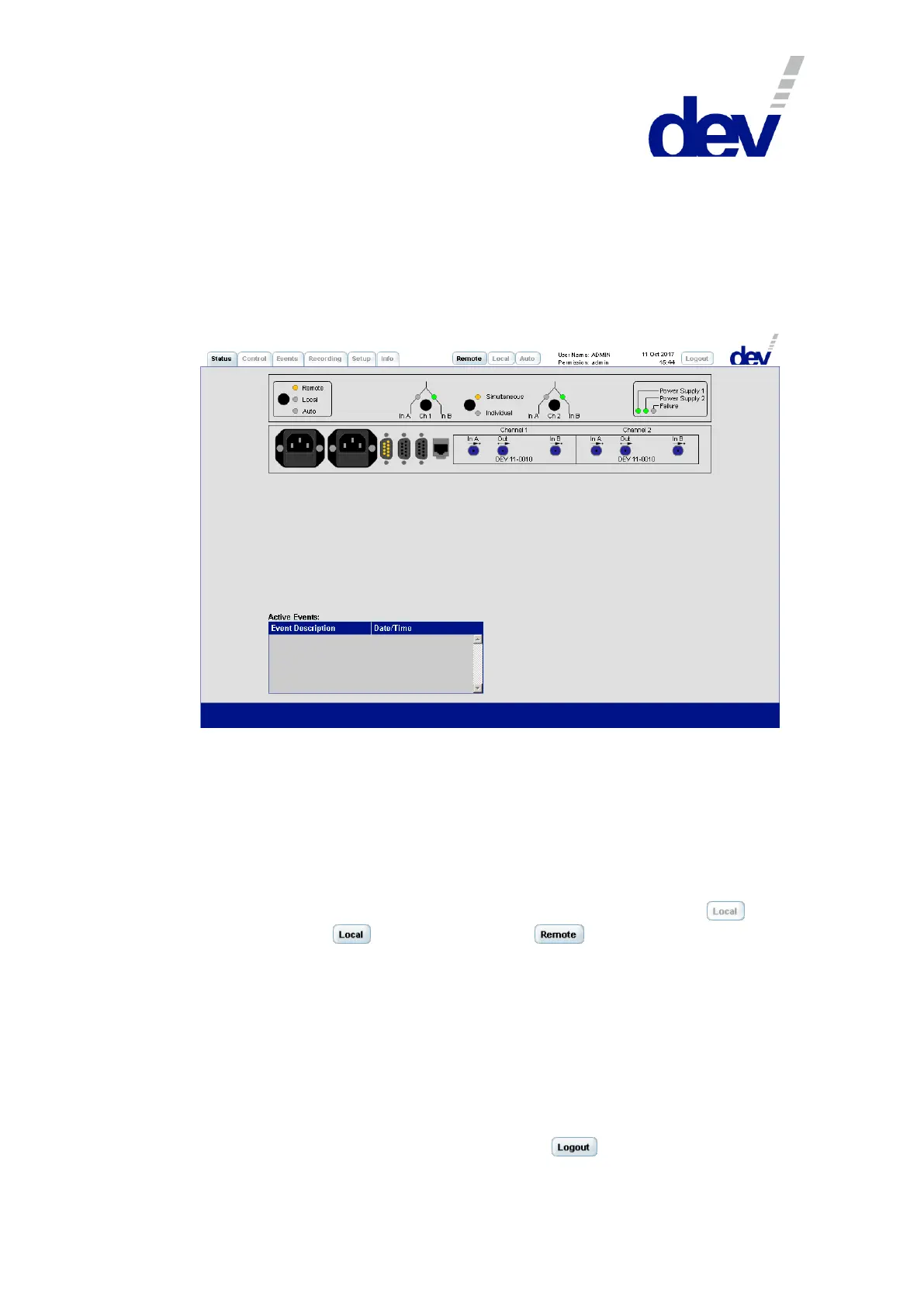
After successful authentication the main window of the Web Interface shows up
with the Status Tab opened, which is the default view:
In the top of the window on the left side, the five (or six) tabs are located ("Status",
"Control", "Events", "Recording" (only for a DEV 1951 with installed sensing switch
module(s), please refer to chapter 5.5.6), "Setup", and "Info"). The active tab is
highlighted; clicking on an inactive tab opens the corresponding tab instead.
In the middle on the top of the window three buttons are located indicating that
the device is in Remote Mode (as shown in the screenshot above), or in Local Mode
(as shown in the screenshot of chapter 5.5.3), or in Auto Mode.
Changing the operation mode of the device via Web Interface is performed by
clicking on the desired button, e.g. clicking in the situation above on the but-
ton, highlights the button instead of the button. In the representa-
tion of the device panel in the upper part of the Status Tab, the indicators change
correspondingly (here from "Remote" to "Local").
Right to these buttons the currently logged in user (here: "ADMIN") and the permis-
sion of the user (here: "admin") are shown. Please refer to chapter 5.5.7.1.2 for
more information on this subject.
Then, the date and time of the device are displayed right to this information. The
correct date and time depend on the proper configuration of an NTP timeserver
and of the timezone (chapter 5.5.7.2.1). Note that if there was no timeserver de-
tected at power-up, the device sets the date and time to "01-Jan-2000 00:00".
In the right corner close to the company logo, the button is located.
Clicking on this button returns the Web Interface to the Start Screen.


 To Next Page