User Manual DEV 1951
68 Copyright DEV Systemtechnik GmbH 2004-2017
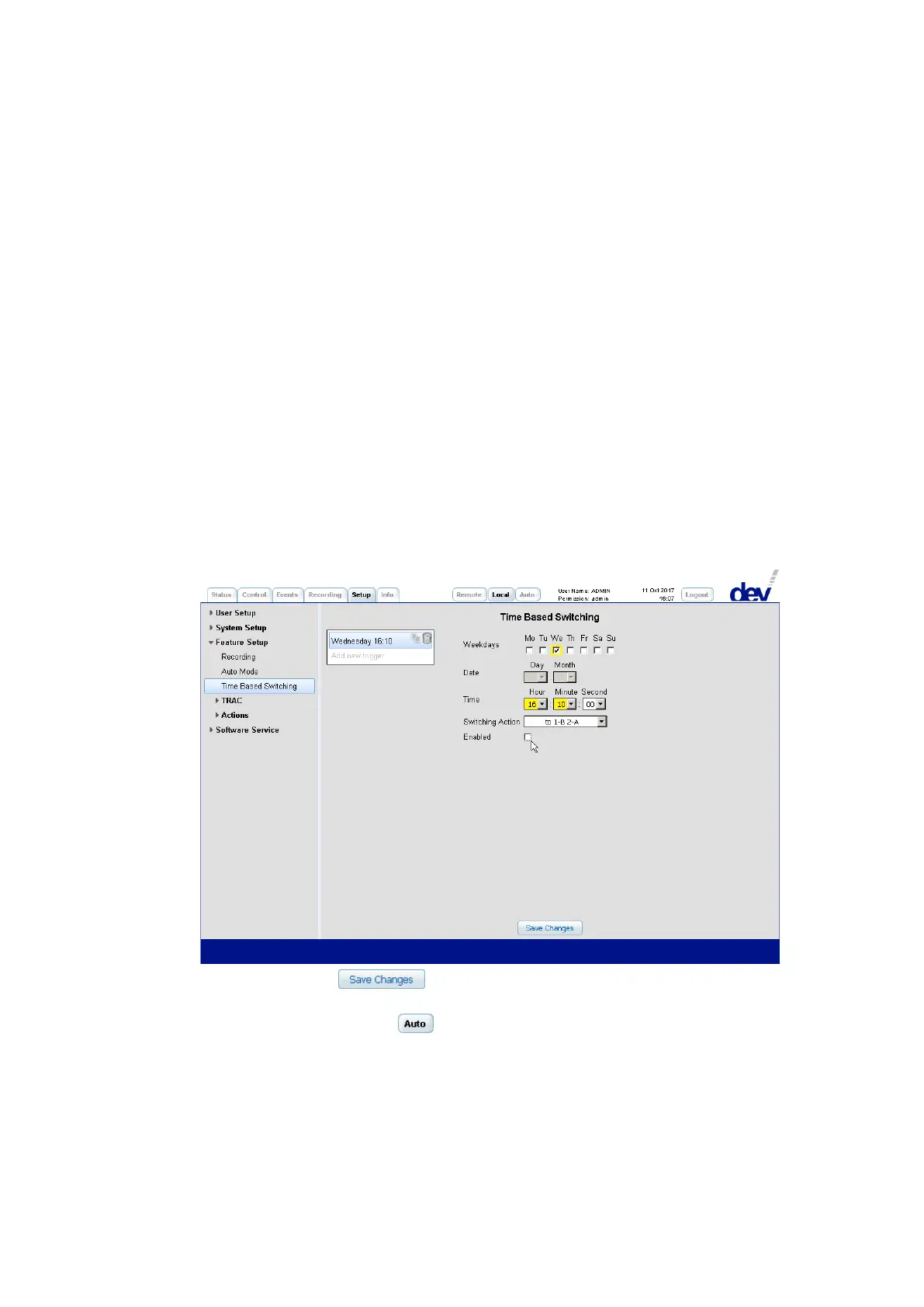
Either a time trigger is defined:
repetitive for one or more weekdays by checking the corresponding box(es)
(here, We(dnesday) was chosen), or it is defined as a
single occurrence using the drop down lists below "Day" and "Month" for
defining the date.
Note that when checking one or more weekdays, the drop down lists for "Day" and
for "Month" become grayed out and vice versa when selecting a "Day" and/or a
"Month", the weekday check boxes become grayed out. In this case –i.e. to re-
enable the weekday check boxes- choose the first entry (the blank entry above the
entry "01") in both drop down lists for "Day" and "Month".
After specifying the weekday(s) or the date select the time for the switching event
via the drop down lists for "Hour" (here: "16"), "Minute" (here: "10"), and "Second"
(here: "00", thus unchanged).
Then select the "Switching Action" via the drop down list. Here an action is shown
and selected as the default that was defined already via the Switching Actions setup
entry (chapter 5.5.7.3.5.1).
As the last step in defining a time trigger either activate the trigger by checking the
box right to the "Enabled" label, or leave it unchecked if it is intended to set up the
trigger in advance:
Finally, click on the button to store the settings made before
selecting (or adding) another trigger and/or before activating the Time Based
Switching by clicking on the button.
Note:
The check box labeled "Enabled" is grayed out and the message "Not enabled in
Auto Mode Assignment" appears if "Time Based Switching" is not activated in
the "Auto Mode Assignment" of the Auto Mode entry (chapter 5.5.7.3.2).
If the connection to the timeserver is not established, this is displayed in the
Time Based Switching functionality via the message: "Warning: The device currently does
not receive a valid time from an NTP server, so time based switching may not work properly. Please check the


 To Next Page