Using MimioStudio Tools
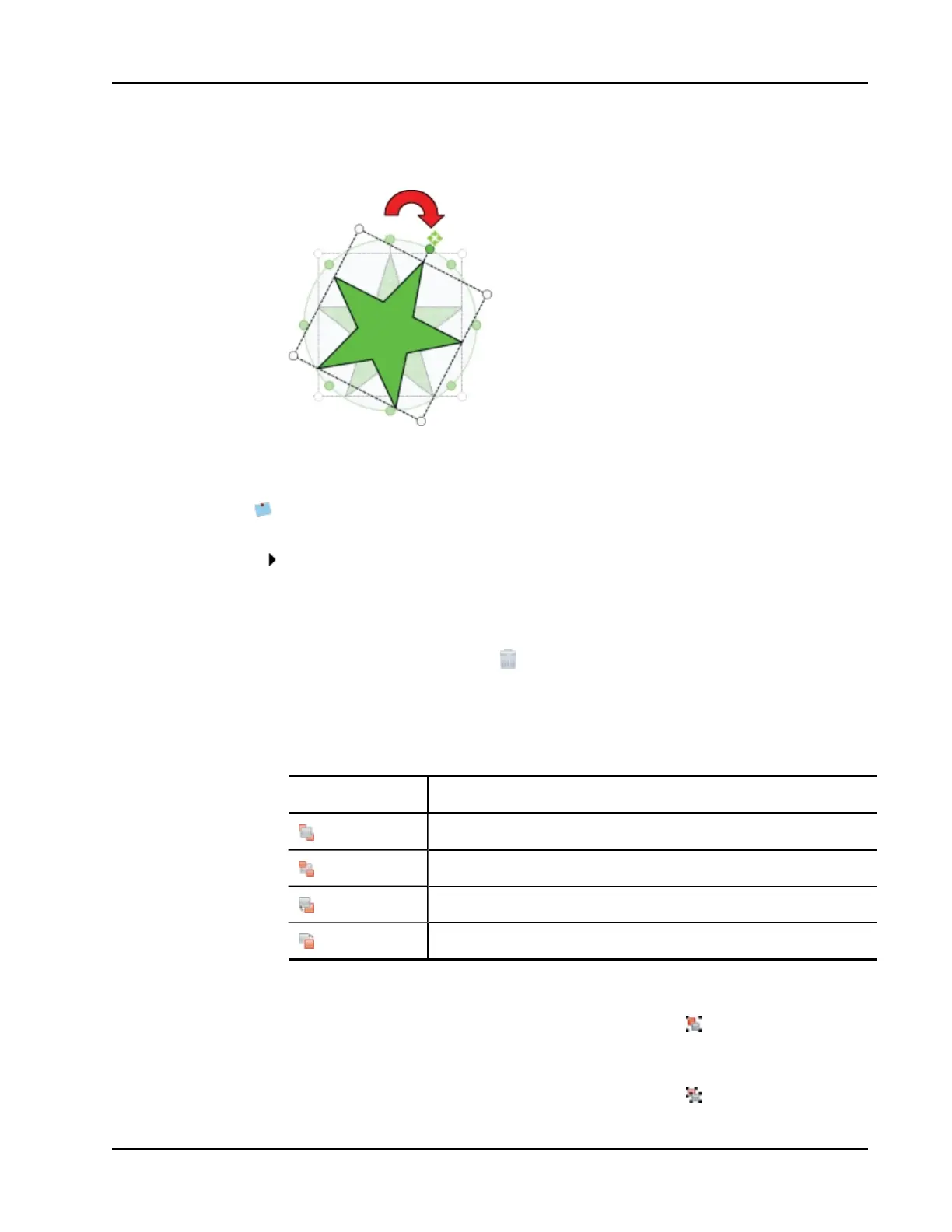
To snap to one of the predefined 45° increments, move the rotate cursor and release
over the predefined rotation anchor point.
To lock the position and properties of an object
1. Select the object to lock.
2. From the Format menu, point to Locking, and then choose Lock.
A locked object cannot be selected.
To unlock an object
From the Format menu, point to Locking, and then choose Unlock All.
Objects can only be unlocked collectively; you cannot unlock individual objects.
To delete an object
1. Select the object to delete.
2.
Drag the object to the trash can, .
To reorder objects
1. Select the object to reorder.
2. Choose Order from the Format menu.
3. Choose how to order the object.
Option Action
Front
Brings the selected object to the front of the order.
Back
Sends the selected object to the back of the order.
Forward
Steps the object forward in the order, by one.
Backward
Steps the object backward in the order, by one.
To group objects
1. Select the objects to group.
2.
From the Format menu, point to Grouping, and then choose Group.
To ungroup objects
1. Select the objects to ungroup.
2.
From the Format menu, point to Grouping, and then choose Ungroup.
19



 To Next Page