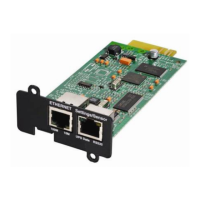
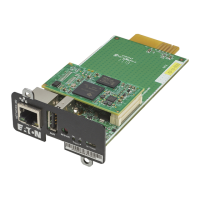
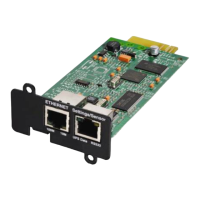
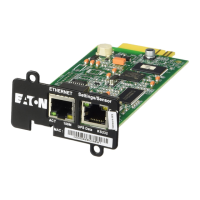
Pairing agent to the Network Module
Servicing the Network Management Module – 180
1.
2.
3.
4.
•
•
•
•
•
•
•
•
•
•
•
•
•
4.1.1.3 Define LDAP user's preferences
This step configures the user's preferences to apply to all LDAP users.
4.1.2 Testing LDAP connection
Click on Test icon right to Status column
Enter the User credentials then click on Test.
This test will verify all the parameters from the connection to the Database to the user credentials.
In case of error, the test displays where the issue is located.
4.1.3 Limitations
If the same username exists in both local and LDAP databases, the behavior is undefined.
If a user belongs to multiple LDAP groups mapped to different profiles, the behavior is undefined.
No client certificate provided. It is not possible for the server to verify the client authenticity.
It is not possible to configure LDAP to work with 2 different search bases.
LDAP user's preferences are common to all LDAP users.
LDAP users cannot change their password through the Network Module.
The remote groupname entered in profile mapping settings must be composed only of alphanumerics, underscore and
hyphen characters (but this last one can't be at the beginning).
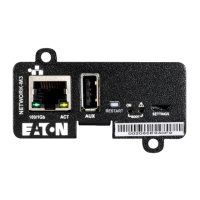
4.2 Pairing agent to the Network Module
Authentication and encryption of connections between the UPS network module and shutdown agents is based on matching
certificates.
4.2.1 Pairing with credentials on the agent
STEP 1: Action on the agent (IPP/IPM).
1. Connect to the web interface of the agent.
2. Detect the UPS Network Module with an Address(es) scan, select Override global authentication settings and type the UPS
Network Module credentials.
4.2.2 Pairing with automatic acceptance (recommended if done in a
secure and trusted network)
Pairing with automatic acceptance of shutdown agents and UPS network modules is recommended in case the installation is done
in a secure and trusted network, and when certificates cannot be created in other ways.
STEP 1: Action on the Network Module
1. Connect to the Network Module
On a network computer, launch a supported web browser. The browser window appears.
In the Address/Location field, enter: https://xxx.xxx.xxx.xxx where xxx.xxx.xxx.xxx is the static IP address of the Network
Module.
The log in screen appears.
Enter the user name in the User Name field.
Enter the password in the Password field.
Click Login. The Network Module web interface appears.
2. Navigate to Contextual help>>>Protection>>>Agents list page
If a user belongs to multiple LDAP groups mapped to different profiles, the behavior is undefined.


 To Next Page