26│en Usage of the finger scanner with the app
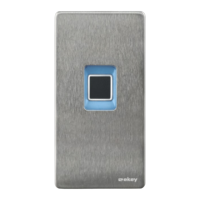
For first-time coupling, you will need the device coupling code and the app
security code. Both codes are factory-set as 9999.
Touch the input field (Android) or press Search
(iOS). The app searches for available Bluetooth
devices.
Select your ekey Bluetooth finger scanner.
Android only: Press Login.
Enter the default device coupling code 9999.
The status
LED lights
up blue,
the left-
hand
function
LED lights
up orange.
Press Next. The mobile device is coupled with
the Bluetooth finger scanner.
Enter a new 6-digit device coupling code. For
security reasons, you must change the default
device coupling code the first time you perform
the system admin coupling process. Make a
note of this code, as you will need it to couple
additional mobile devices.
Write your new device coupling code here:
____________________________________.
Press Change (Android) or Next (iOS).
Enter the default app security code 9999.
The coupling between the Bluetooth finger scanner and the mobile device
is established. The system is in normal mode.
You can now start programming and managing the finger scan access
control system via the ekey home app.
Coupling a
mobile device
for the first
time


 To Next Page