EasyManua.ls Logo

eKey Home - Setting Finger Scanner LED Intensity

eKey Home
77 pages
Print Icon
To Next Page IconTo Next Page
To Previous Page IconTo Previous Page
Loading...
38en Usage of the finger scanner with the control panel menu
The intensity of the status LEDs on the finger scanner when it is in idle
mode can be set.
The LED intensity of the finger scanner is set via the main menu.
Enter the security code to access the main menu.
See Entering the security code, page 35.
The system displays the main menu.
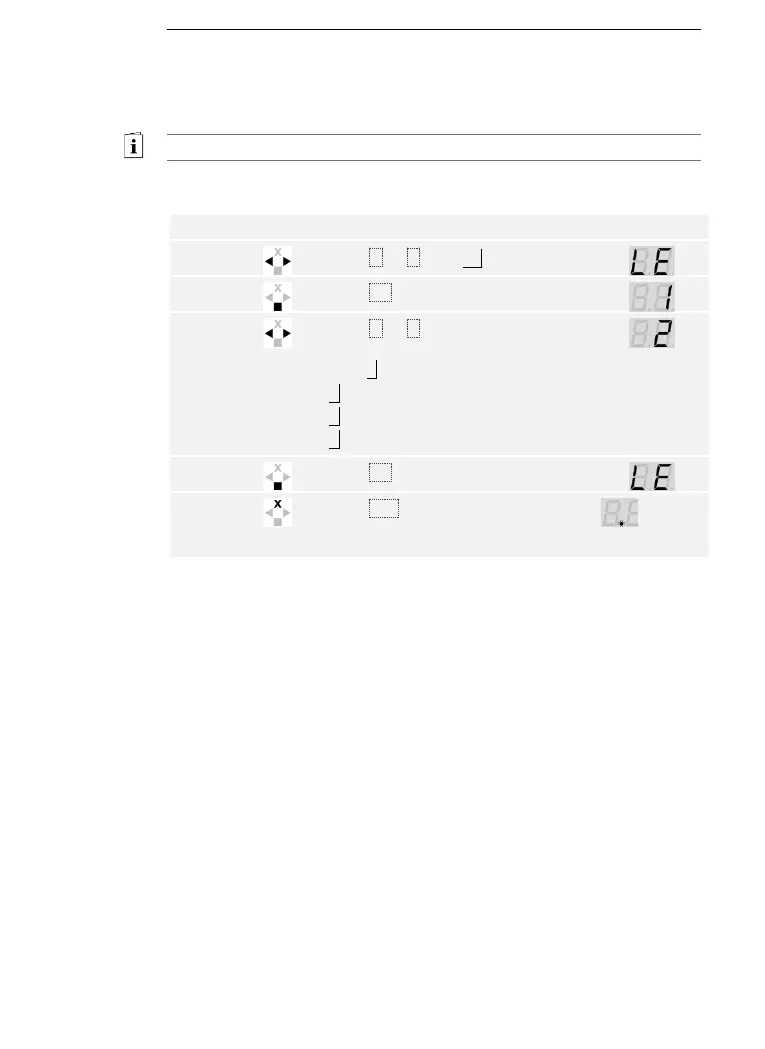
Step
Action
Description
Display
1st
Press < or > until LE is displayed.
2nd
Press OK.
3rd
Press < or > to select the desired
LED intensity of the finger scanner.
E.g., 2.
0 = LED off
1 = LED dimmed (default setting)
2 = LED on

4th
Press OK.
5th
Press ESC to return to the main
menu.
1 point
flashes
on the
left.
The LED intensity of the finger scanner has been set. The system is in
normal mode.
Setting finger
scanner LED
intensity

Table of Contents

Related product manuals