Maintenance Control Unit IV Reference Manual
5-6 529-0004 Ver.3
5.3 Transferring subscriber status data
5.3.1 Downloading subscriber statuses
The
download
command tells the Control Unit to transmit the content of its RAM to
another computer in S-format for the requested group. You should capture this data in a text
file using HyperTerminal, for example, to be able to perform an upload later.
In order to use the
download
command, you must log on to one of the Control Unit’s COM
ports (e.g. COM 3). While the command is running, all communication on the other ports
(e.g. COM 1, COM 2) will be blocked.
To download the content of the Control Unit’s RAM for all selected groups to the computer:
1. Press <Enter> to display the CU4> prompt.
2. Type
download
<group, number of groups> without pressing <Enter>.
group: 1 to maximum number of groups
number of groups: group + number of groups ^ maximum number of groups
The following example uses the HyperTerminal program. It shows the command you
would enter in order to transfer in S-format all statuses for subscribers in groups 1 to 3
from the Control Unit to the computer. Please note that when the number of groups is
large, this operation takes several minutes.
CU4>download 1,3
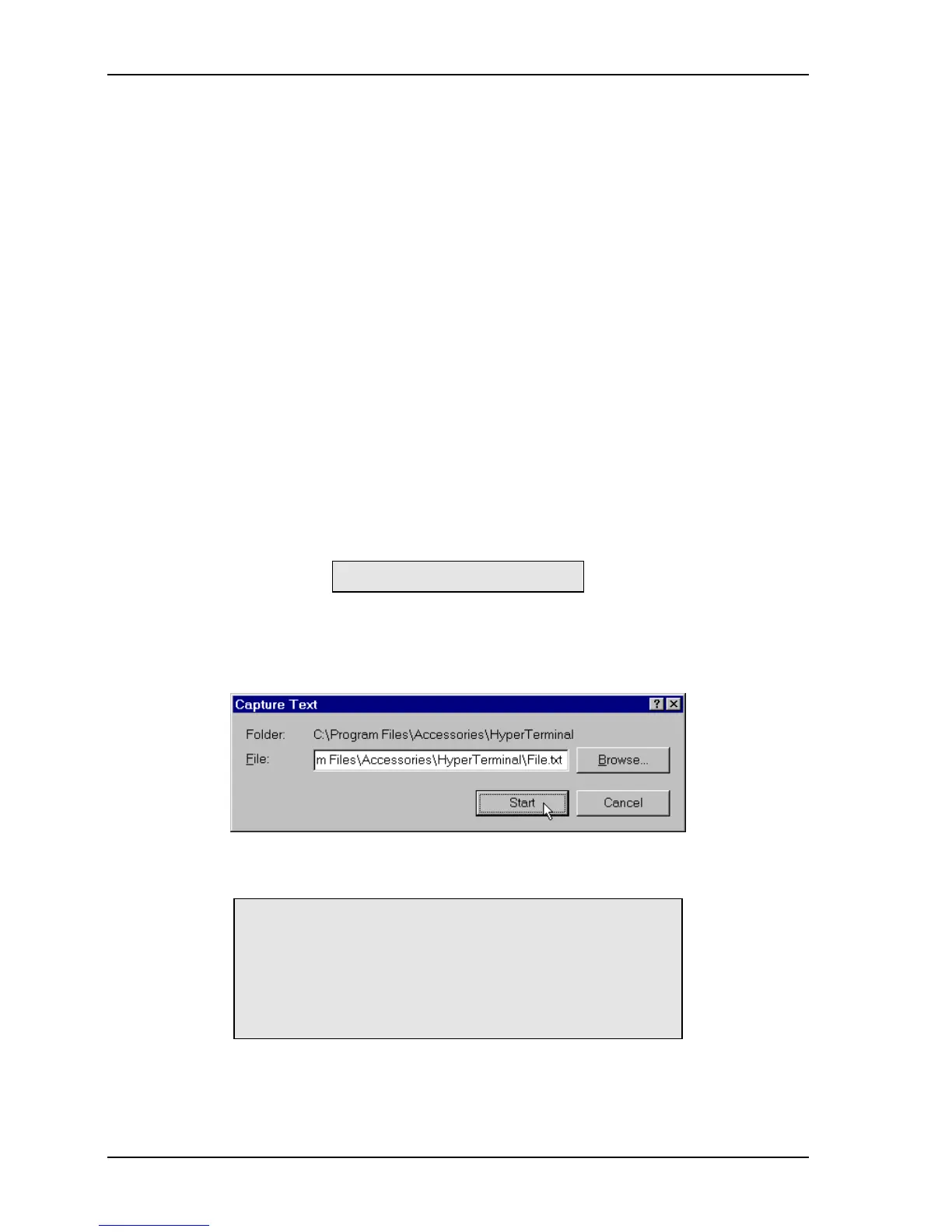
3. In HyperTerminal’s Transfer menu, select the Capture Text option.
4. When the capture text window appears, choose the destination directory, name the file
and click
START
.
5. When the main HyperTerminal window reappears, press <Enter> to display the file’s
content. The “00” characters at the end of the file indicate a successful download.
CU4>log abcde
Access granted
CU4>download 1,3
UUUUUUUUUUUUUUUUUUUUUUUUUUUUUUUU
S0000029:490420:29:490420:29:490::::::3>
S00010555555555555555555555555555555555?
S00020555555555555555555555555555555555>00
6. In HyperTerminal’s Transfer menu, select the Capture Text option, then the Stop
option.
6. Open the file to make sure it contains all the data transmitted by the Control Unit.


 To Next Page