Selecting a Built-In Font and Pitch
Your printer comes with the three built-in fonts shown in the
table below. You can also choose from the following six pitch
(character size) settings: 10, 12, 15, 17, or 20 cpi (characters per
inch), or proportional spacing. You can select the font and pitch
using the buttons on the printer’s control panel as described
below.
Note:
Settings you make in your application programs usually override settings
you make from the printer’s control panel. For best results, use your
application to select a font and pitch.
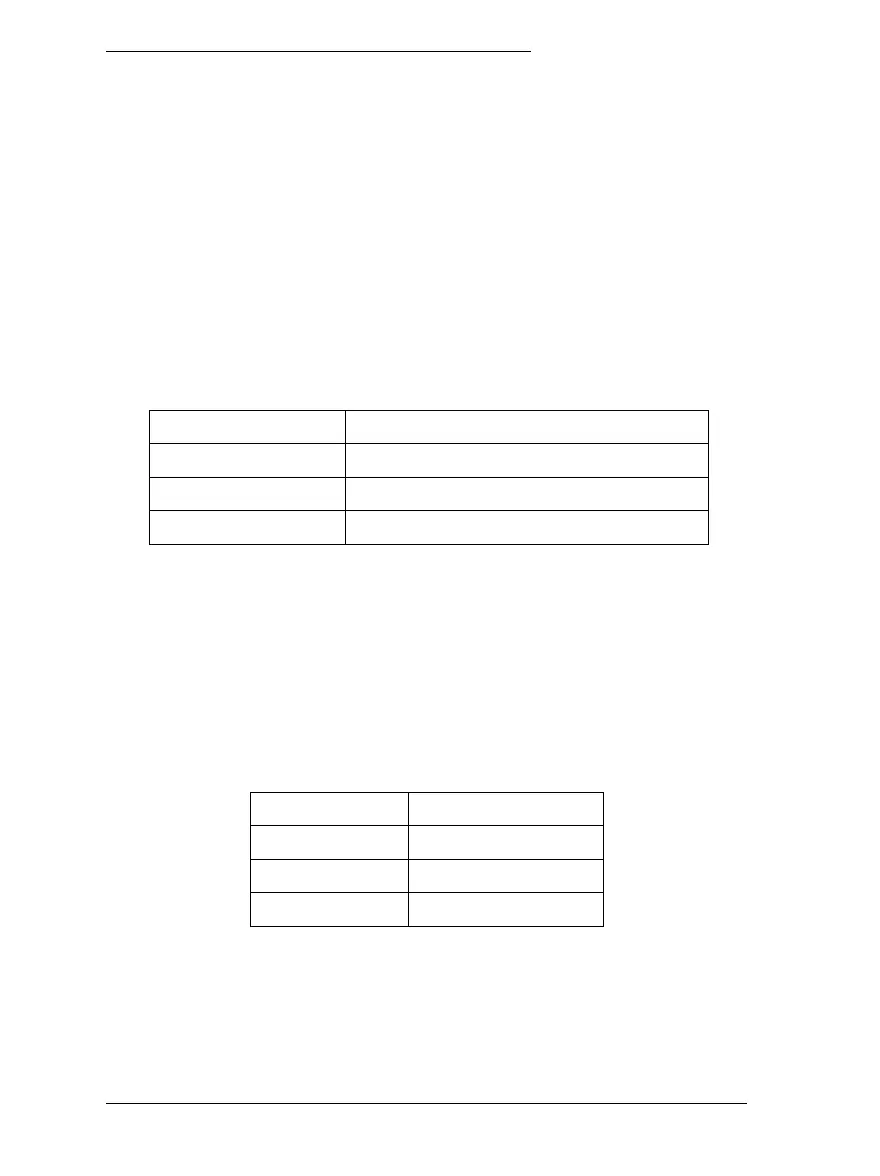
Font Sample
Draft
Roman
Sans Serif
Follow these steps to select a built-in font or pitch using the
buttons on the printer’s control panel:
1. Make sure that the printer is not printing. If it is, press the
Pause
button to stop printing.
2. To select a font, press the
Font
button until the two Font lights
indicate the font you want as shown below.
Font lights
Font
o n Draft
n o Roman
n n Sans Serif
n = On,
o = Off
L
Sun-G+ Rev.C
A5 size Chapter 5
97/11/13 pass 0
5-2
Changing Printer Settings From the Printer’s Control Panel


 To Next Page