XTP CrossPoint Series • Operation 42
4. Select the desired input or outputs whose ties you wish to view by pressing the input
and output buttons.
NOTES:
• To see all ties of the current configuration, press and release each input and
output button, one at a time, with the Video button and the Audio button lit.
• When you view video and audio ties, the Video button is lit green and the
Audio button is lit red. After you select an input or output, the output buttons
light different colors to show where video and audio ties are not the same
(audio is broken away). Amber indicates video and audio, green indicates video
only, and red indicates audio only.
• After 30 seconds of front panel inactivity, View-only mode automatically
deselects.
Example 4: Viewing video and audio, audio only, and video only ties
In the following example, we view the video and audio, audio only, and video-only ties in the
current configuration. The steps show the front panel indications that result from your action.
NOTE: This example assumes that you have performed example 1 on page 38,
example 2 on page 39, and example 3 on page 40.
1. Clear all selections: Press and release Esc.
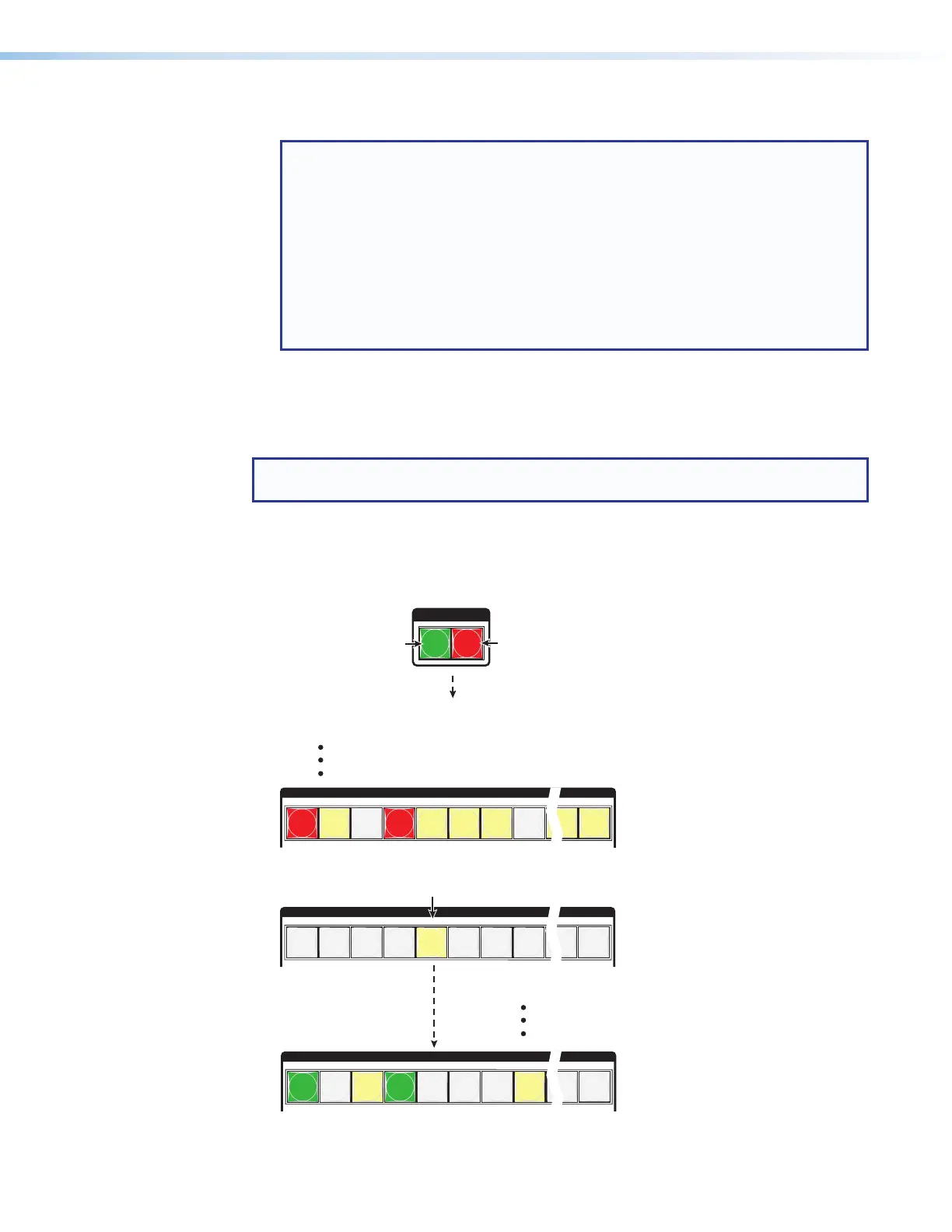
2. Select View-only mode: Press and release View. View lights red.
3. Select video and audio for viewing: Press and release Video and Audio as
necessary to light both.
I / O
VIDEO AUDIO
OUTPUTS
1
2
3
4
5
6 7
8
15
16
Until you select an input, the buttons for all untied
outputs light the appropriate color:
Amber if no inputs are tied
Green if no video inputs are tied (only audio is tied)
Red if no audio inputs are tied (only video is tied).
Press the Audio button
to toggle on and off.
The button lights red
when selected.
Press the Video button
to toggle on and off.
The button lights green
when selected.
4. Select an input: Press and release Input 5.
INPUTS
1
2
3
4
5
6 7
8
15
16
OUTPUTS
1
2
3
4
5
6 7
8
15
16
The output buttons for outputs that are not tied to Input 5 are
either unlit or background illuminated.
The output buttons for outputs that are tied to Input 5
light or blink the appropriate color:
Amber for audio and video ties (audio follow)
Green for video ties (audio breakaway)
Red for audio ties (audio breakaway)
Press the button. It lights amber.



 To Next Page