Chapter 7 Troubleshooting
PAGE 7-17
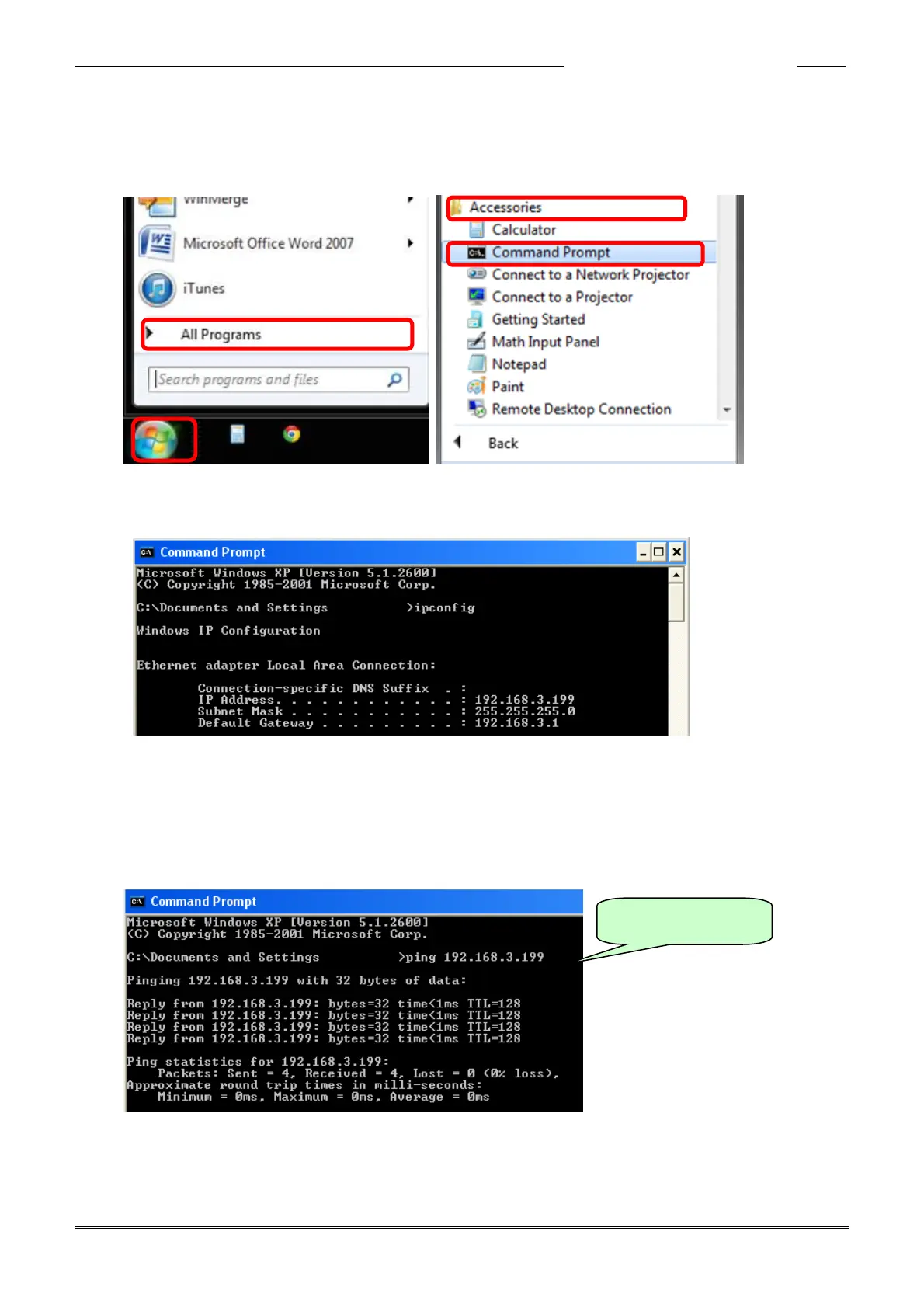
●Method for Confirming Using Command Prompt Functions (Windows 7)
1. Connect the controller and the PC with the PC communication cable.
2. In the Windows Start menu, click “All Programs” → “Accessories”
→ “Command Prompt.” (Or search “Command Prompt” using search function)
3. When the command prompt screen appears, enter “ipconfig” and then press the Enter key. The
current PC settings are displayed. If the displayed settings (IP Address, Subnet Mask and Default
Gateway) are not correct, set the PC’s setting again.
4. If a normal response is made as in the screen above and yet connection with the HFC3000 User
Console fails, make the command prompt screen appear again and then enter “ping
192.168.3.199” or “ping 192.168.3.198.” (* Enter the IP address of the controller and the PC after
ping command)
The following will be displayed if normal communication between the controller and the PC is
enabled. (if there is no ping response, then the IP address setup needs to be re-checked /
confirmed)


 To Next Page