Chapter 7 Troubleshooting
PAGE 7-16
7-4. Ethernet Communication
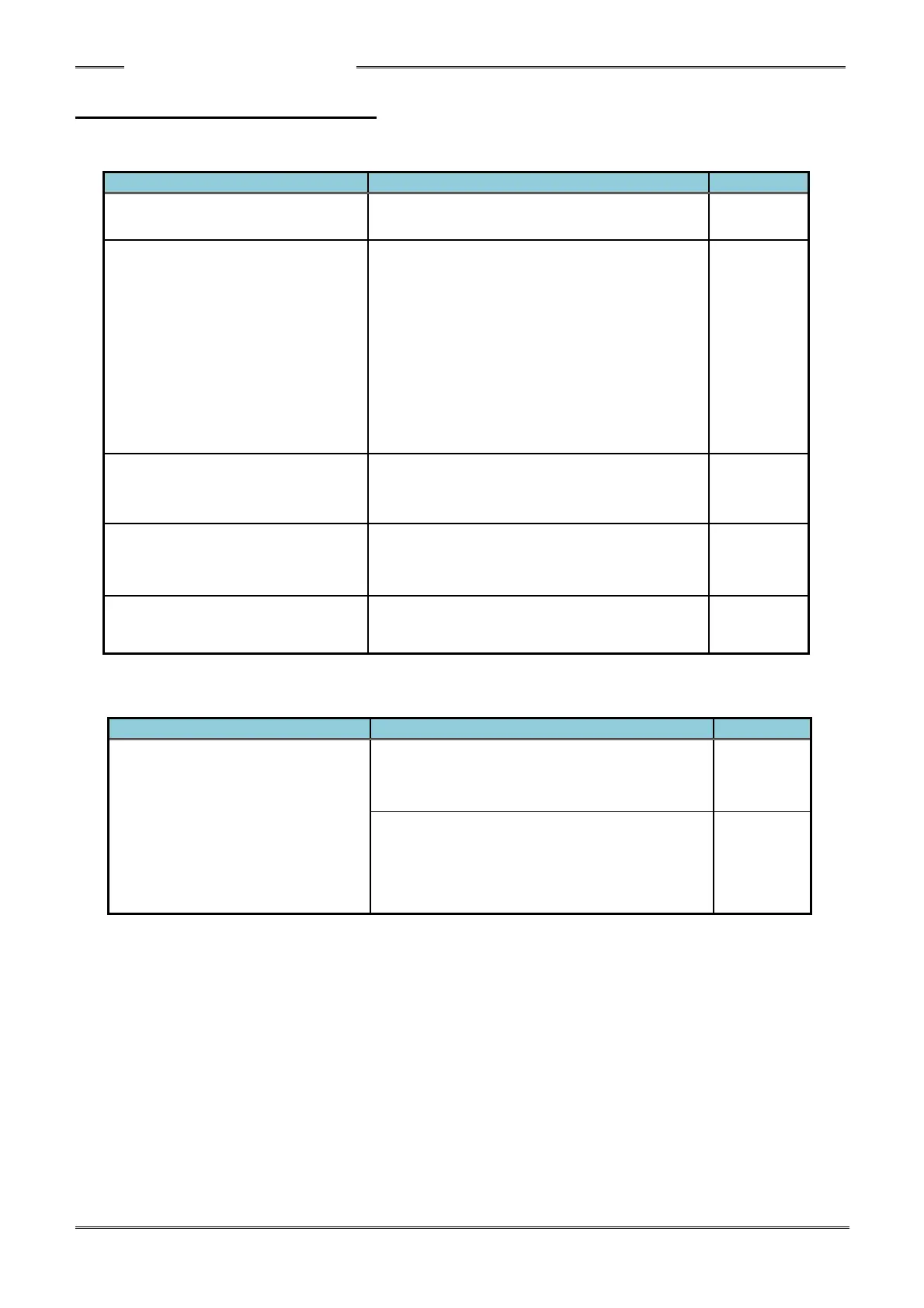
If Ethernet communication of the HFC Software cannot be performed with the PC being used, please
refer to the following troubleshooting table.
Countermeasures/Check Details
Is there an error in the TCP/IP
setting procedures?
Check the TCP/IP setup procedures.
Is there any problem with the
PC communication cable?
・ If the PC and the controller are to be
connected without an ethernet switch/
hub, try using a crossover ethernet
cable.
・ If connection is to be made with an
ethernet switch/hub, use a (Standard)
straight etherent cable.
・ Select a LAN cable of category 5e or
higher.
Is network connection enabled
in the PC to be used for
Ethernet communication?
・ Set up the PC to enable network
connection or check with another PC.
Confirm by Command Prompt
functions
・ The PC’s ethernet setting can be
confirmed by Command Prompt
functions.
Is PC connected with a wired LAN
and wireless LAN from the PC at
the same time?
・Disconnect the wireless LAN.
If data is not output correctly even though there are no problems with communication, please refer to
the following table.
Countermeasures/Check Details
Data is not output at all
・ Confirm that the protocol by which the
data output is to be performed is
correctly set.
・ If the START signal is turned OFF
before 1ST torque or 1ST angle is
detected after starting tightening
operation, data will not be output.


 To Next Page