Chapter 4 Installation and Wiring
PAGE 4-26
4-8-1 TCP/IP SETUP PROCEDURE (Windows®)
The Ethernet settings on the PC side may need to be changed in order to communicate to the
controller via Ethernet. The “default” TCP/IP settings of the controller are set at the factory, however,
it’s possible they may have been user configured. You can confirm the current settings using the
controller display. The TCP/IP settings are confirmed by D-Nos. “011” to “016” of the SYSTEM setting
mode (PAR No. indication: “SYS”) of the Front Panel Display. The IP Address set in the controller can
also be changed using the front panel display (at the parameter Data Numbers listed below).
● Set Values of Factory Settings (System Parameters)
The TCP/IP setting method (in the case of Windows 7) is described below.
● Windows 7 setup
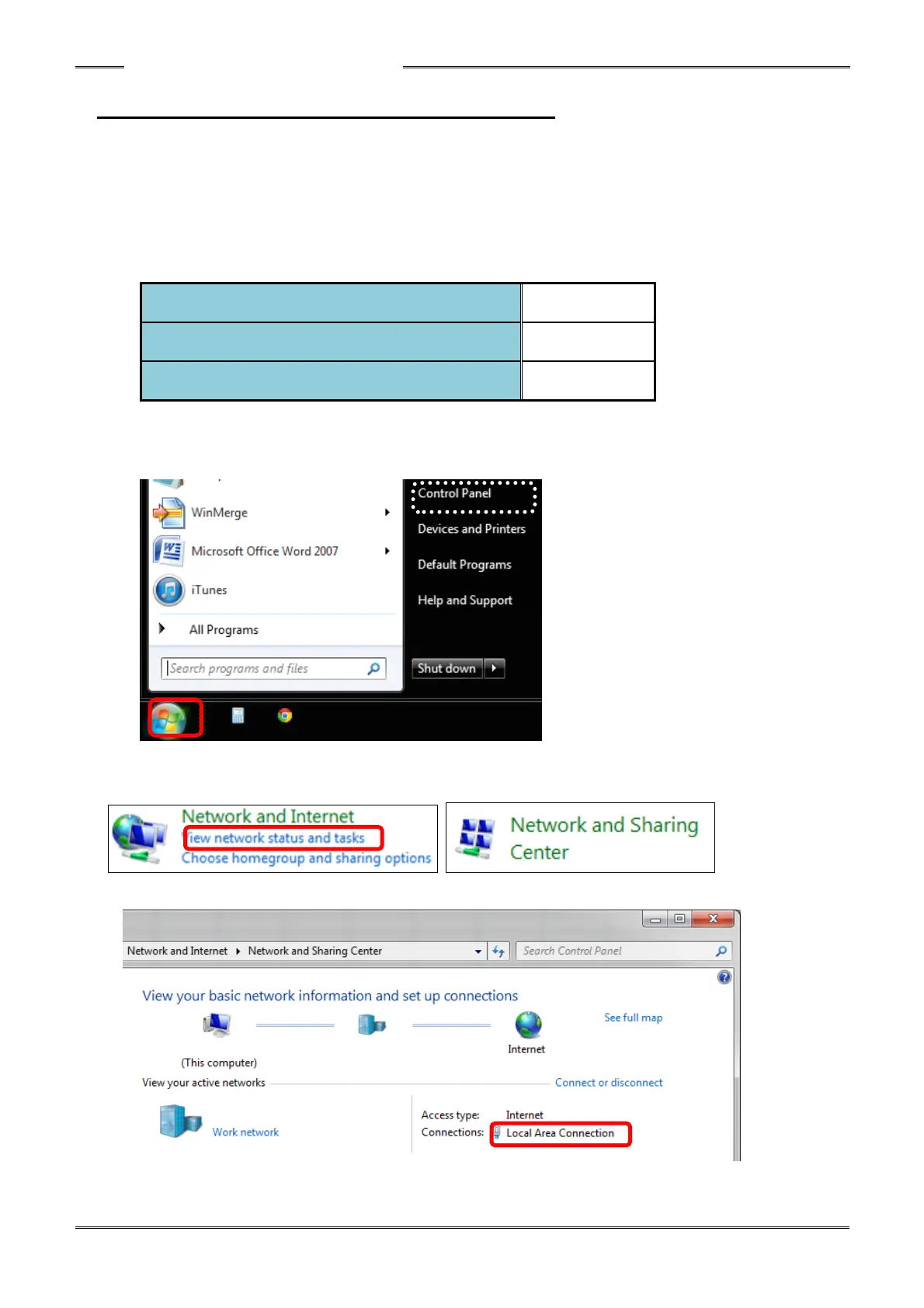
1. Select Control Panel from the Start menu.
2. Select “View network status and tasks” or “Network and Sharing Center” from the Control Panel.
・“Category” View ・“Large Icons” View
3. Select “Local Area Connection” from Network and Sharing Center.


 To Next Page