17
5. Setup
5-1. Connecting an FA-10DCCRU to the Computer
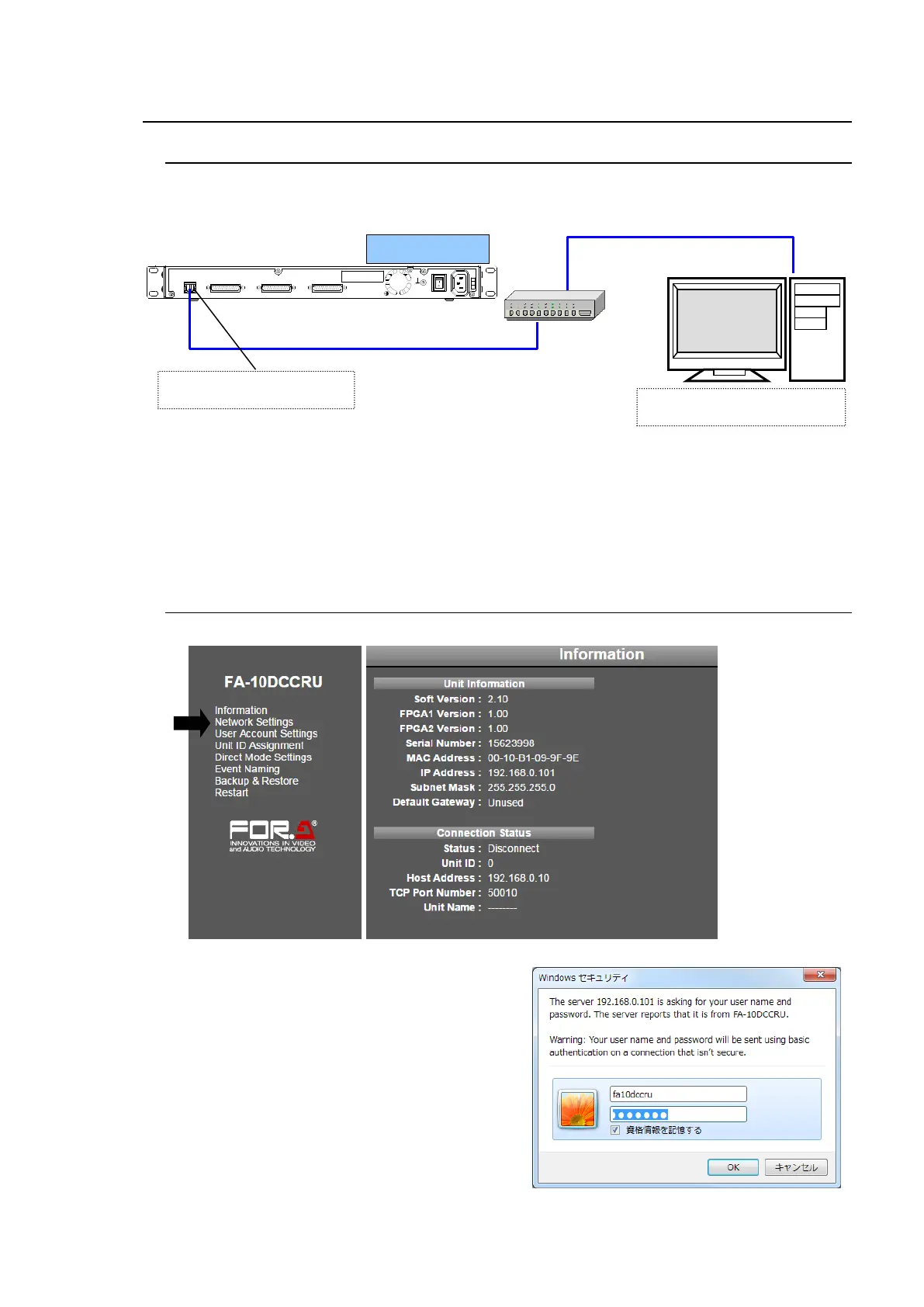
(1) Connect the FA-10DCCRU and your PC. Set the IP address of the PC so that it appears on
the same LAN subnet. For example, 192.168.0.1 as shown below.
(2) Launch your web browser on the PC. Microsoft Internet Explorer is used in this manual.
Other web browsers are also supported.
(3) Enter the IP address of the FA-10DCCRU (default: 192.168.0.101) in your browser’s address
bar.
(4) When the FA-10DCCRU connection is established, the Information page will appear.
5-2. Changing the FA-10DCCRU IP Address
(1) In the left pane of the Web GUI, click Network Settings.
(2) If a login dialog window as shown below
appears, enter the following user name and
password.
Default User name and Password
User name: fa10dccru
Password: foranetwork
TO MU
(10/100/1000BASE-T)
GPI1 GPI2 GPI3
POWER
A
C
1
0
0
-
2
4
0
V
5
0
/
6
0
H
z
I
N
OFF
ON
IP address: 192.168.0.1
Subnet mask: 255.255.255.0
IP address: 192.168.0.101
Subnet mask: 255.255.255.0



 To Next Page