25
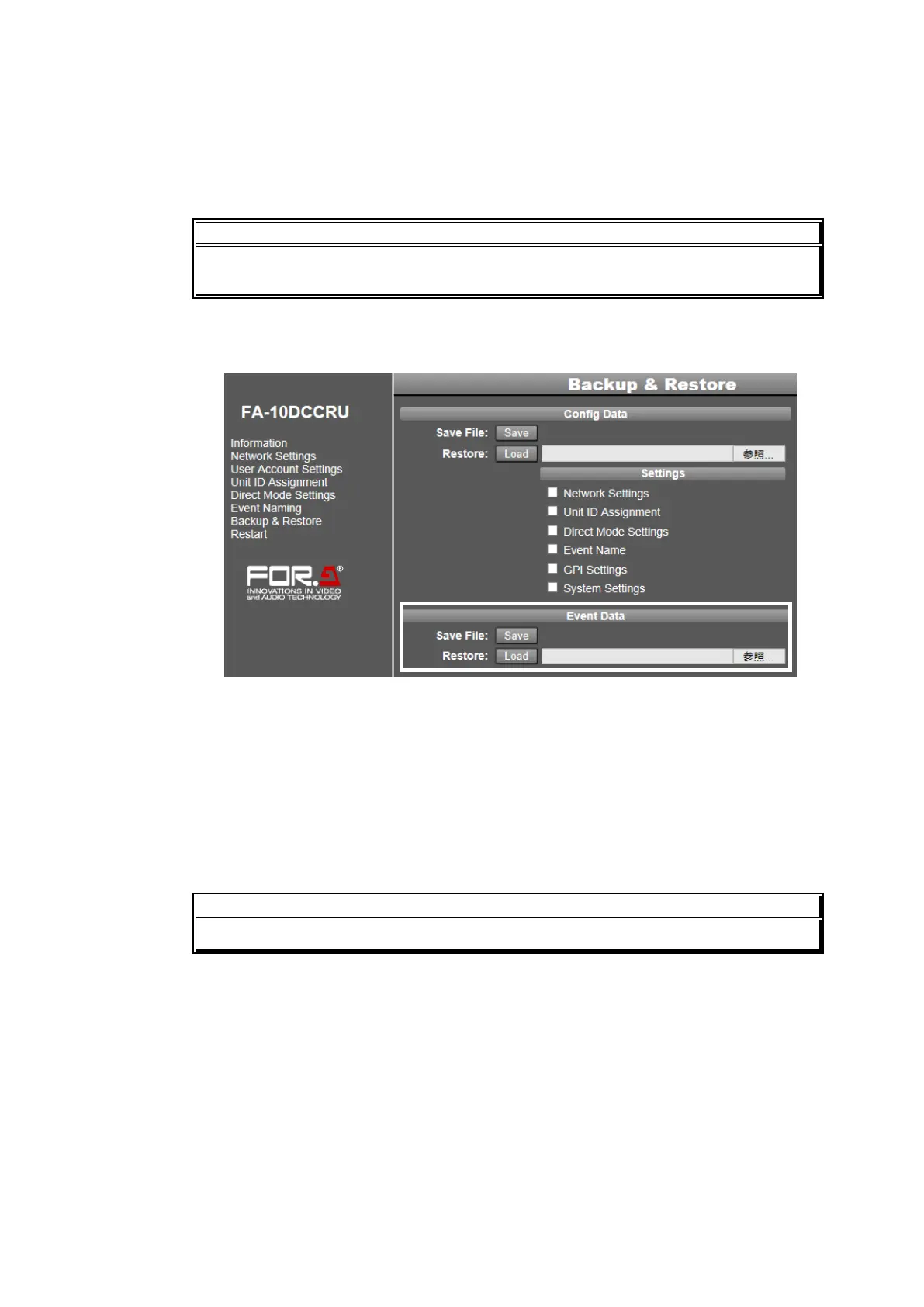
(1) Check on the checkboxes in the Config Data area to select data.
(2) Click Browse to select the backup file.
(3) Click Load. A confirmation dialog will appear. Click OK to load the settings. It will take up
to one minutes to complete the loading process.
To cancel the process, click Cancel.
After loading network settings, restart the FA-10DCCRU. (See section 5-3-8. “System
Restart.”
Saving Event Data
This procedure allows you to save all event data (1 – 100) in a file.
(1) Click Save in the Config Data area to display the Download dialog.
(2) Click Save in the dialog.
(3) Specify the destination folder and click Save. All event data are automatically stored in the
file named fa10dccru_evt.1re. Change the file name as necessary.
Restoring Event Data
(1) Click the browse button in the Event Data area and select the event backup file.
(2) Click Load. All event data stored in the file are loaded. It will take up to one minutes to
complete the loading process.
Note that once event data are loaded, all settings in the FA-10DCCRU are replaced.



 To Next Page