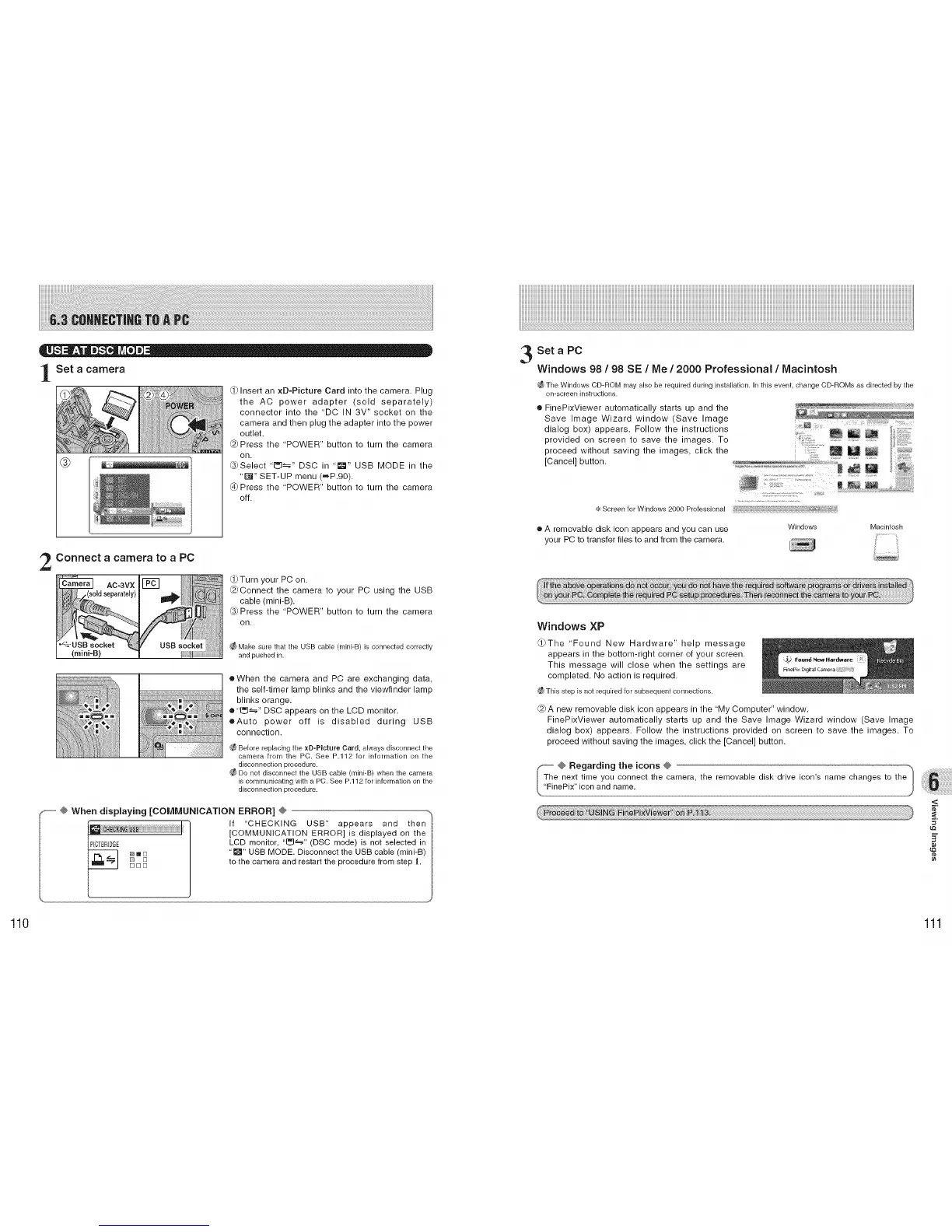
l Set a camera
(:1)Insert an xD-Picture Card into the camera, Plug
the AC power adapter (sold separately)
connector into the "DC IN 3V" socket on the
camera and then plug the adapter into the power
outlet,
@Press the "POWER" button to turn the camera
on.
_3_ i_ _3_Select "1_" DSC in "_1" USB MODE in the
"1_1" SET-UP menu (_.P.90).
_) Press the "POWER" button to turn the camera
off.
Connect a camera to a PC
AC-3VX
'_g;'USB socket
(mini-B)
_Turn your PC on.
@Connect the camera to your PC using the USB
cable (mini-B).
_3)Press the "POWER" button to turn the camera
on.
Make sure that the USB cable (mini-B) is connected correctly
and pushed in.
• When the camera and PC are exchanging data,
the self-timer lamp blinks and the viewfinder lamp
blinks orange.
• '[_" DSC appears on the LCD monitor.
eAuto power off is disabled during USB
connection.
Before replacing the xD-Plcture Card, always disconnect the
camera from the PC. See P.112 for information on the
disconnection procedure.
Do not disconnect the USB cable (mini-B) when the camera
is communicating with a PC. See P.112 for information on the
disconnection procedure.
_,-- @ When displaying [COMMUNiCATiON
NmD
ERROR]÷ --,
If "CHECKING USB" appears and then
[COMMUNICATION ERROR] is displayed on the
LCD monitor, "[_" (DSC mode) is not selected in
"1_" USB MODE. Disconnect the USB cable (mini-B)
to the camera and restart the procedure from step 1.
Set a PC
Windows 98 / 98 SE / Me / 2000 Professional / Macintosh
;_The Windows CD-ROM r'ilay also be required during installation. In this event, change CD-ROMs as directed by the
on-screen instructions.
e FinePixViewer automatically starts up and the
Save Image Wizard window (Save Image
dialog box) appears. Follow the instructions
provided on screen to save the images. To
proceed without saving the images, click the
[Cancel] button.
"4,"Screen for Windows 2000 Professional
e A removable disk icon appears and you can use
your PC to transfer files to and from the camera.
Windows
Macintosh
Windows XP
_The 'Found New Hardware" help message
appears in the bottom-right corner of your screen.
This message will close when the settings are
completed. No action is required.
_ This step is not requiredfor subsequent connections.
@A new removable disk icon appears in the 'My Computer" window.
FinePixViewer automatically starts up and the Save Image Wizard window (Save Image
dialog box) appears. Follow the instructions provided on screen to save the images. To
proceed without saving the images, click the [Cancel] button.
<
¢e
110 111






 To Next Page