124
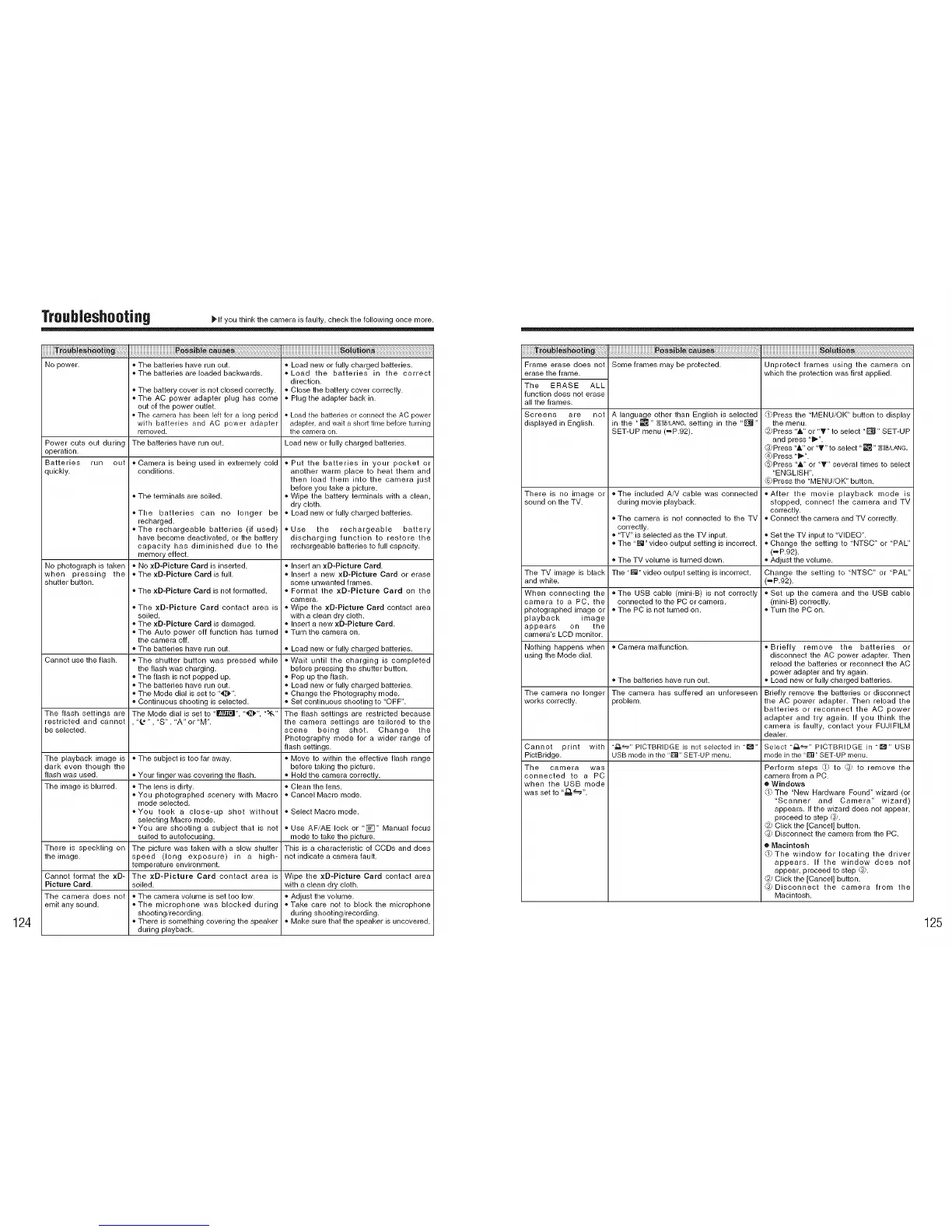
Troubleshootin9 _,f you think the camera is faulty, check the following once more.
iiiiiiiiiii iiiiiiiiiiiiiiiiiiiiiiiiiiiiiiiiiiiiiiiiiiipo_,b,iiiiiiiiiiiiiiiiiiiiiiiiiiiiiiiiiiiiiiiiiiiiiiiiiiiiiiso,_
No power.
Power cuts out during
operation.
Batteries run out
quickly.
No photograph is taken
when pressing the
shutter button.
• The batteries have run out.
• The batteries are loaded backwards.
• The battery cover is not closed correctly.
• The AC power adapter plug has come
out of the power outlet.
, The camera has been left for a long period
with batteries and AC power adapter
removed.
The batteries have run out.
• Camera is being used in extremely cold
conditions.
• The terminals are soiled.
• The batteries can no longer be
recharged.
• The rechargeable batteries (if used)
have become deactivated, or the battery
capacity has diminished due to the
memory effect.
• No xD-Picture Card is inserted.
• The xD-Picture Card is full,
• The xD-Picture Card is not formatted.
• The xD-Pieture Card contact area is
soiled.
• The xD-Picture Card is damaged,
• The Auto power off function has turned
the camera off.
• The batteries have run out.
• The shutter button was pressed while
the flash was charging.
• The flash is not popped up.
• The batteries have run out.
• The Mode dial is set to "O",
• Continuous shooting is selected.
The Mode dial is set to "l!_i]_", '_i_" ,t&,,
'£*" 'S", 'A"or 'M".
• Load new or fully charged batteries.
= Load the batteries in the correct
direction.
Close the battery cover correctly.
Plug the adapter back in.
Load the batteries or connect the AC power
adapter, and wait a shott ti['_le before turning
the camera on.
Load new or fully charged batteries.
Put the batteries in your pocket or
another warm place to heat them and
then load them into the camera just
before you take a picture.
Wipe the battery terminals with a clean
dry cloth.
Load new or fully charged batteries,
Use the rechargeable battery
discharging function to restore the
rechargeable batteries to full capacity.
• Insert an xD-Picture Card.
= Insert a new xD-Picture Card or erase
some unwanted frames.
Format the xD-Picture Card on the
camera.
Wipe the xD-Picture Card contact area
with a clean dry cloth.
• Insert a new xD-Picture Card.
Turn the camera on.
• Load new or fully charged batteries,
Cannot use the flash. • Wait until the charging is completed
before pressing the shutter button.
• Pop up the flash.
Load new or fully charged batteries.
• Change the Photography mode.
• Set continuous shooting to 'OFF".
The flash settings are The flash settings are restricted because
restricted and cannot the camera settings are tailored to the
be selected, scene being shot, Change the
Photography mode for a wider range of
flash settings.
The playback image is • The subject is too far away. = Move to within the effective flash range
dark even though the before taking the picture.
flash was used. • Your finger was covering the flash. • Hold the camera correctly.
The image is blurred. • The lens is dirty. • Clean the lens.
• You photographed scenery with Macro • Cancel Macro mode.
mode selected.
• You took a close-up shot without • Select Macro mode,
selecting Macro mode.
• You are shooting a subject that is not • Use AF/AE lock or "r_" Manual focus
suited to autofocusing, mode to take the picture.
There is speckling on The picture was taken with a slow shutter This is a characteristic of CCDs and does
the image, speed (long exposure) in a high- not indicate a camera fault.
temperature environment.
Cannot format the xD- The xD-Picture Card contact area is Wipe the xD-Picture Card contact area
Picture Card. soiled, with a clean dry cloth.
The camera does not • The camera volume is set too low. • Adjust the volume.
emit any sound. • The microphone was blocked during • Take care not to block the microphone
shooting/recording, during shooting/recording.
• There is something covering the speaker • Make sure that the speaker is uncovered.
during playback.
iiiiiiiiit_o.b, iiiiiiiiiiiiiiiiiiiiiiiiiiiiiiiiiiiiiiiiii
Frame erase does not
erase the frame.
The ERASE ALL
function does not erase
all the frames.
Screens are not
displayed in English.
There is no image or
sound on the TV.
The TV image is black
and white.
When connecting the
camera to a PC, the
photographed image or
playback image
appears on the
camera's LCD monitor.
Nothing happens when
using the Mode dial.
The camera no longer
works correctly.
Cannot print with
PictBridge,
The camera was
connected to a PC
when the USB mode
was set to ',_".
Some frames may be protected.
A language other than English is selected
in the "_" _/LANG, setting in the "[]"
SET-UP menu (=P.92).
The included A/V cable was connected
during movie playback.
The camera is not connected to the TV
correctly.
"TV" is selected as the TV input.
The "[]" video output setting is incorrect.
The TV volume is turned down.
The "[]" video output setting is incorrect.
• The USB cable (mini-B) is not correctly
connected to the PC or camera,
• The PC is not turned on.
• Camera malfunction.
• The batteries have run out.
The camera has suffered an unforeseen
)roblem.
"_" PICTBRIDGE is not selected in "_"
USB mode in the "1_" SET-UP menu.
Unprotect frames using the camera on
which the protection was first applied.
_ Press the "MENU/OK" button to display
the menu.
_2;Press "A" or "V" to select "[]" SET-UP
and press "1_".
Press "A" or "V" to select "[]" _/LANG.
':4_Ptess "1_".
,_Press "A" or "V" several times to select
"ENGLISH".
(6; Press the "MENU/OK" button.
• After the movie playback mode is
stopped, connect the camera and TV
correctly.
• Connect the camera and TV correctly.
• Set the TV input to "VIDEO".
• Change the setting to "NTSC" or "PAL"
(_P.92).
• Adjust the volume.
Change the setting to 'NTSC" or 'PAL
(=P.92).
• Set up the camera and the USB cable
(mini-B) correctly.
• Turn the PC on.
• Briefly remove the batteries or
disconnect the AC power adapter. Then
reload the batteries or reconnect the AC
power adapter and try again.
• Load new or fully charged batteries.
Briefly remove the batteries or disconnect
the AC power adapter. Then reload the
batteries or reconnect the AC power
adapter and try again. If you think the
camera is faulty contact your FUJIFILM
dealer.
Select "_-" PICTBRIDGE in "1_" USB
mode in the "1_" SET-UP menu.
Perform steps _) to (3_ to remove the
camera from a PC.
• Windows
_" The 'New Hardware Found" wizard (or
"Scanner and Camera" wizard
appears. If the wizard does not appear.
proceed to step (_.
_,2)Click the [Cancel] button.
(3j Disconnect the camera from the PC.
• Macintosh
_JThe window for locating the driver
appears, If the window does not
appear, proceed to step @.
_2; Click the [Cancel] button.
_3_Disconnect the camera from the
Macintosh.
125






 To Next Page