20
1.3 Status Bar
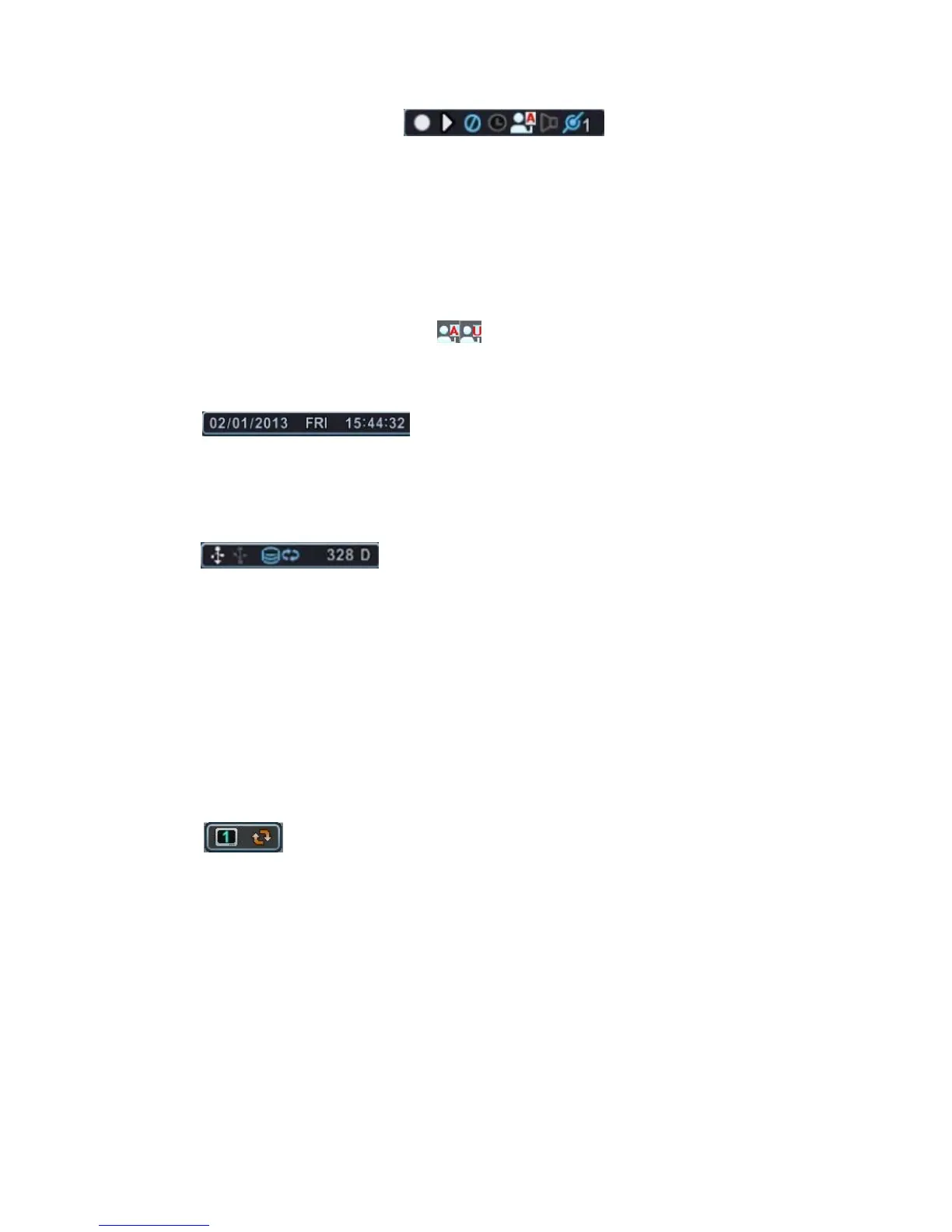
(1) Indicates Recording Status. Red shows Recording is being processed.
Click this ICON to toggle Record Start and Stop.
(2) Indicates Playback Status. Green is Playback. Click this ICON to
toggle Playback Start and Stop.
(3) Clear Menu and LOG (Mouse click)
(4) Displayed when schedule recording is On.
(5) Indicates Login Status
A stands for admin, U stands for user.
(6) Indicates Audio Data is being stored.
(7) Shows the Number of Clients connected to the DVR via the Network.
: Displays Month, Year, Time and Date.
Change DATE FORMAT on Menu <System →
Time>.
:.
(8) Indicates a USB Device is connected. It changes to a blue colour
when backing up. Click this ICON to toggle Backup Start and Stop.
(9) Shows the remaining recording time of the DVR. If the remaining HDD
capacity is less than 5Gb, the blue “Recycling” icon is displayed.
(10) Displays the remaing recording days using the current recording
conditions.
1.4 Spot Monitor Indicator
Shows the selected Spot number and status.



 To Next Page