74 DIGITAL VIDEO RECORDER
IX.BACKUP
1. Manual Back Up
1.1 External USB HDD/ Memory Stick
1. Insert a USB HDD or Memory Stick into the Front Panel USB Port.
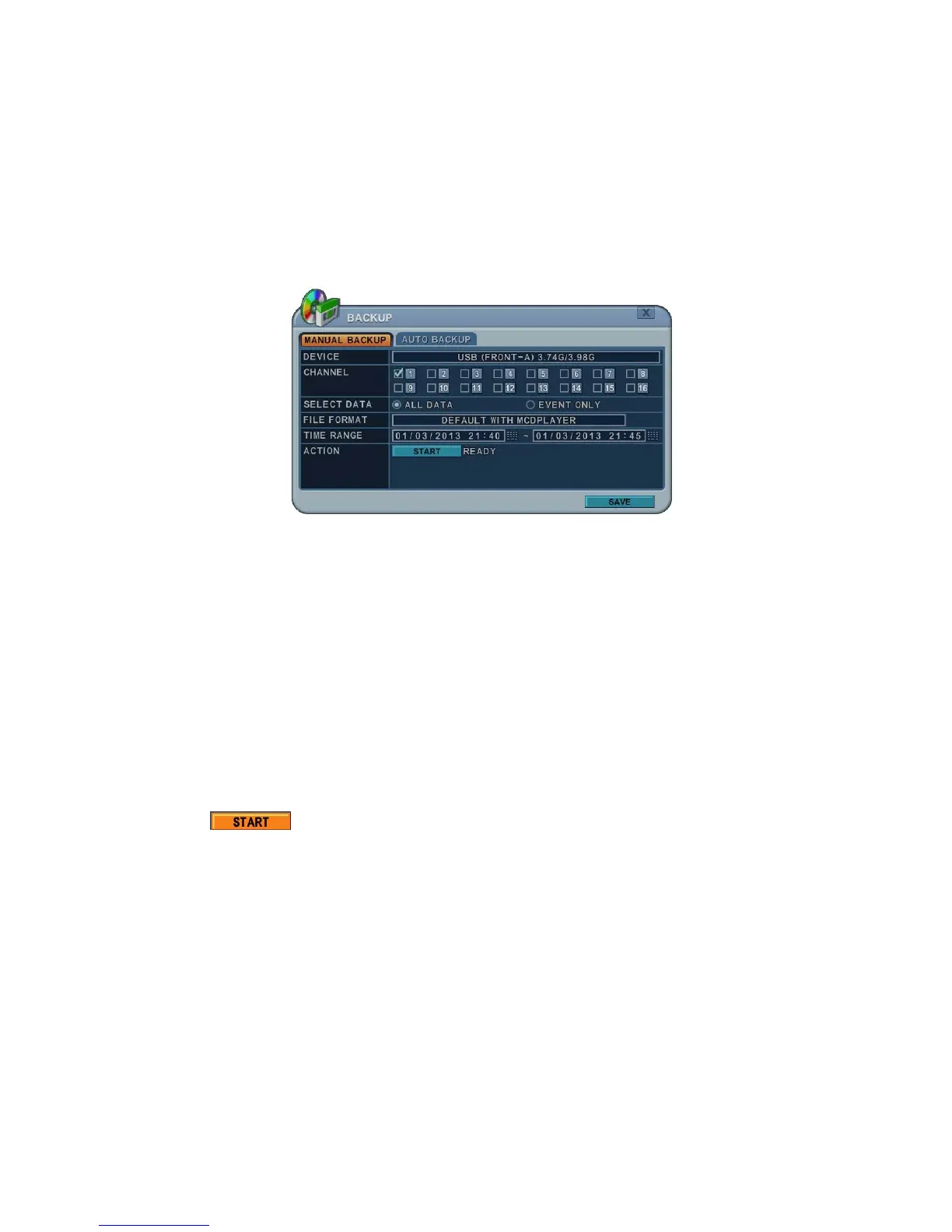
2. Press the BACKUP button on the IR Remote and the backup menu
appears.
3. Use the [-, +] buttons to select device.
4. Use the [-, +] buttons to select channels. All channels are set by default.
5. Select the data for BACKUP.
(1) ALL DATA: Normal Recording Data
(2) Event Only : Event Recording Data.
6. File format will be saved as “.s”
7. Select the time range - start and end time.
8. Enter the numbers as required in 24-hour format, and then move to
.
9. Press the [+] button to start BACKUP.
The progress of the backup is displayed at the bottom of the window as
a percentage of the entire backup process. Pressing the Backup button
again shows the Backup status. We recommend not performing a
playback operation while the DVR is in a backup session.
10. When finished, the icon changes to grey.
The CD Playback software simply “auto-runs” and does not require any
software installation on your PC.
Note: Please Refer to [LOCAL PLAYER] section to read about back-up



 To Previous Page