24
2) When the DVR is powered on, it starts to scan the DVR status.
3) Live Viewing screen appears after initialisation (about 50sec.) It can be
delayed if you have a defective HDD. It will try to fix a logical problem but
will show you a warning message for a physical problem.
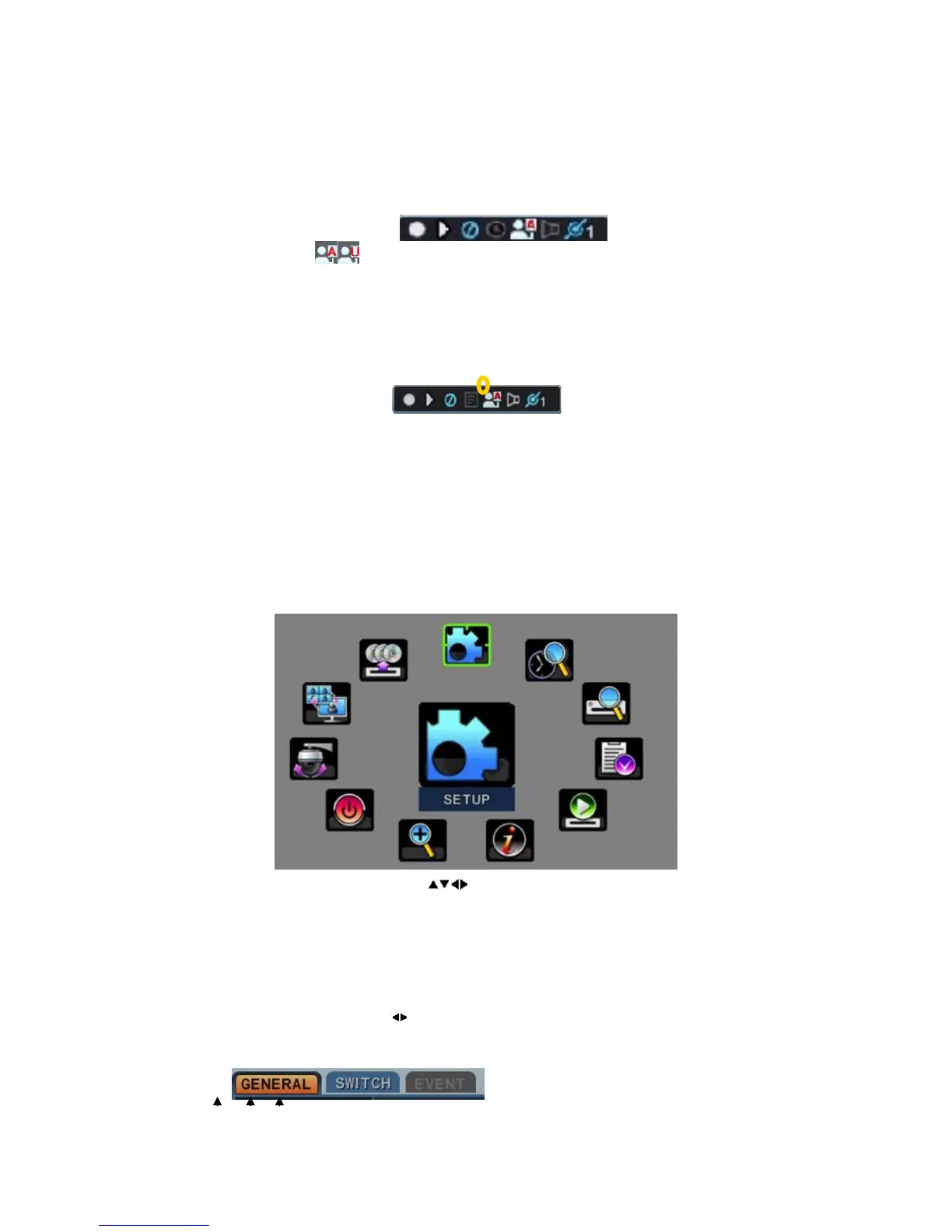
4) Press the Login button on the front panel or click the icon with a mouse.
5) Login Icon
is displayed on the status bar.
2. Logout
Press the Login button on the front panel or click the icon with a mouse
again.
2. NAVIGATING THE MENU
1. Log the DVR On at Admin or User level.
* User with configure feature has limited access [DISK and System Menu].
2. On the front panel, or remote control, press MENU. Using the mouse,
click anywhere on the monitor and the Virtual remote control appears.
3. Use the Direction buttons
to select the desired menu. Using the
mouse, click the menu. The selected menu icon is displayed in the centre,
in a larger size, and highlighted.
4. Press the OK button to select the menu and display any Sub-Menus. Using
the mouse, double click.
5. Use Left/Right buttons
to select TAB menus. Selected items changed to
an Orange colour.



 To Next Page