30
COLOUR 50%
y The colour for each camera can be adjusted by pressing
the [-,+] buttons.
SATURATION 50%
y The saturation for each camera can be adjusted by
pressing the [-,+] buttons.
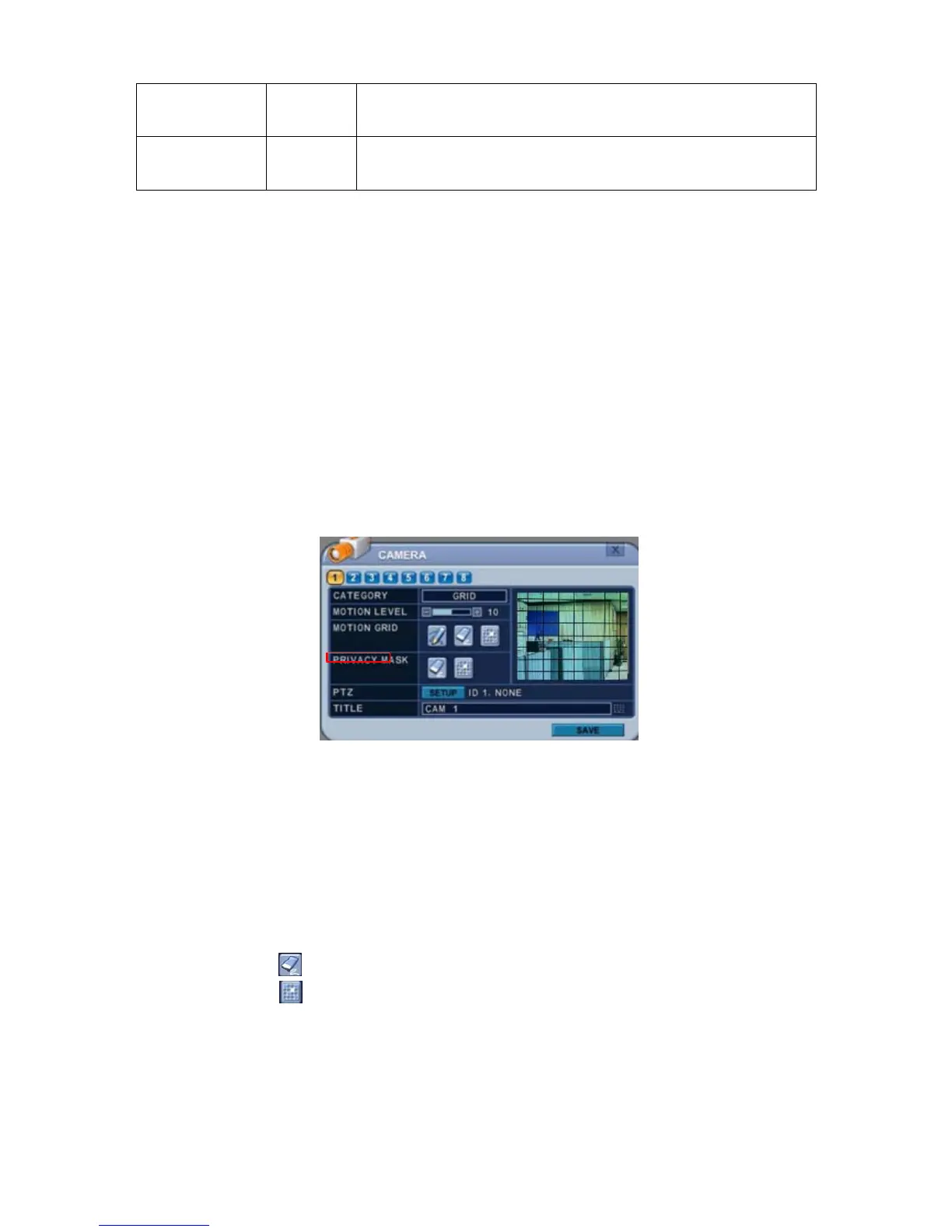
2.3. Privacy Mask
Privacy Mask allows you to obscure certain areas in the surveillance video for
privacy protection and conform to related privacy laws, policies and regulations.
Areas applied with privacy masks will not be displayed. Once you’ve set up the
Privacy Mask - by selecting positions that need masking - the covered
placement is displayed in Live View, Recordings and on Playback.
To Configure a Privacy Mask:
1. Select a Camera number button to configure the mask.
2. The Privacy Mask creates a masking rectangle of a selected size then
positions it on the video image. To define the Privacy Mask area:
1) On the front panel, or remote control, press any of directional buttons
to highlight an area in the Privacy Mask grid. Select Start and End
Cells which you want to hide, one at a time, and then press OK.
2) The area is selected and the cells are highlighted in a blue colour.
3) The area property is highlighted and privacy mask can now be
observed in the view window. By default, it’s set to OFF.
z : Clear All. Press OK to select.
z
: Select specific. Press OK to select.



 To Next Page