55 DIGITAL VIDEO RECORDER
1. Channel: Select desired PTZ camera.
2. Active: Configure PTZ action [NONE Æ GOTO Æ TOUR] and Preset
Number or Tour group when an event is detected.
3. Inactive: Select Camera position after event duration expires.
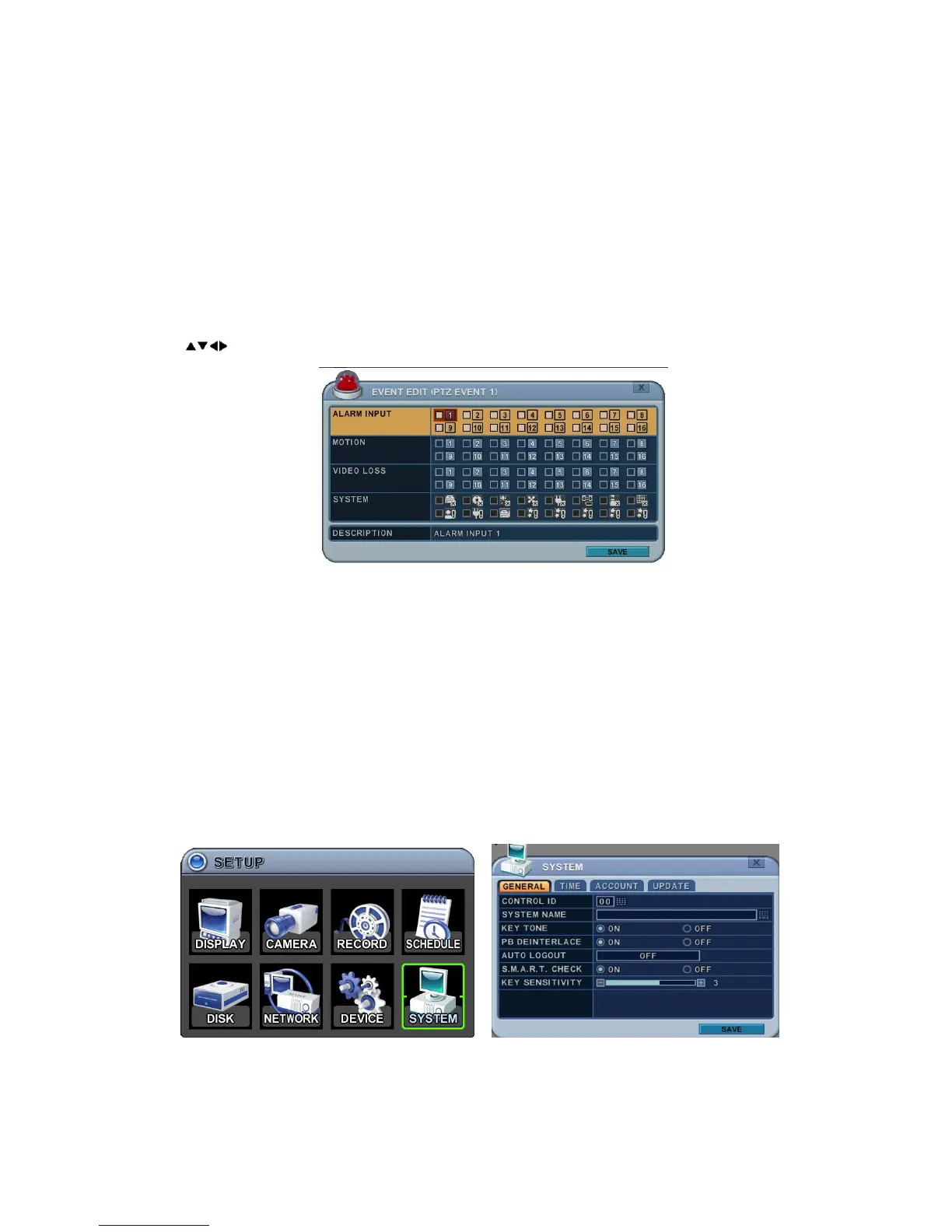
4. Event Edit: Press ENTER to edit multiple events. The menus are displayed
with options in the left-hand column and settings in the right hand column.
A cursor (highlighted menu) can be moved using the direction buttons
on the IR remote or front panel.
Note: Do not set up Motion detection on the PTZ camera for a PTZ event.
The signal will loop.
5 . To save changes and exit the menu, press the MENU button.
Exit the menu without making changes, press the CANCEL button.
8. SYSTEM
8.1. General
1. Control ID: Each DVR that is preconfigured with a Control ID is enabled
to respond to, and be operated by, the IR remote control.



 To Next Page