29
1. Motion Level: The sensitivity settings are 1~20 – where 1 is the lowest
level. By default, the level is set to 10.
2. Motion Grid: The area properties are highlighted and motion detection
can now be observed in the view window. By default, it’s OFF.
z : Select All. Press Enter to select.
z : : Clear All. Press Enter to select.
z
: Select specific. Press Enter to select.
To define the motion viewing area cell-by-cell, do the following:
On the front panel, or remote control, press any of direction buttons
to highlight a cell in the motion detection area and then press INC/+.
This area is selected and the cells are highlighted in a blue colour.
Press CANCEL to return to the left column.
2.2. Video Adjustment
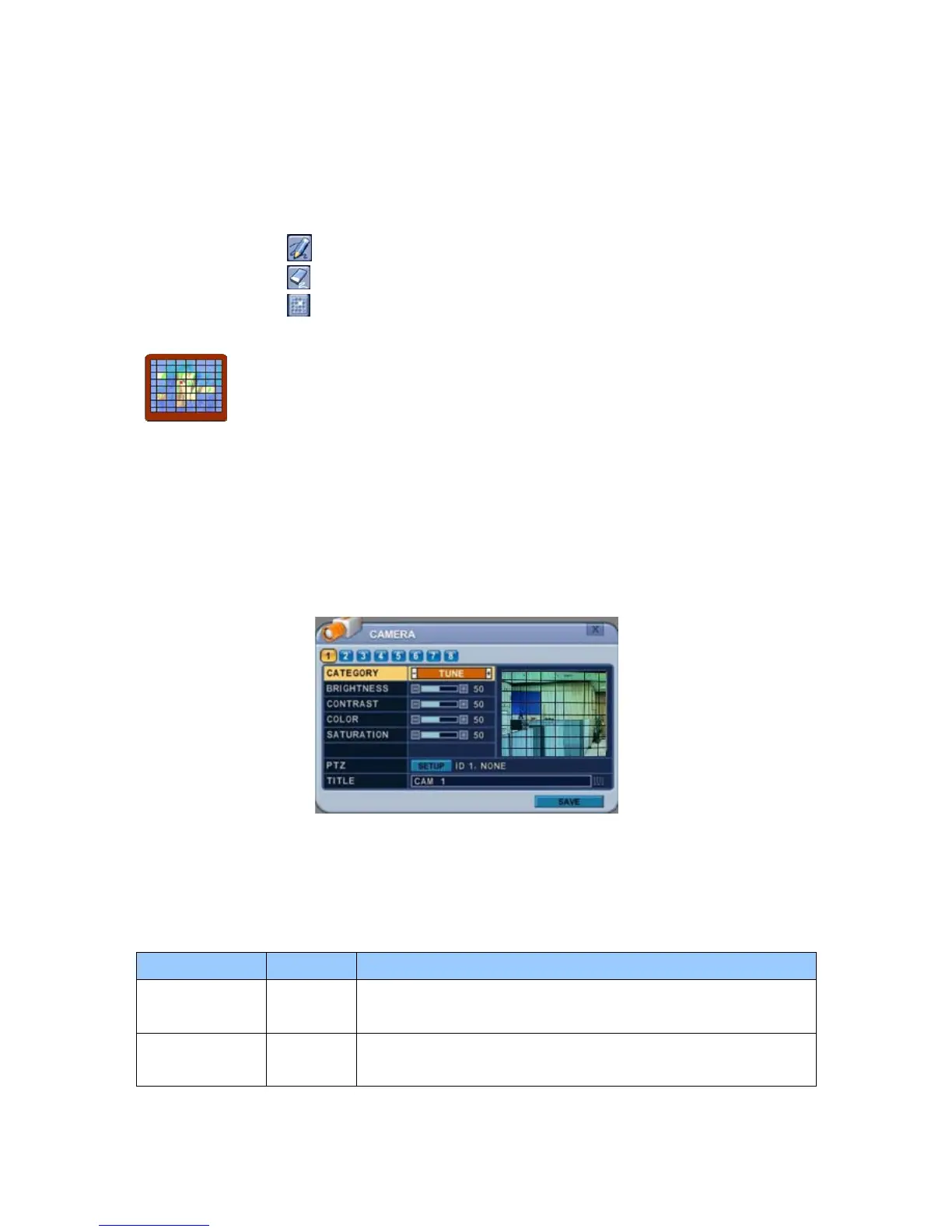
Choose “TUNE” in Category options.
To Configure Camera Settings:
Select a Camera number button to configure the camera.
ITEM DEFAULT ADJUSTMENT
BRIGHTNESS 50%
y The brightness for each camera can be adjusted by
pressing the [-,+] buttons.
CONTRAST 50%
y The contrast for each camera can be adjusted by pressing
the [-,+] buttons.



 To Next Page