69 DIGITAL VIDEO RECORDER
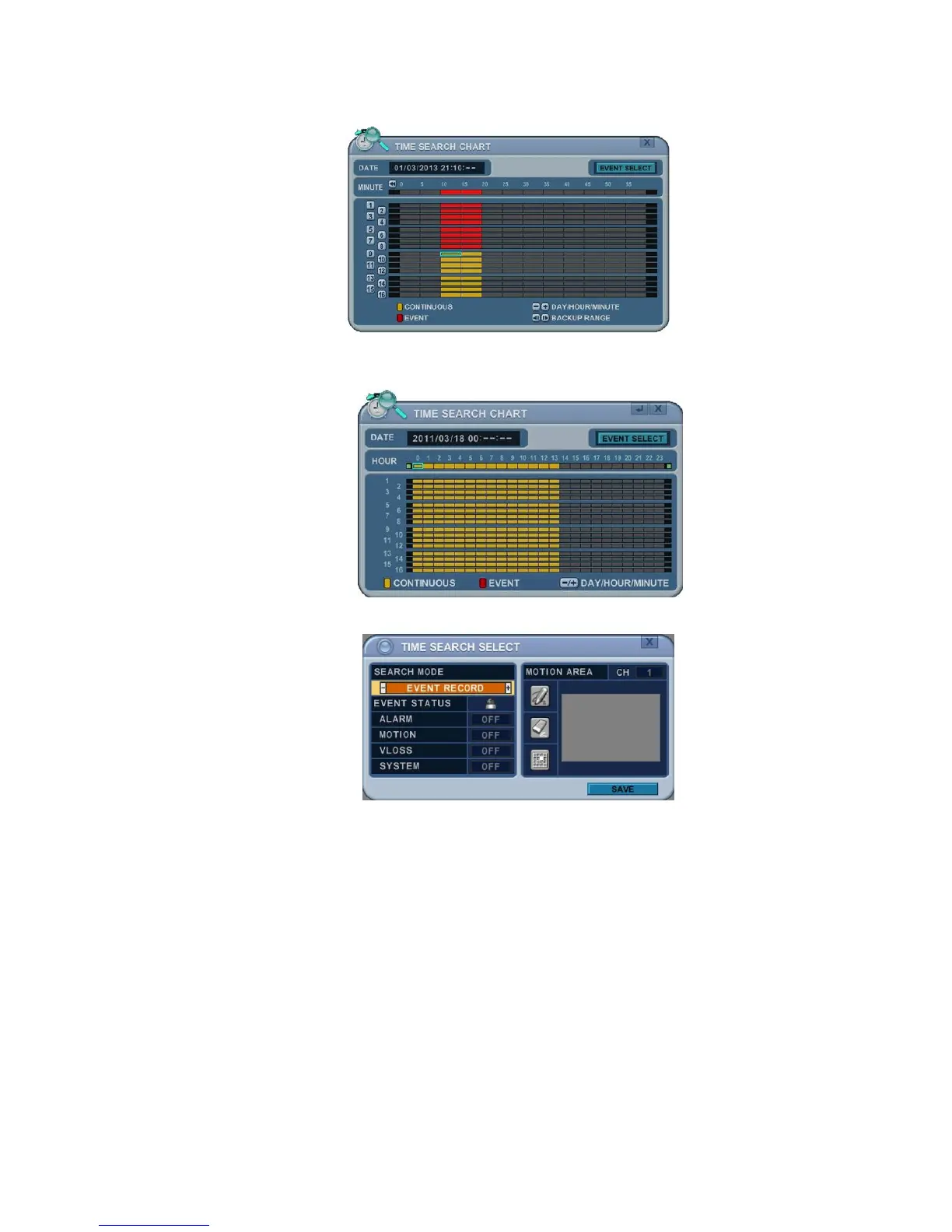
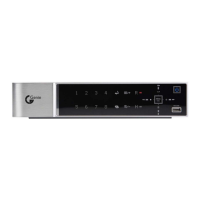
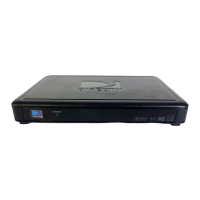
1. Press the “Event Select “ button to change the Search mode.
2. Press OK to set up. Press the [+/-] buttons to select “Event Record”.
3. Press the [+/-] buttons to select “SEARCH MODE” (Event
Source/Motion Area).
Note: Event Record is set by default and makes Time Search
Chart display Event Recording in Red.
2.4. Event Source Search
The Event Source Search feature allows you to search the recording data
for previously triggered Alarm, Motion and Video Loss events.
1. Press the [+/-] buttons to select “Event Source” in search mode.



 To Next Page