37
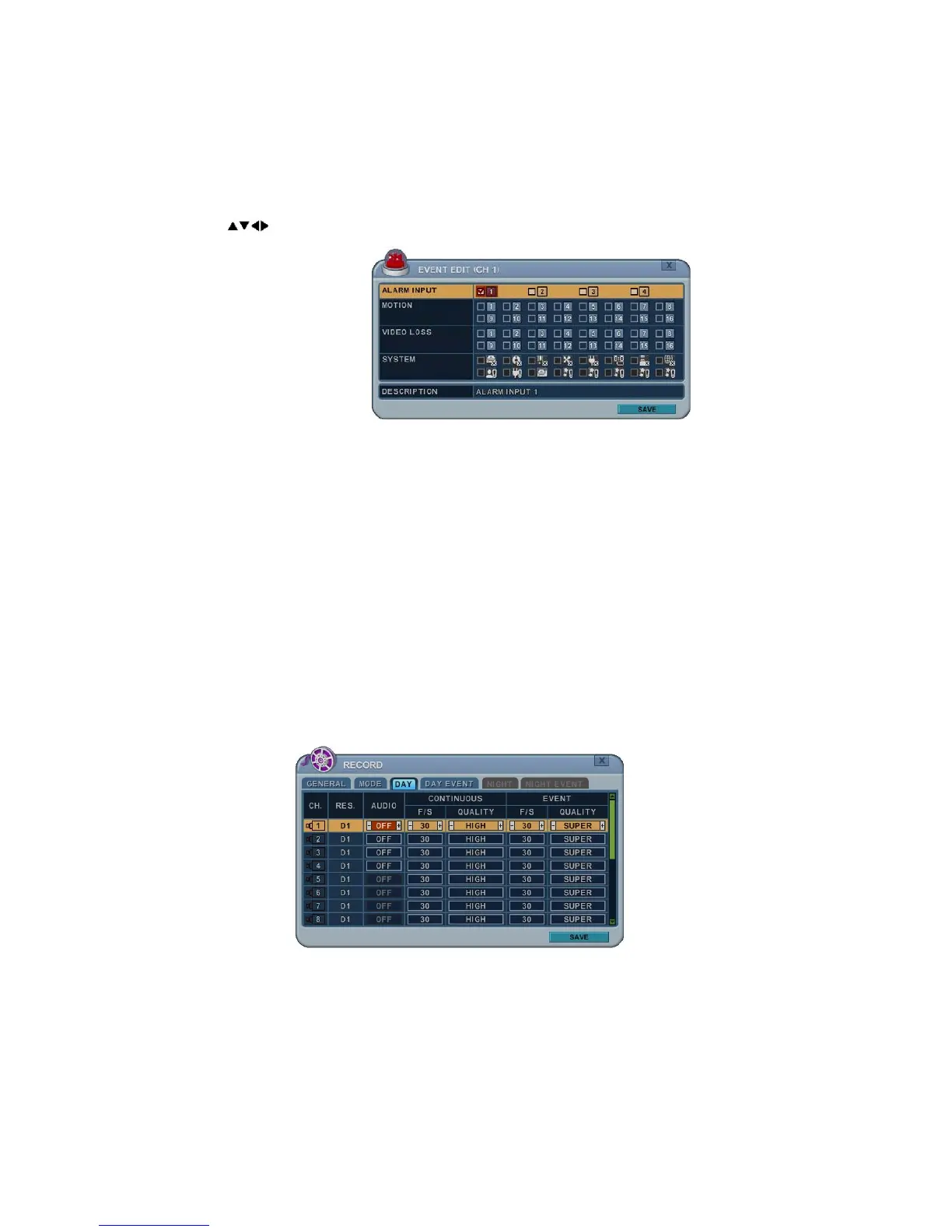
b. Event Edit
- Press ENTER to edit multiple events. The menus are displayed with
options in the left-hand column and settings in the right hand column.
A cursor (highlighted menu) can be moved using the direction buttons
on the IR remote or front panel.
- Change options using the DEC/INC buttons on the IR remote or by
clicking with the mouse.
- System menu will not be activated in this section.
3.5. Continuous + Event (Motion/Alarm) Recording
Both Continuous and Event recording can be set simultaneously. The DVR
records video data continuously over a 24 hour period, but when an
Event occurs recording speed and picture quality can be set to values
different from continuous recording.
Example
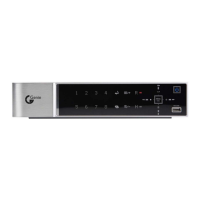
By pressing the REC button, Normal recording starts with High picture
quality at 30fps. When an Event is triggered on this channel, it changes to
recording with Super picture quality at 30fps. It returns to Normal
Recording after the Event duration ends.
Note: Please determine the Event source - such as Motion, Alarm, Video
Loss on the DAY EVENT tab.



 To Next Page