37
3rd Wave User Manual
Saving and Assigning Samples to a Slot
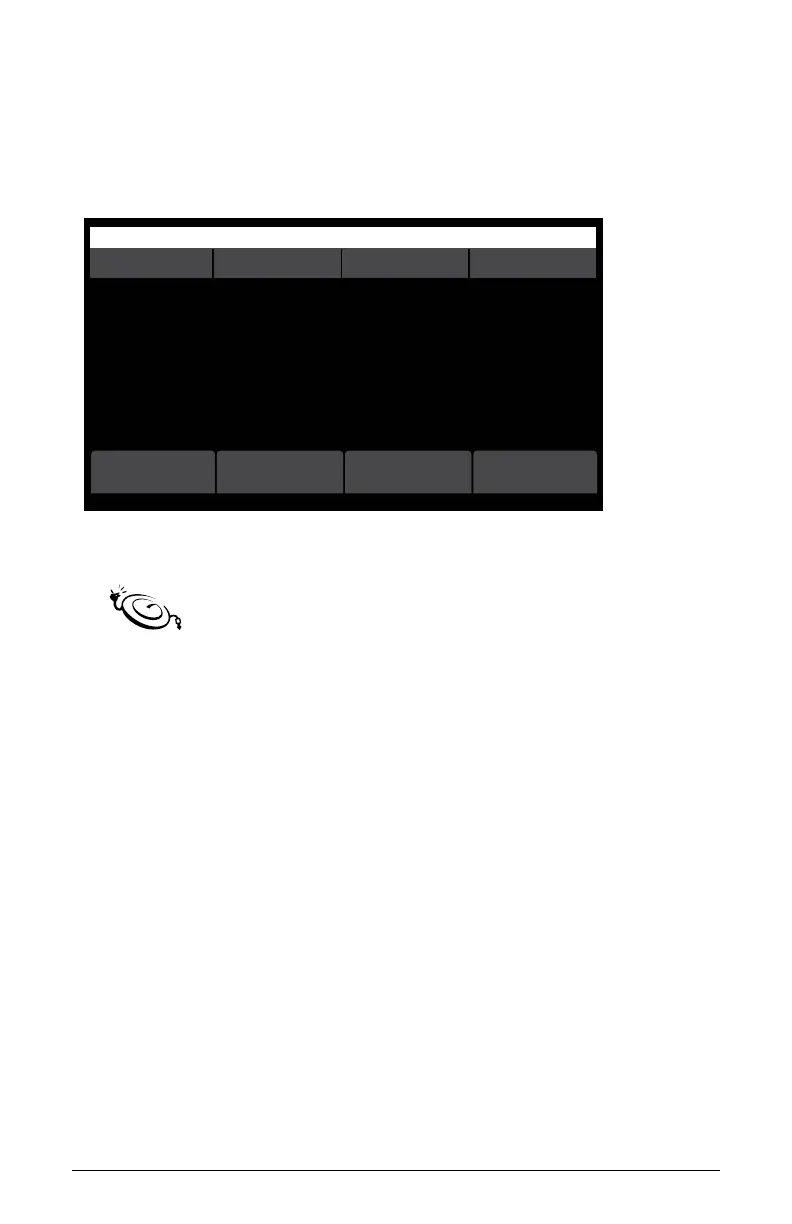
After you assign a sample to a slot, the sample editing screen appears.
(See “Save Sample screen” on page 37.) Here you can loop the
sample, adjust its start and end point, and more. See “Editing Samples”
on page 42 for more information.
OS v1.8B5-P012 Orchest Hit
slot bit depth cursor symbol
Use in sample slot: S01
(empty)
Assigned note: C4 (set with keyboard)
Bit depth: 16-bit
Sample recording name:
Sample Name
clearremoveadd ok
Save Sample screen
Once a sample is assigned to a slot, you can access it with the wavetable
knob in the oscillator section of the 3rd Wave and play it. It will appear in the “S”
category, which follows the virtual analog waveforms in the “A” category. Select an “S:
slot with the desired sample(s) to play and use it in a program.
Bulk Loading .wav Files into Sample Memory
You can load multiple raw .wav les from your computer into the 3rd
Wave in a single pass by using the manage sample memory command in
the global menu. Note that there is a distinction between a raw sample
and the “S” slot that a sample is assigned to for playback in an oscillator.
The 3rd Wave is only importing the raw samples into memory with the
bulk load command. It is not assigning them to a sample slot. You will
need to make this assignment for each sample after you have imported
them using the manage multisamples command.



 To Next Page