41
3rd Wave User Manual
Saving and Assigning Samples to a Slot
Adding Additional Samples to a Slot to Create a Multi-Sample
You can create a multi-sample container by adding more than one sample
into the same slot. This is useful for creating drum kits, sound effects
sets, or instruments that have multiple samples across the range of the
keyboard.
Adding more than one sample into to a container:
1. Press the global button and use soft knob 1 to scroll to the manage
multisamples setting.
2. Turn soft knob 2 to select go.
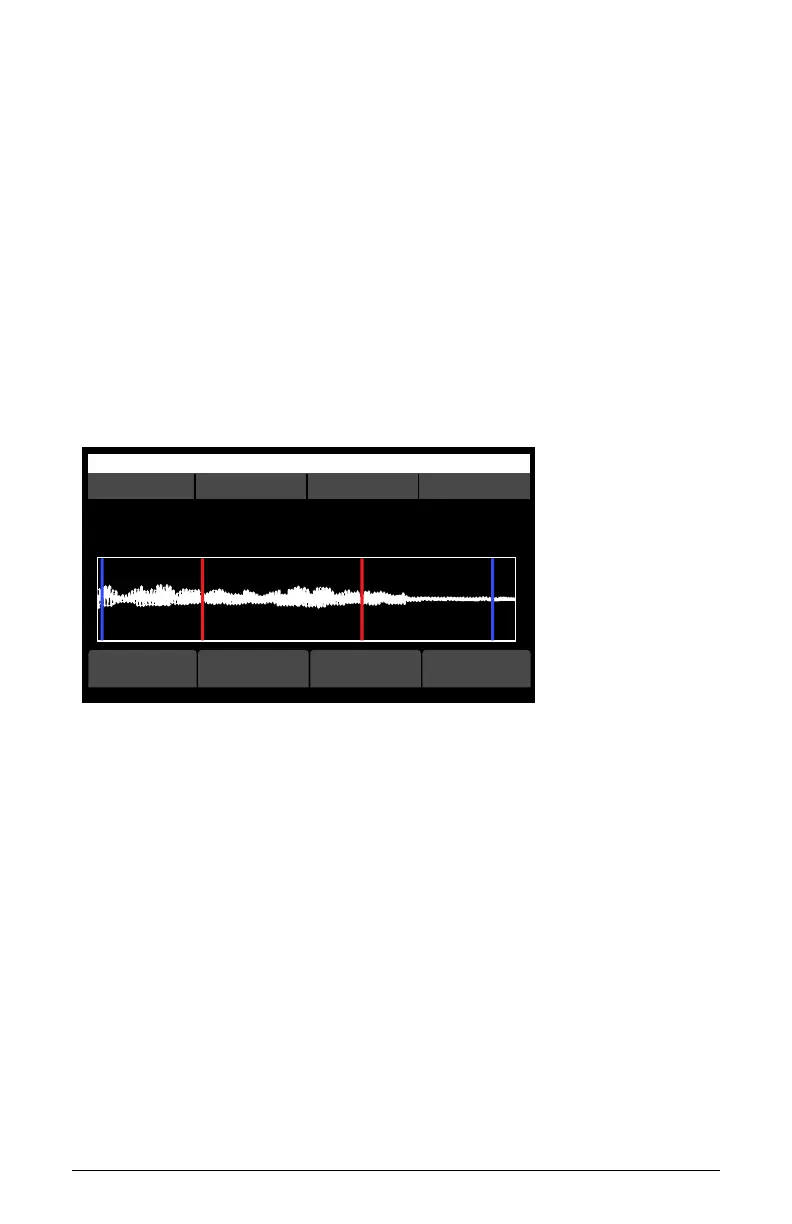
3. In the sample editing screen, use soft knob 1 to select the desired sample.
OS v1.8B5-P015 Modeled Texture
S slot multisample start end
Sample S00 - multisample 1 of 1
C15 Synth - Attack 1
Assigned note: C4, range [C2, C6]
playloop
add to
multi
-->
Sample Edit screen
4. Press soft button 1 (add to multi).
5. To use an existing sample that is saved in memory, use soft knob 1 to
select the sample.
6. Set the assigned note for the selected sample in the slot by pressing a
key on the keyboard.
7. If you are adding multiple samples to the container (8 maximum) set
each of their assigned notes as you load them to map them across the
keyboard.
8. Press soft button 4 (select) to add the sample to the multi-sample
container.



 To Next Page