44 Editing Samples
Groove Synthesis
Looping
To create and edit effective loops, you need to audition the sample by
playing it on the keyboard. To do this you need to assign the sample to
a multi-sample slot and use it in a preset so you can trigger it from the
keyboard as you make changes. Refer to “Using Samples in a Preset” on
page 42 for instructions on to do this.
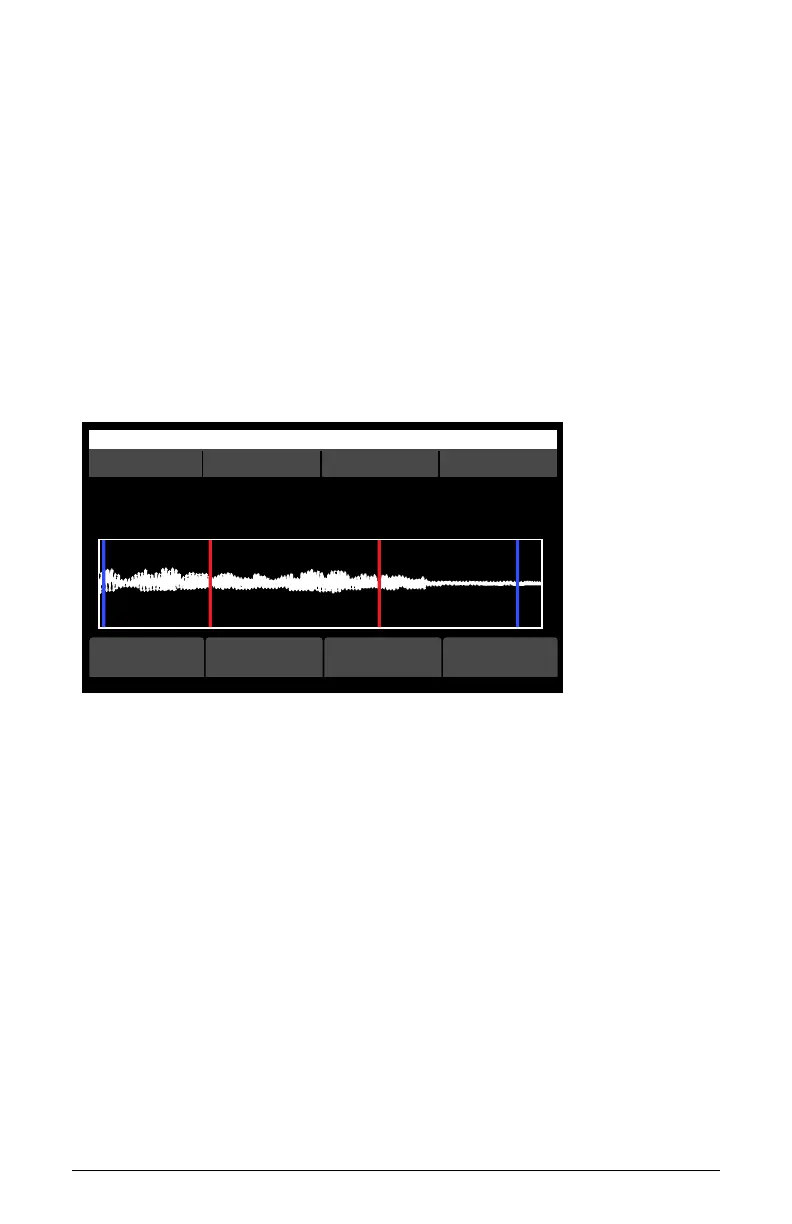
Once a sample is in use in a preset, you can quickly edit it by turning the
wavetable knob on the oscillator that uses the sample then pressing soft
button 2 (sample). The sample editing screen will appear. Here you can
loop the sample, adjust its start and end point, edit its name, and more.
OS v1.8B5-P015 Modeled Texture
S slot multisample start end
Sample S00 - multisample 1 of 1
C15 Synth - Attack 1
Assigned note: C4, range [C2, C6]
playloop
add to
multi
-->
To loop a sample in the sample editing screen:
1. Press soft button 2 (loop) to access the looping screen.
2. To turn looping on, press soft button 2 (loop select). Press this button
repeatedly to select the type of looping that you want.
The options are:
• looping off. In the this mode, the sample will play from beginning
to end as a “one shot.” It will not loop or repeat unless re-trig-
gered.
• looping on when note on. In the this mode, the note will continue
looping while you hold a note. Once the note is released, looping
stops and the post-loop segment of the sample (if present) will
play.
• looping always on. In this mode, the note will continue looping
both while you hold a note and also once you release the note. This



 To Next Page