4.7.4.1 Draw Line
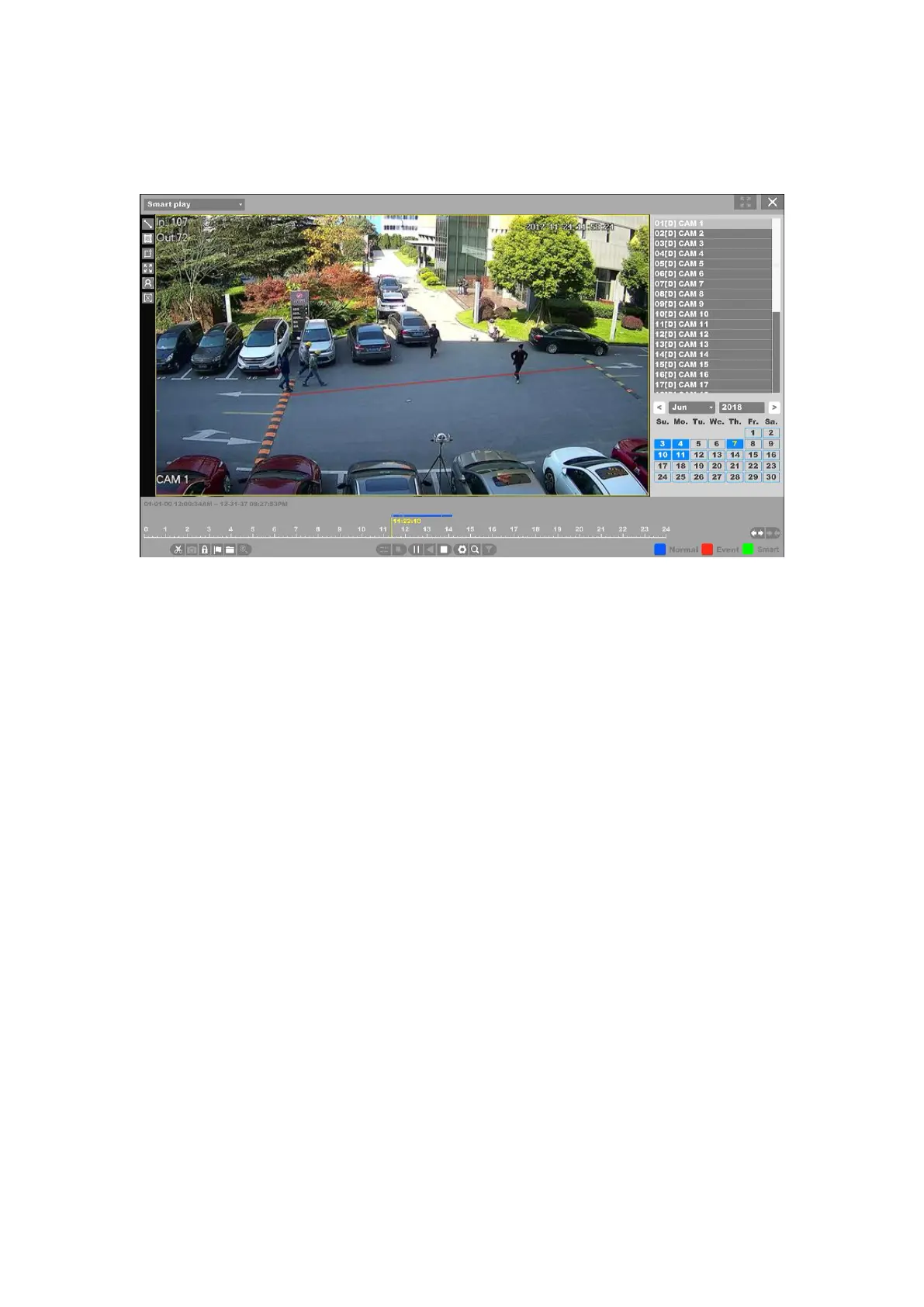
Figure 4-114 Smart Playback – Draw Line
1. First you need select a channel and click “Play”, then the icon of “Draw Line” can be
active. You can click to draw a line on the video interface;
2. Click “Setting” button you can specify some setting for playback like “Skip Non-Focus
Video” and specify the playback speed for Non-Concerned Video and Attention-Video, also you
can specify the time before and after the events from 0 to 600 seconds.
3. Click “Search” button then the result will be shown like figure 4-110, video with line
crossing will be marked color “green”, and the video will be played by the setting as you made at
step 2.


 To Next Page
 Loading...