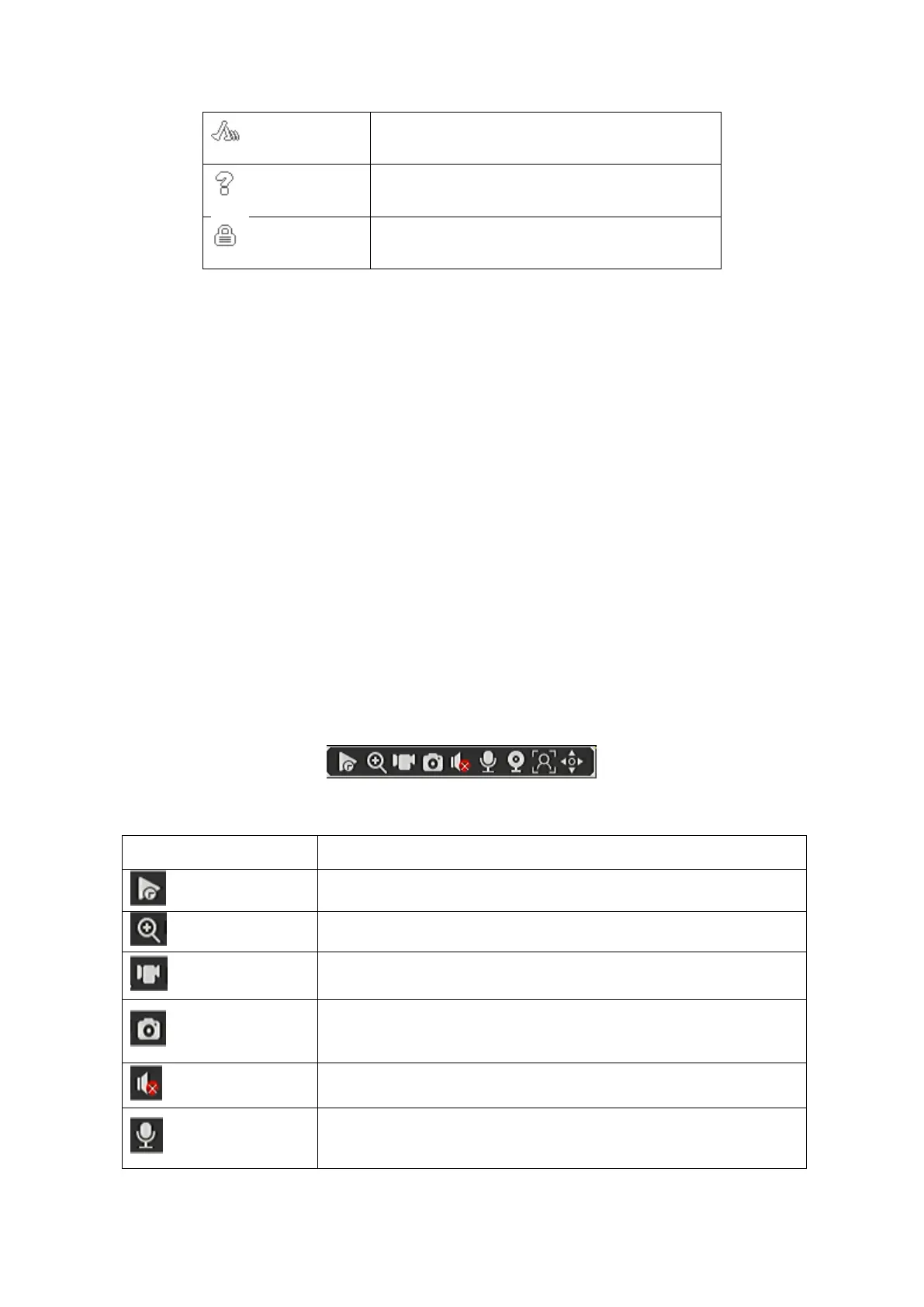
Shown on channel preview when alarm triggered.
Shown on channel preview when video lost.
Table4-1 Live view Icons
4.2.2 Operations in Live View Mode
There are many functions available from the Live View Mode. The functions are listed below.
• Single Screen: showing only one screen on the monitor.
• Multi-screen: showing multiple screens on the monitor simultaneously.
• Tour: the screen is auto switched to the next one. And you must set the dwell time for each
screen on the configuration menu before enabling the tour.
• Start Recording: continuous recording and motion detection recording are supported.
• Add IP Camera: the shortcut to the IP camera management interface.
• Playback: playback the recorded videos for current day.
4.2.3 Quick Setting Toolbar in Live View Mod
On the screen of each channel, there is a quick setting toolbar which shows when you move the
arrow of mouse to the top of image.
Figure 4-3 Quick Setting Toolbar in channel image
In the preview channel window interface within ten minutes of video
for playback.
Displays the selected channel in full screen, and displays a small
window in the right corner of the area you want to zoom-in on.
Quick switch video mode for this channel (only in manual and stop
mode switching).
Take a snapshot of the current video stream.
Open channel audio capture. (If cameras have audio capture capability)
Open-channel intercom functions, to allow voice projection. Also
supported via web interface and mobile app. (Cameras must have
audio projection capability)



 To Next Page