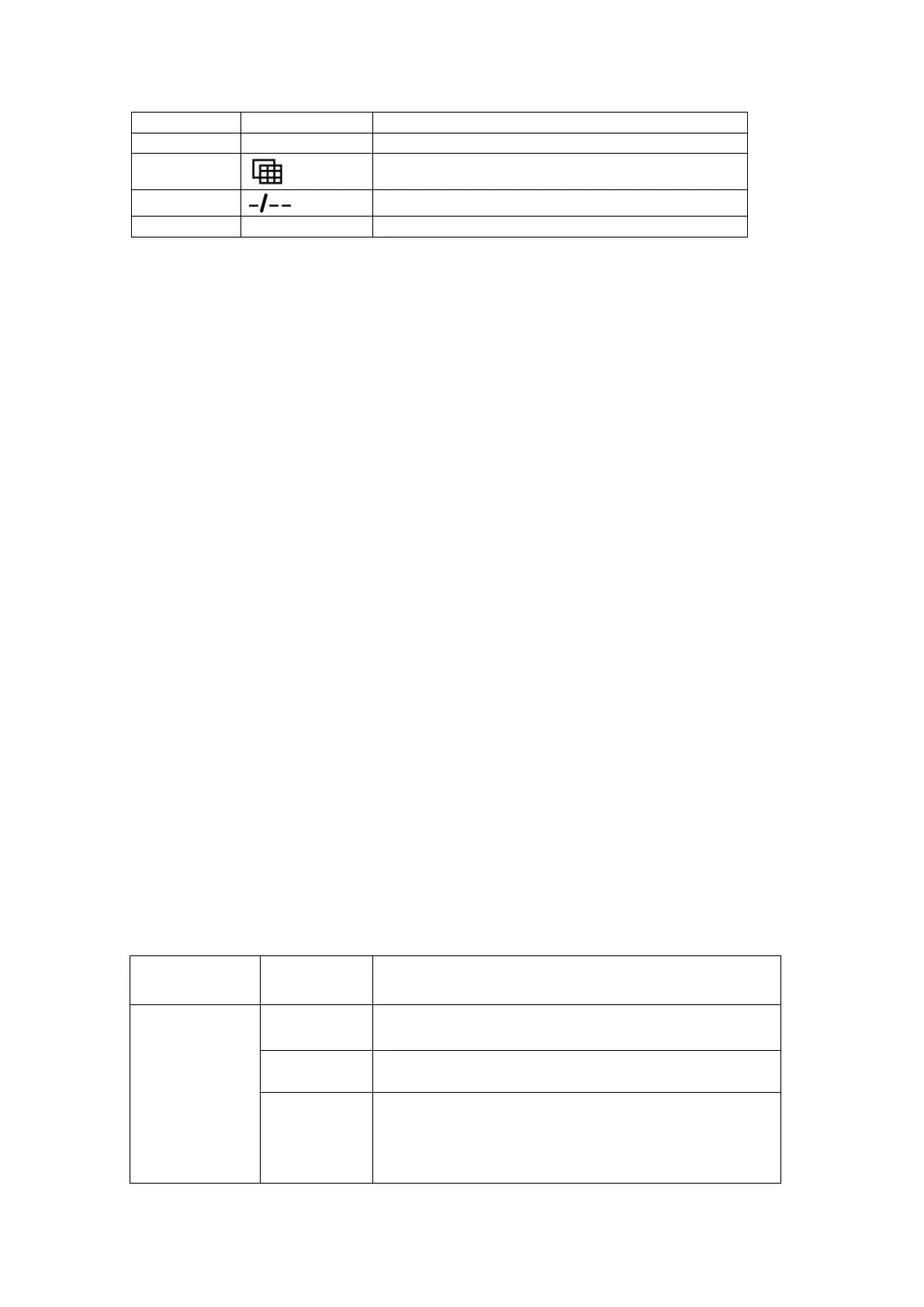
Quick Button of PTZ Control
Enter Numbers/Switch Preview Channels
Switch Preview Channel Number
Choose Input Number Digits Once
Shutdown/Restart/Logout/Switch user
Table 1-5 Key functions of the remote controller
Note:
The remote control only works properly when the status indicator on the front panel
turns blue. If the Status indicator does not turn blue and there is still no response from the remote,
please check the following:
Troubleshoot1:
1. Go to Main Menu > Settings > General by operating the front control panel or via a
mouse.
2. Check and remember Device #, The default No. is 8. This ID# is valid for all the IR
remote controls.
3. Press the ADD button on the remote control.
4. Enter the NVR ID# you set in step 2.
5. Press the ENTER button on the remote.
Troubleshoot2:
1. Batteries are installed correctly and the polarities of the batteries are not reversed.
2. Batteries are fresh and not out of charge.
3. IR receiver is not obstructed.
4. If the remote still can’t function properly, please contact your retailer.
1.4 USB Mouse Operation
A regular 3-button (Left/Right/Scroll-wheel) USB mouse can also be used with this NVR. To use a
USB mouse: plug USB mouse into one of the USB interfaces on the front or rear panel of the NVR.
The mouse should automatically be detected.
Live view: Select channel and show the quick set menu.
Menu: Select and enter.
Live view: Switch between single-screen and multi-
screen.
Live view: Drag channel/time bar.
Alarm: Select target area.
Digital zoom-in: Drag and select target area.



 To Next Page