1. By selecting the checkbox on the right we can edit the corresponding bar on the left.
For example, if we check the MD and edit the corresponding bar we will be able to edit the green
part of the bar.
2. By clicking the icon eraser , we can clear the setting of the bar at once.
After all the settings finished, click the button Apply to save all changes.
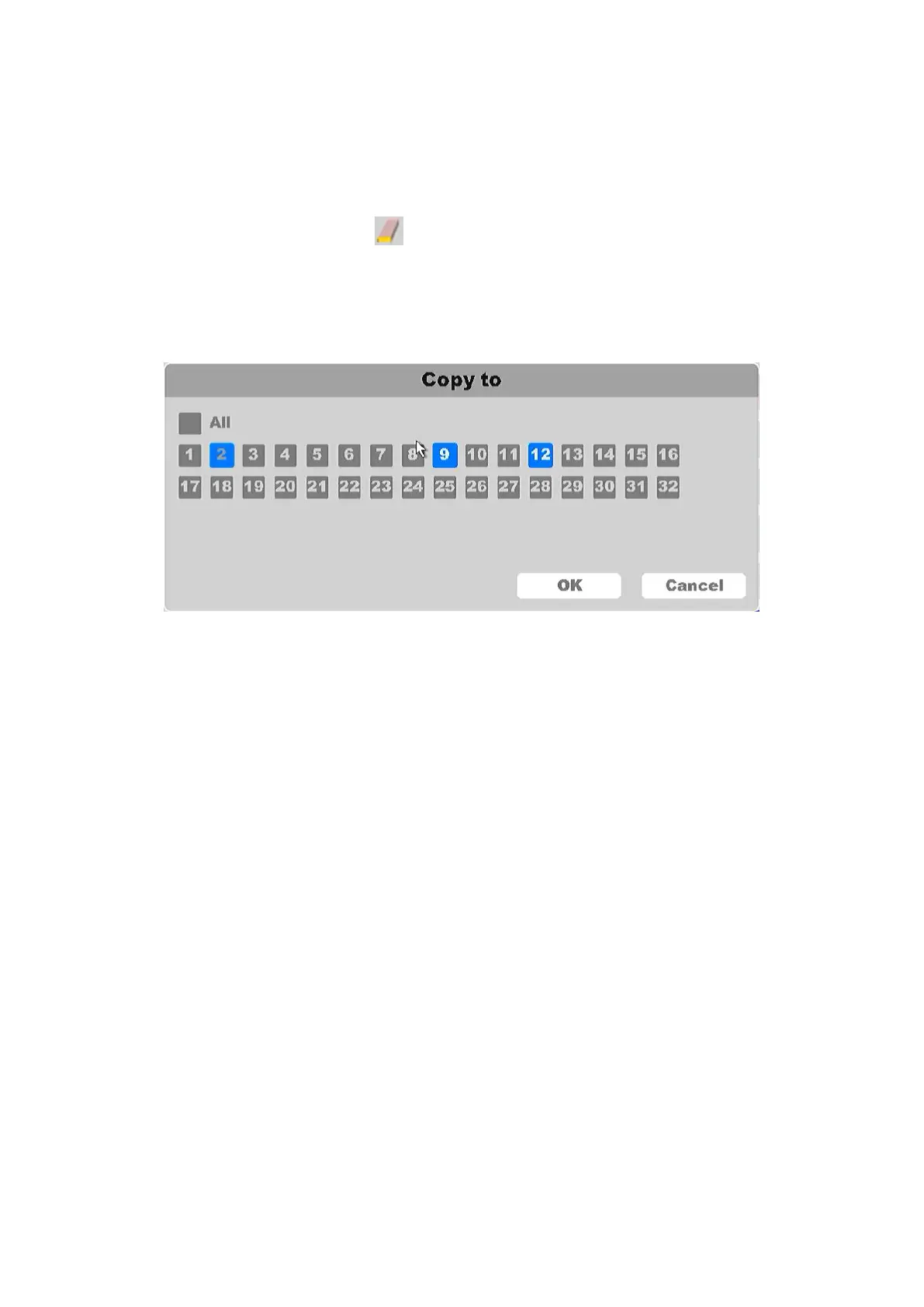
You can copy the current channel setting to other channels by clicking the button Copy To. As
shown in Figure 4-47.
Figure 4-47 Copy To
By clicking the button Default, you can reset all the settings.
4.3.6 Channel
This chapter will show configuring the channel and add IP Cameras into the corresponding
channel, set encode, adjust the parameters of the IP Cameras, set the OSD menu, privacy
masking, and PTZ functions.
Before adding the IP Cameras to the NVR channels, please make sure that the IP Cameras and
NVR are in the same network- and the IP Cameras are in an active status.
4.3.6.1 IP Channel
Click on the "Setting -> Channel ->IP channel", as shown in figure 4-48.



 To Next Page