supports these methods to remind the user about the exception: Show Message,
Buzzer, Send Email, and Alarm Out.
After all the settings finished, click the button Apply to save all changes.
4.3.5 Record
In this chapter you'll learn how to set the recording schedule by configuring the related
parameters. Before these operations, please make sure that the HDD has already been installed
and formatted. If not, please install the HDD and initialize it. For detailed information, please
refer to chapter: 4.4.3.1 Base
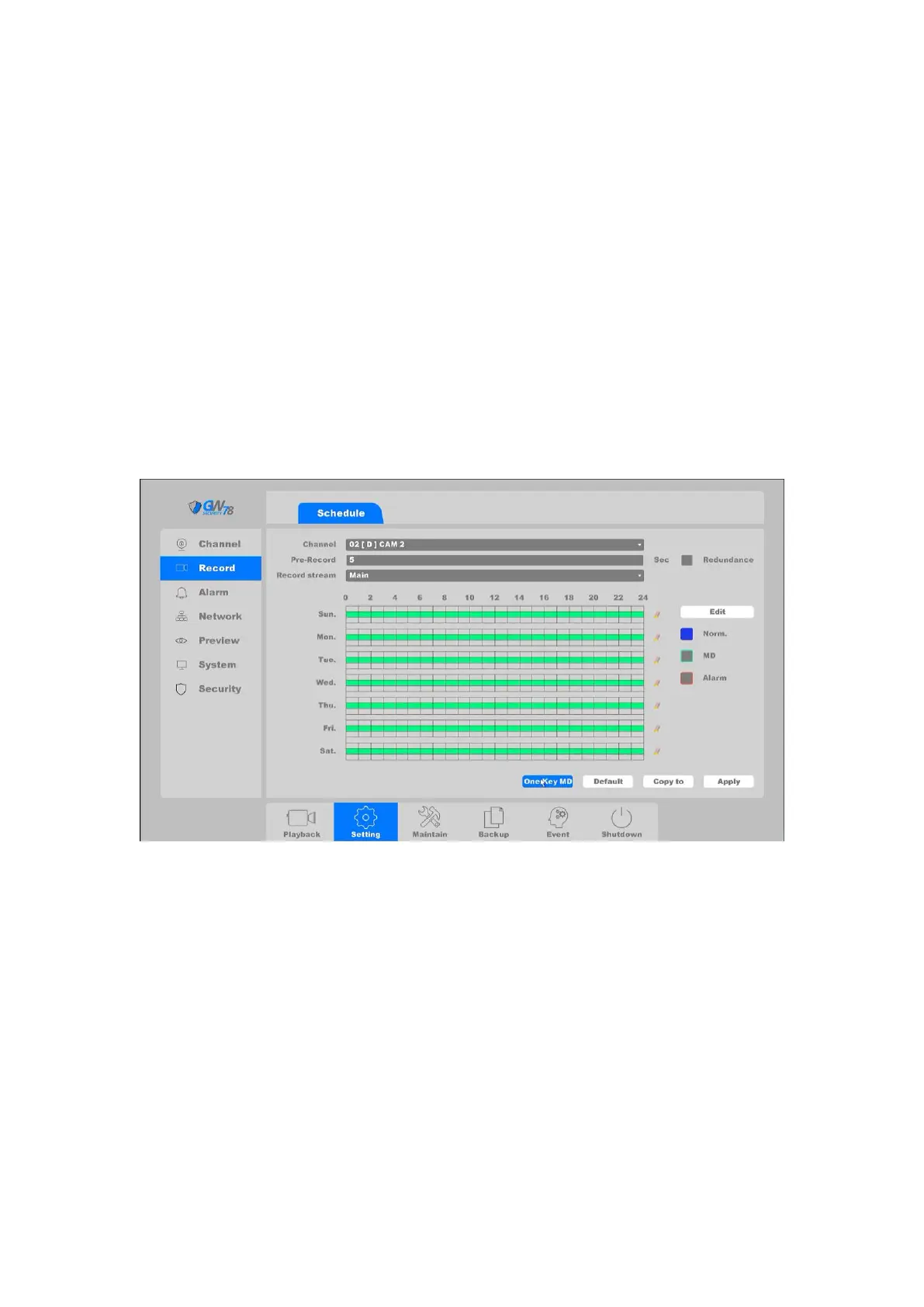
Click on the "Setting ->Record ->Schedule”, as shown in figure 4-44.
Figure 4-44 Record Plan Setting
On this schedule setting screen, we can set the record schedule for specific channels.
Channel: Select the channel to configure
Sub stream: To record as both main stream and sub stream.
Pre-Record: The time to be pre-record on the created videos. Range from 0-30 seconds.
Redundancy: The record will be backed up in a redundant HDD, to setup a redundant
HDD in the system, please check the chapter 4.4.3 for the details.
Note:
If there are several channels to be set with pre-record function, the pre-record time will
be less than 30 seconds (the maximum value), because pre-record function will consume the
system resources and it will adjust the time length to support many channels at the same time.
You can click the button Edit to enter the edit screen and set the schedule of the record.



 To Next Page