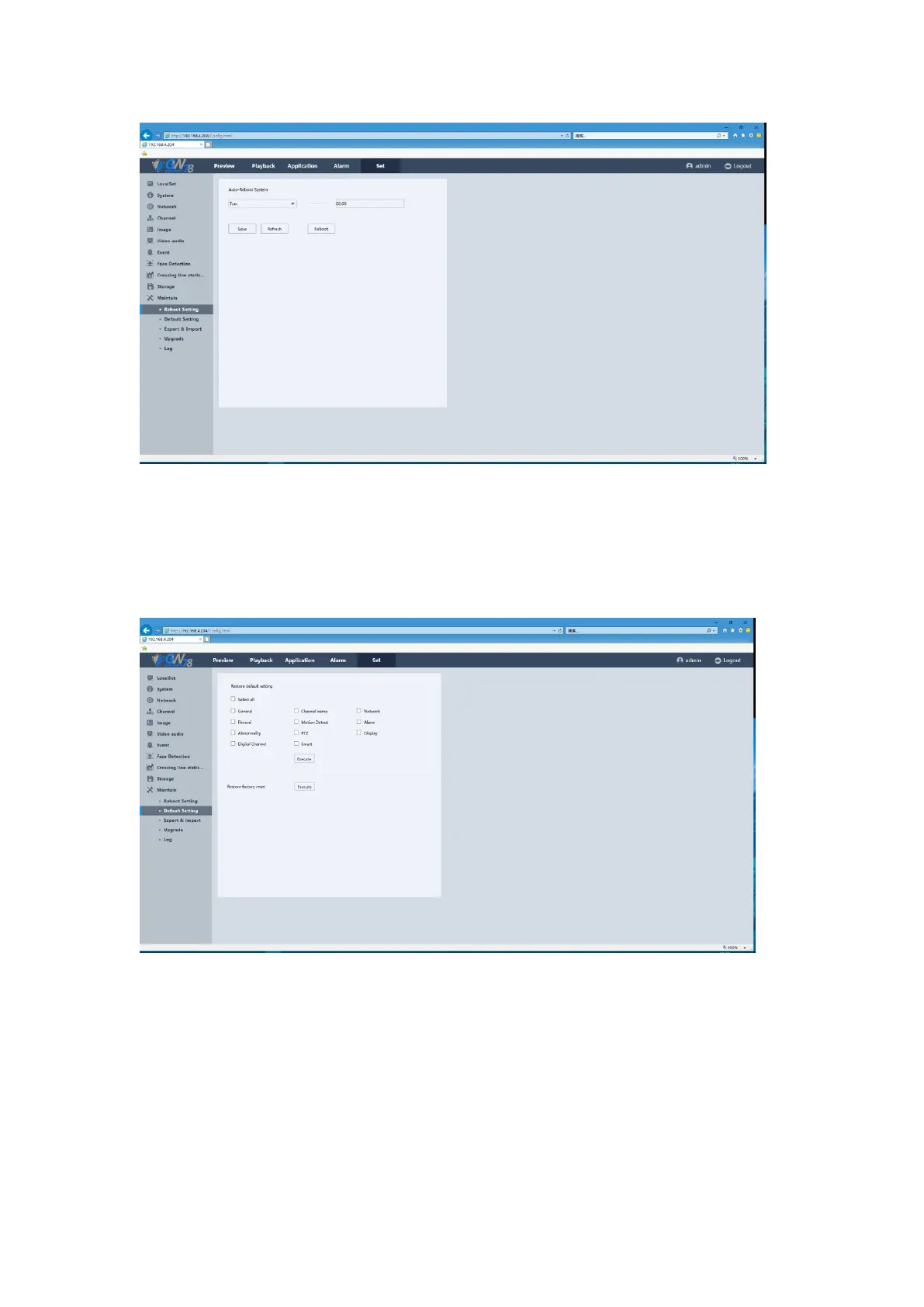
Figure 5-60 Auto Reboot Setting by Web
5.6.11.2 Default Setting
Click the Set -> Maintain -> Default Setting to enter the interface, as show in figure 5-61.
Figure 5-61 Default Setting Interface
1. Click on the checkbox of those item you want to restore, and click the Default button,
then all the configurations of the selected item will restore to the default value.
2. Click Export button to export all the configurations of the network camera in a .coi file.
3. Click Import button to import all the configurations of the network camera from a .coi
file.
Note:
If Network has been chosen in the list, the IP address is also restored to the default
IP address, please be careful about this action.



 To Next Page