Faxitron CT Specimen Radiography System User Guide
Chapter 6: Faxitron CT Software Operation
Page 56 5081-9544 Revision 004
6.6.4 Image Zoom
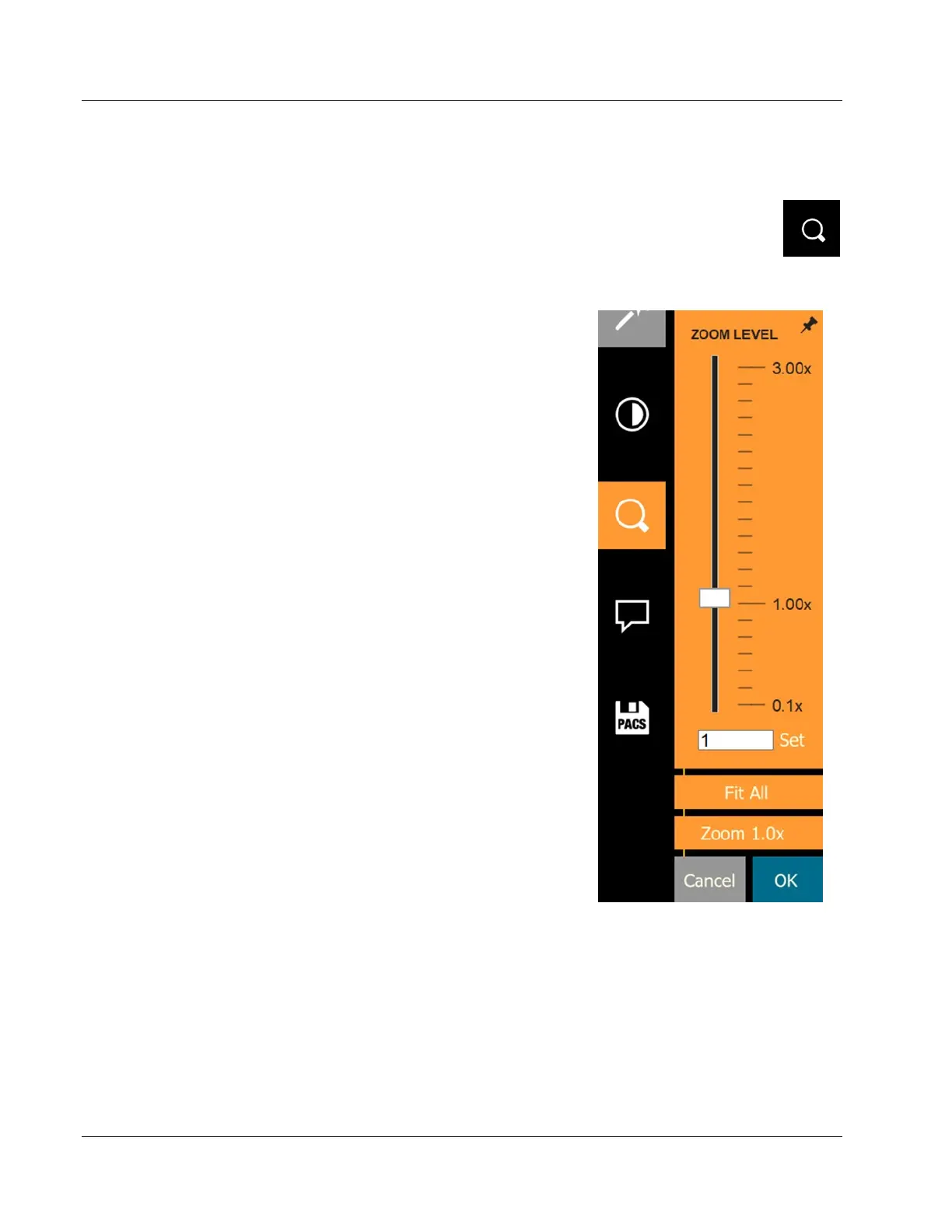
Clicking on the Adjust Image Zoom button in the Left Side Tool Bar opens the
Zoom Level Tool.
Figure 55: Adjust Image Zoom Button
The Zoom Level Tool provides the user with a
number of options to adjust the image zoom:
The Slider Bar provides zoom adjustments from
0.1x to 3.00x.
The user may also type in a zoom value in the
text field and click Set.
The Fit All button will attempt to detect and
zoom in onto the specimen as to ensure that the
specimen is in full view. If a specimen is not
detected, it will default to the previous mode.
Zoom 1.0x, or “Full Resolution” adjust the image
to a 1:1 ratio with the monitor resolution.
Click OK to accept the adjustments.
Pan Zoom Thumbnail
Zooming in on an image may require panning to navigate around the image. A
thumbnail will appear in the top left corner of the screen. A smaller box inside the
thumbnail indicates the portion of the image displayed on the screen. Click in the inner
box and move it around the thumbnail to move the image in the pane.
Traditionally, this feature is also called “Pan View” and/or “Pan and Scan”.
Figure 56: Zoom Level Tool













 To Next Page