Faxitron CT Specimen Radiography System User Guide
Chapter 6: Faxitron CT Software Operation
5081-9544 Revision 004 Page 75
To go back to the REVIEW screen simply click the browser button at the
bottom of the screen.
Figure 97: Browser Button
Images not in the Database can be opened by clicking the Browse File System button in
the upper right corner of the Review Page. This will open a standard Windows browser
where the user can locate images they want to review. If there are a series of images,
simply pick one image in the series and the software will load them.
Figure 98: Browser File System Button
6.11 DICOM / PACS Functionality
DICOM Services Configuration
All images on the Faxitron CT are saved and transmitted to PACS in DICOM format.
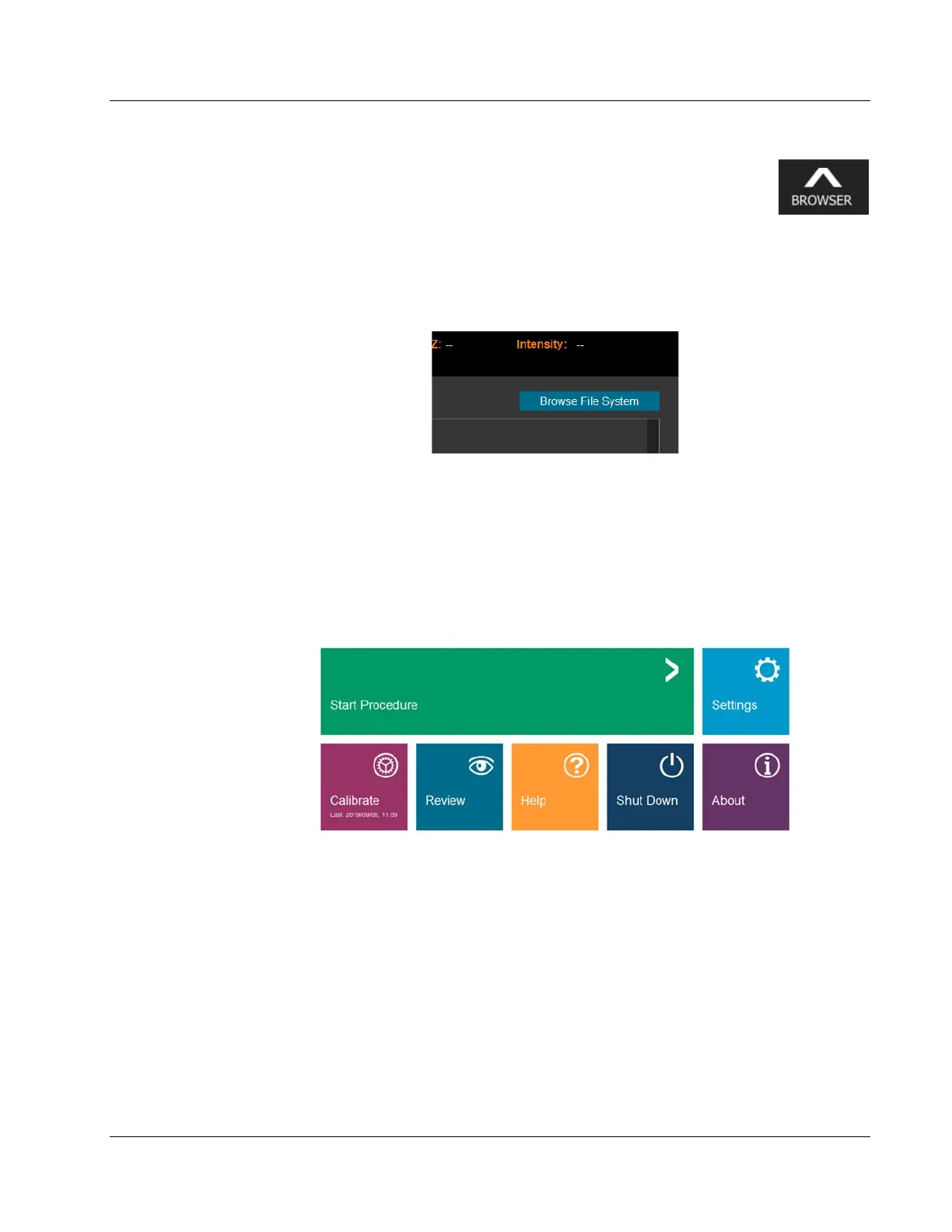
To connect the system to a PACS server click on the settings page from the home screen.
Figure 99: Home Menu
Then select the DICOM tab. Complete the fields in accordance with your system settings.
You should work with the internal bio tech or IT department plus the Hologic
representative to ensure that these setting are correct.













 To Next Page