Upgrade
160
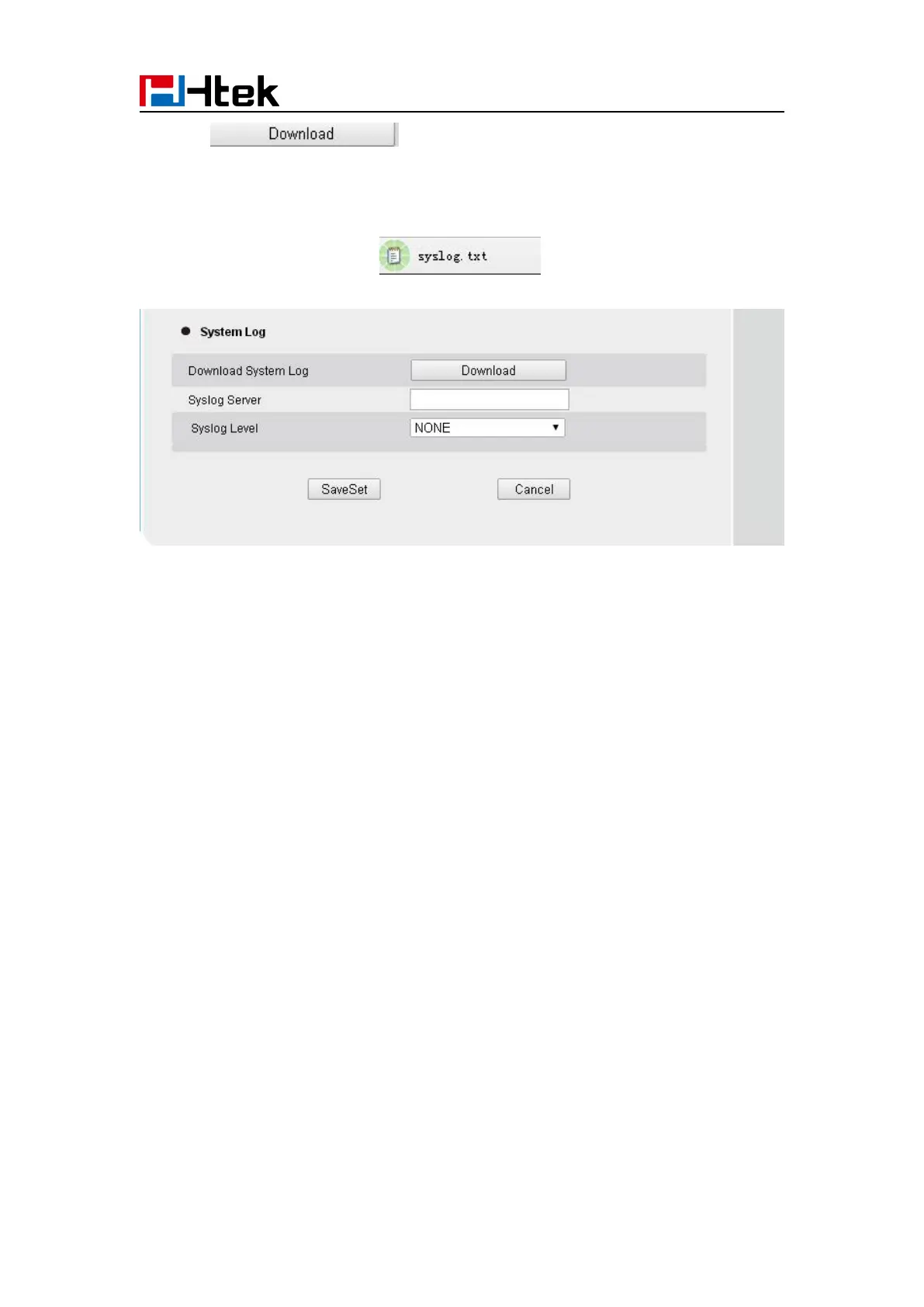
2. Click of the system Log
3. Then you’ll get a txt file: syslog.txt.
.
Upgrade
To upgrade via HTTP, the “Management”-> “auto provision” -> “Firmware Upgrade”-> “Upgrade
Mode” field needs to be set to HTTP, respectively. “Firmware Server Path” needs to be set to a
valid URL of a HTTP server, server name can be in either FQDN or IP address format. Here are
examples of some valid URL.
e.g. firmware.mycompany.com:5688/Htek
e.g. www.mycompany.com:5688/fm/ Htek
e.g. 218.2.83.110
Instructions for firmware upgrade via HTTP:
(1) End users can choose to download the free HTTP server from http://httpd.apache.org/ or use
Microsoft IIS web server. Then setup HTTP server.
(2) Unzip the firmware file and put all of them under the root/fm directory of the HTTP server.
(3) Visiting “HTTP:\\192.168.0.254\fm\fw926.rom on localhost by browser” to verify the HTTP
Server. If visiting “HTTP: \\192.168.0.254\fm\fw926.rom on another computer and it not
prompted to download fw926.rom file on this computer, please check if the firewall is on or off
(Suggest you turn off the firewall).
To configure the server path via web interface:
2. Select the upgrade mode in the upgrade mode field
3. Enter the Firmware server path and config server path (192.168.0.254 is HTTP server).
4. Enter the HTTP server’s username and password (optional).


 To Next Page