Basic Setting Configuration
71
Note:
If you don’t click the OK softkey, then IP Phone will display the relevant contacts automatically
within 5 seconds
To search contact in Local contacts:
1. Click the Directory softkey on Idle interface.
2. Click the button and select the Local contacts list.
3. Click the More Softkey, then you can see the Search softkey
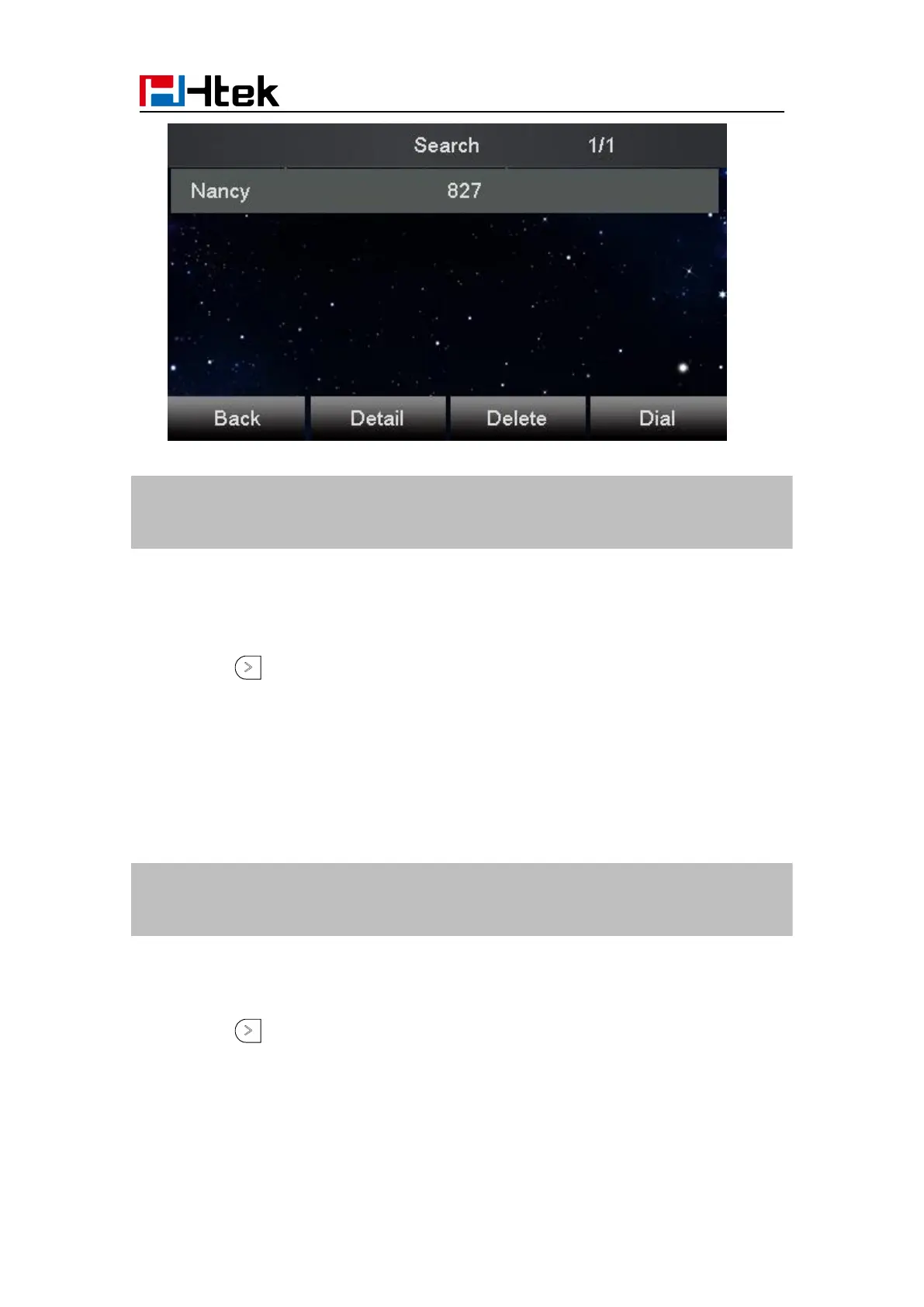
4. Click the Search softkey, you can enter the desired part of name or part of number.
5. Click Ok softkey, then with the search content to match the contact will be displayed on the
LCD.
Note:
If you don’t click the OK softkey, then IP Phone will display the relevant contacts automatically
within 5 seconds
To search contact in Remote contacts:
1. Click the Directory softkey on Idle interface.
2. Click the button and select the remote contacts list.
3. Select the desired the remote contact and click Enter softkey.
4. Click the Search softkey, you can enter the desired part of name or part of number.
5. Click Ok softkey, then with the search content to match the contact will be displayed on the


 To Next Page