Procedure
Step 1 On the home screen, tap
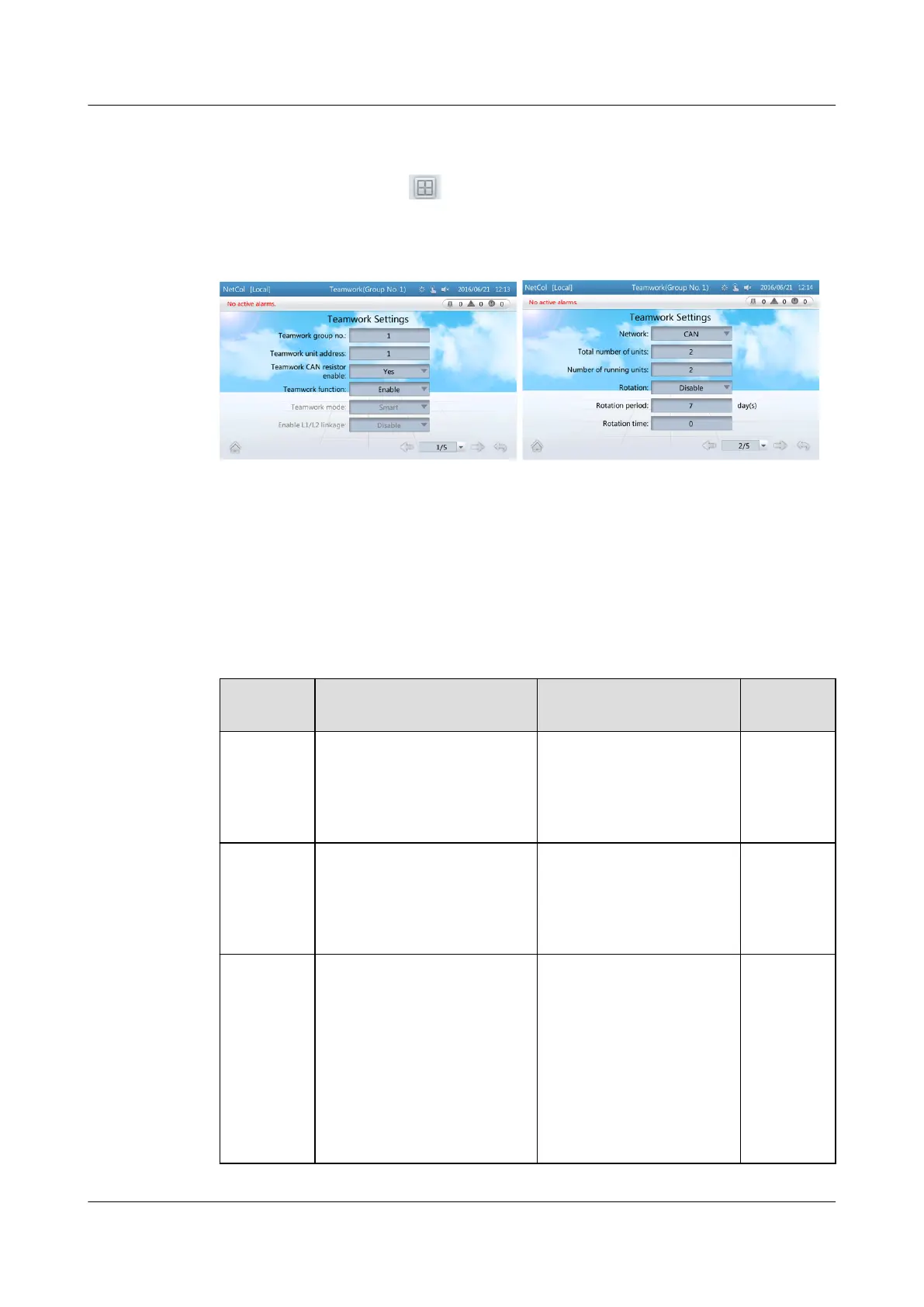
> Teamwork Settings. The screen as shown in
Figure 4-11 is displayed.
Figure 4-11 Teamwork settings screen
Step 2 Set teamwork control parameters.
You can set all the teamwork control parameters on the master smart cooling
product but only Teamwork group no., Teamwork unit address, and Teamwork
function on a slave smart cooling product. Table 4-6 describes how to set the
parameters.
Table 4-6 Teamwork settings
Paramete
r
Description Conguration Principle Default
Value
Teamwork
group no.
The number of the
teamwork controlled
group, which is the same
for all the devices in the
group
Set the assigned
teamwork control
number.
1
Teamwork
unit
address
Only one device in each
group can be set to 1.
Other device addresses
should be dierent from
each other.
Set the assigned unit
address.
NA
Teamwork
function
Disable or enable the
teamwork function. If the
teamwork function is
disabled, this device is
operating according to its
own control If the
teamwork function is
enabled, this device works
in harmony with others
that in the same group.
Set this parameter based
on the onsite device
heat distribution.
Disable
NetCol5000-A(025, 035) In-row Air Cooled Smart
Cooling Product
User Manual (600 mm Width) 4 ACC Introduction
Issue 17 (2020-10-22) Copyright © Huawei Technologies Co., Ltd. 98



 To Next Page