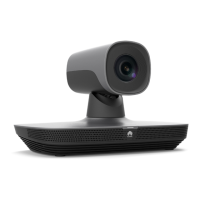
TE20 Videoconferencing Endpoint
3 Conference Operations Using the Remote Control
Huawei Proprietary and Confidential
Copyright © Huawei Technologies Co., Ltd.
The icon is displayed in the upper right corner.
3.6 Starting Presentation
You can share the screen of your computer or mobile device with a remote site.
Prerequisites
The presentation sharing has been enabled and related parameters have been set. The
endpoint enables presentation sharing by default.
To reset parameters, see TE20 Videoconferencing Endpoint V500R003C00 Configuration
Guide.
The material source has been connected.
The AirPresence client cannot be used on a remote desktop.
For operating system versions that support the AirPresence client, see 4.4 Starting
Presentation.
Before wireless connections, download and install the AirPresence client by referring to TE20
Videoconferencing Endpoint V500R003C00 Configuration Guide.
Wired connection
a. Use a cable to connect your computer to the video input interface of the endpoint.
b. To access the menu screen, press the button on the remote control.
c. Press the button on the remote control, switch to , and press the on
the remote control to start the presentation.
If you do not need to share a presentation, choose Stop Sharing on the menu screen.
Wireless connection
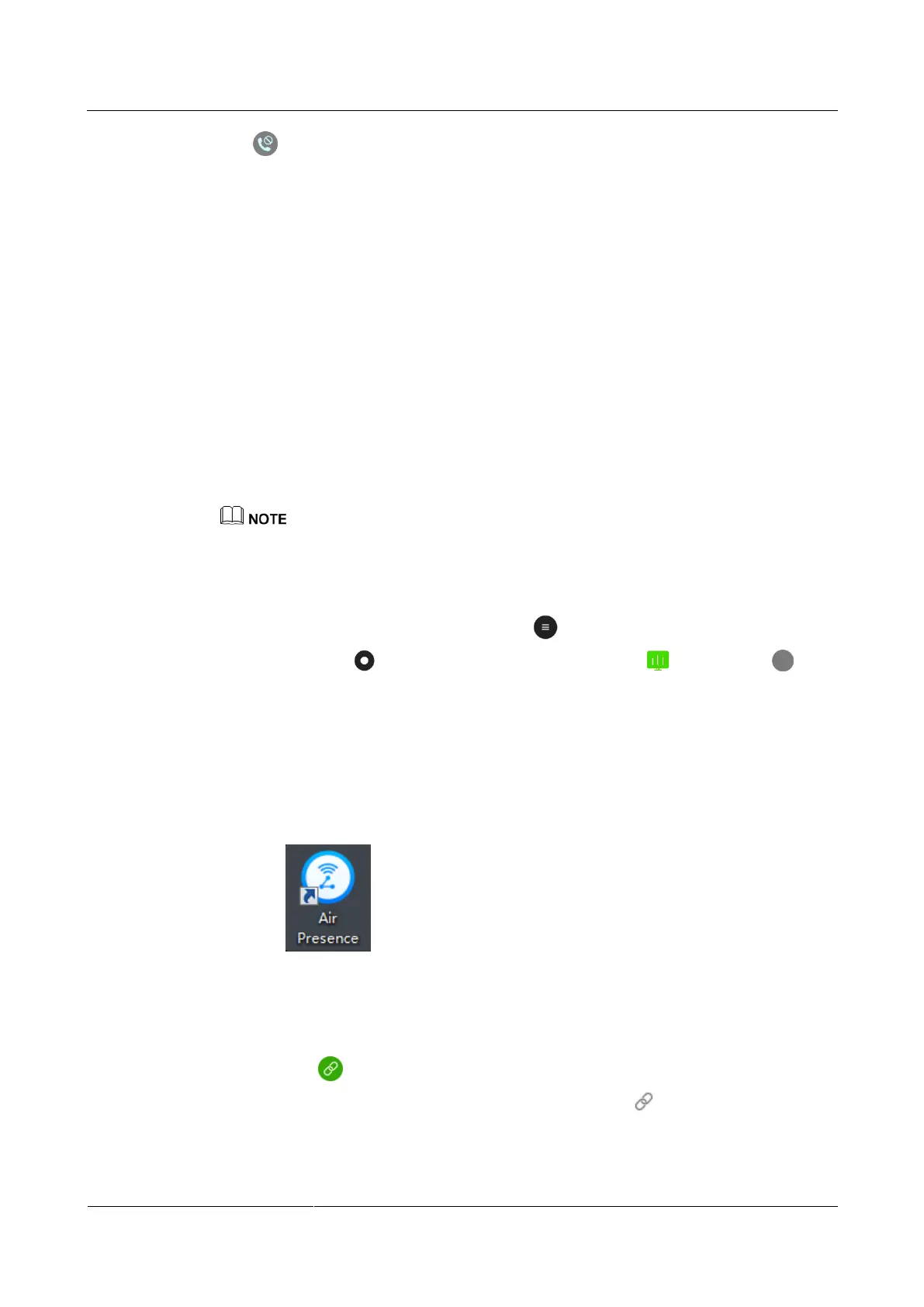
a. On your computer desktop, double-click the AirPresence shortcut icon Figure 3-12
to open the AirPresence client.
Figure 3-12 AirPresence shortcut icon
b. Connect the AirPresence client to your endpoint using either of the following
methods:
In the list of endpoint search results, select an endpoint to connect, and click
.
Enter the IP address of your endpoint and click .
c. Start the presentation using either of the following methods:


 To Next Page