TE20 Videoconferencing Endpoint
3 Conference Operations Using the Remote Control
Huawei Proprietary and Confidential
Copyright © Huawei Technologies Co., Ltd.
In the dialog box that is displayed, enter the AirPresence authentication
password and click Connect.
The default administrator password is Change_Me.
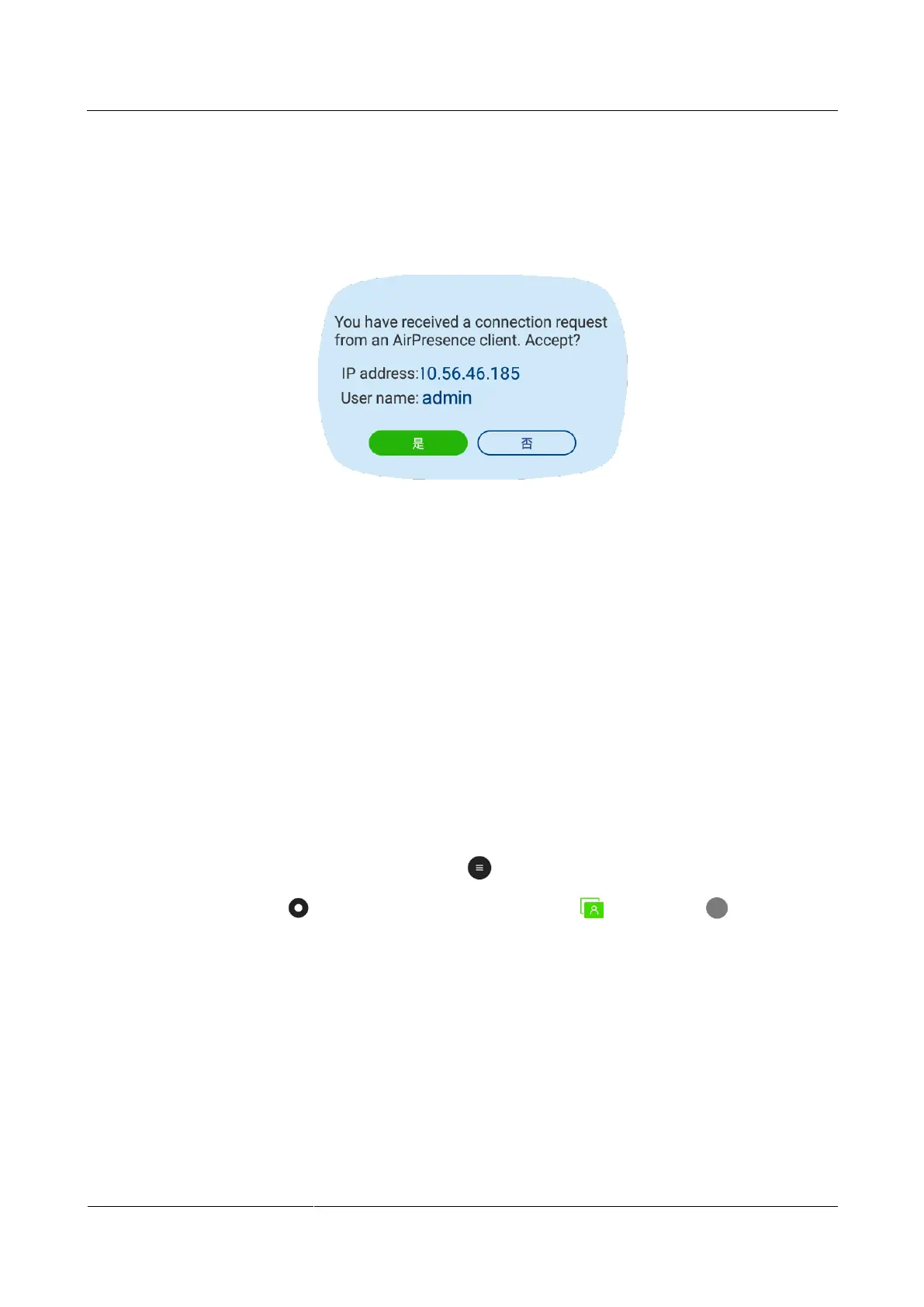
In the displayed dialog box shown in Figure 3-13, choose Yes.
Figure 3-13 AirPresence client request dialog box
If the endpoint is not used in a conference, the computer desktop is shared as a
presentation with the endpoint.
If the endpoint is used in a conference, you can click Share to send the computer
desktop to a remote site.
If you do not need to share a presentation, click Stop Sharing.
When a conference ends, click Disconnect.
----End
3.7 Configuring the Conference Screen Layout
You can adjust the screen layout to display a combination of video and presentation.
Procedure
Step 1 To access the menu screen, press the button on the remote control.
Step 2 Press the button on the remote control, switch to , and press the on the remote
control.
The screen shown in Figure 3-14 is displayed.


 To Next Page