TE20 Videoconferencing Endpoint
Huawei Proprietary and Confidential
Copyright © Huawei Technologies Co., Ltd.
Step 10 Click the Advanced tab. Select Use TLS 1.1 or Use TLS 1.2 under Settings.
Step 11 Click OK.
The configuration is complete.
----End
To ensure that information can be properly displayed, if you choose to skip Step 6 through Step 8,
choose Tools > Pop-up Blocker > Turn Off Pop-up Blocker from the menu bar of Internet Explorer.
If you use Mozilla Firefox or Google Chrome, set it as follows:
Click in the right corner of the Firefox menu bar to open the settings window.
Click Privacy, select Accept cookies from sites, and click OK.
Use the default settings for Google Chrome.
2.2.3 Logging In to the Web Interface
You can remotely manage the endpoint after logging in to the endpoint web interface.
Prerequisites
Before logging in to the web interface, configure your browser. For details, see 2.2.2
Configuring the Browser.
Procedure
Step 1 Open Internet Explorer.
Step 2 In the address box, enter the endpoint IP address, such as 192.168.1.1.
Step 3 Press Enter.
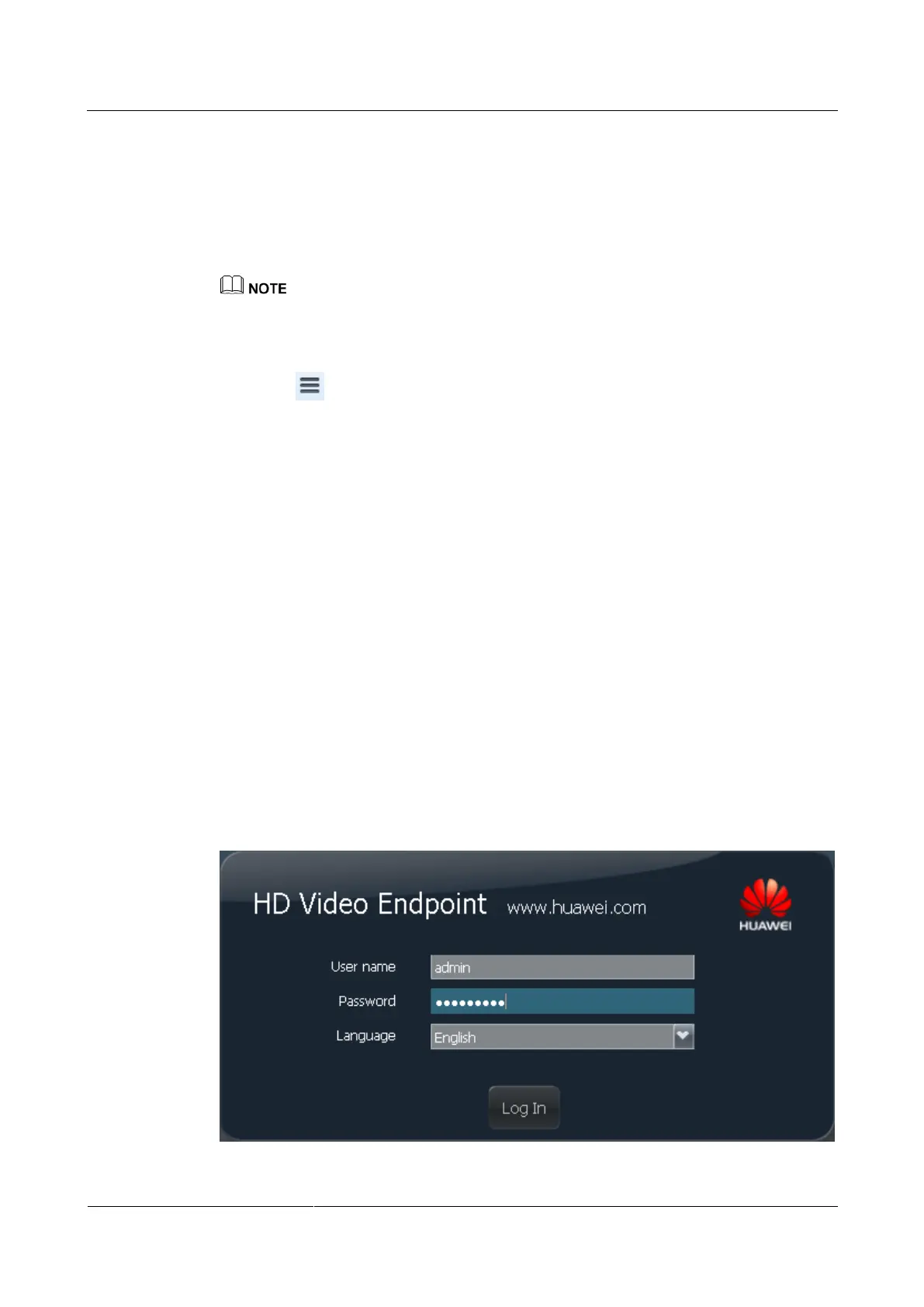
Log in to the endpoint web interface, as shown in Figure 2-5.
Figure 2-5 Endpoint web login


 To Next Page